

Switch from Zoho Books
Updated November 13, 2026
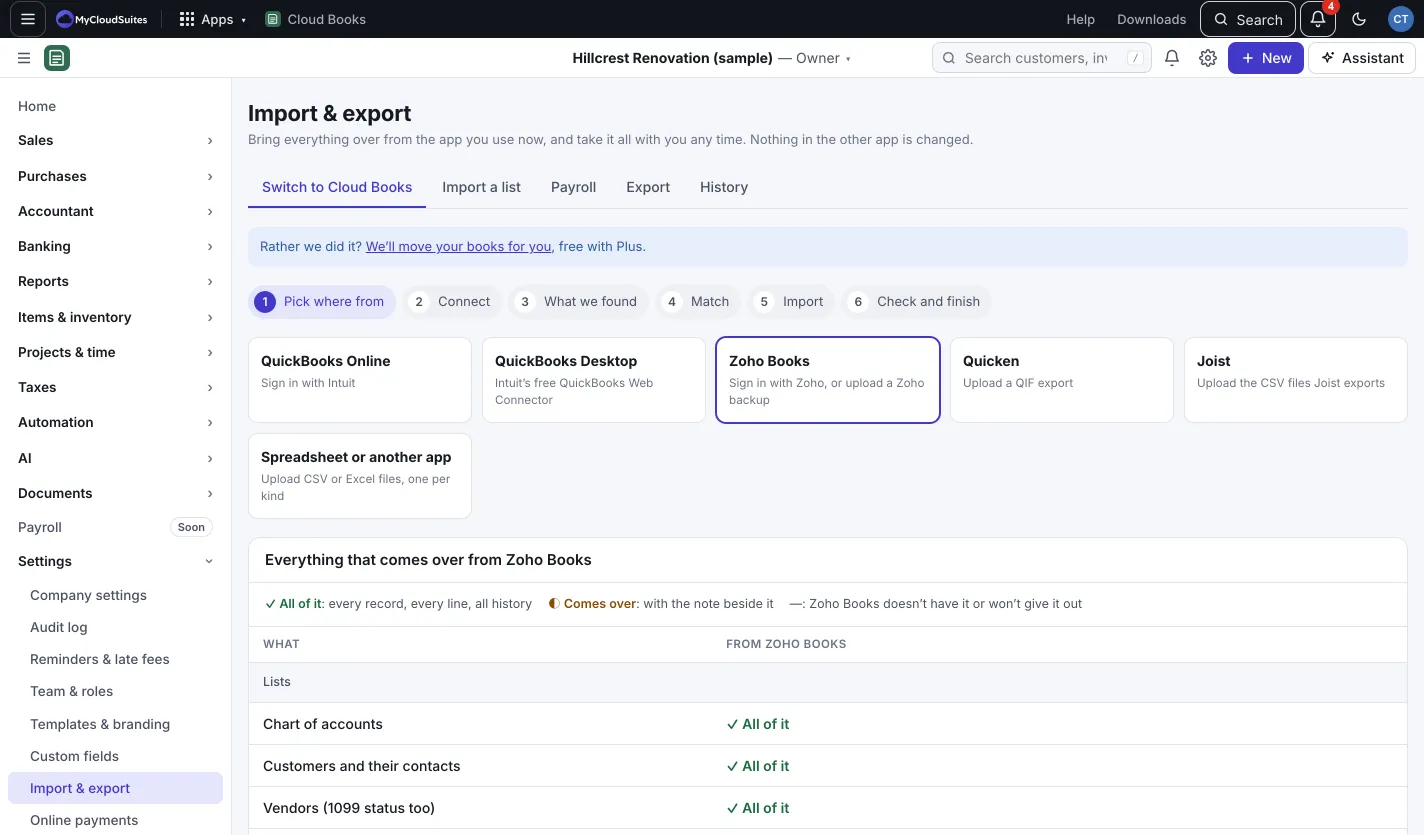
Bring everything over from Zoho Books by signing in with Zoho, or by uploading a Zoho backup.
Sign in with Zoho (recommended)
- Go to Settings › Import & export, pick Zoho Books and press Continue with Zoho Books.
- Press Sign in with Zoho. Sign in and pick the organization. It works with every Zoho data center.
- Finish the steps as in Switch to Cloud Books.
Zoho limits how many requests a day your Zoho plan allows. A very large company may take a day or two; Books keeps going on its own and emails you when it’s done.
Or upload a Zoho backup
- In Zoho Books: Settings › Data Management › Backup Data.
- Pick “Include personal data”, set a password, and back up.
- Download the ZIP from Zoho’s email. Also download the Documents backup for attachments.
- Drop both ZIPs on the page, type the Backup password, and press Upload and continue. We use the password once to open the backup and never keep it.
Zoho allows one backup every 15 days, so check “Include personal data” the first time.
Files left behind
Zoho’s API sometimes sends only the first file on a document. If so, History shows how many files are still in Zoho Books. Press Add them, choose the Documents backup ZIP (with its password if it has one), and press Add the files.
What stays in Zoho
Custom functions and Deluge scripts, Zoho Payroll, and bank feed connections (connect them again here). Reporting tags become tags, and branches become locations.
Still using Zoho for a while?
After the import, Import & export shows Sync again from Zoho. Press it to bring over only what’s new or changed; you see it first, and nothing changes until you say so. Turn on Keep in sync every day for a nightly catch-up, or press Check now to compare. Books never writes to Zoho.