

Switch to Cloud Books from another app
Updated November 18, 2026
Cloud Books can bring everything over from the app you use now: every record, every line, the whole history, with payments linked to what they paid. Nothing in your old app changes, and you can keep using it until you’re ready.
The apps you can switch from
- QuickBooks Online: sign in with Intuit. See Switch from QuickBooks Online.
- QuickBooks Desktop: through Intuit’s free QuickBooks Web Connector. See Switch from QuickBooks Desktop.
- Zoho Books: sign in with Zoho, or upload a Zoho backup. See Switch from Zoho Books.
- Quicken and Joist: upload their export files. See Switch from Quicken or Joist.
- Jobber and Housecall Pro: upload their export files. See Switch from Jobber or Housecall Pro.
- Spreadsheet or another app: CSV or Excel files, one per kind. See Import lists, spreadsheets and payrolls.
The six steps
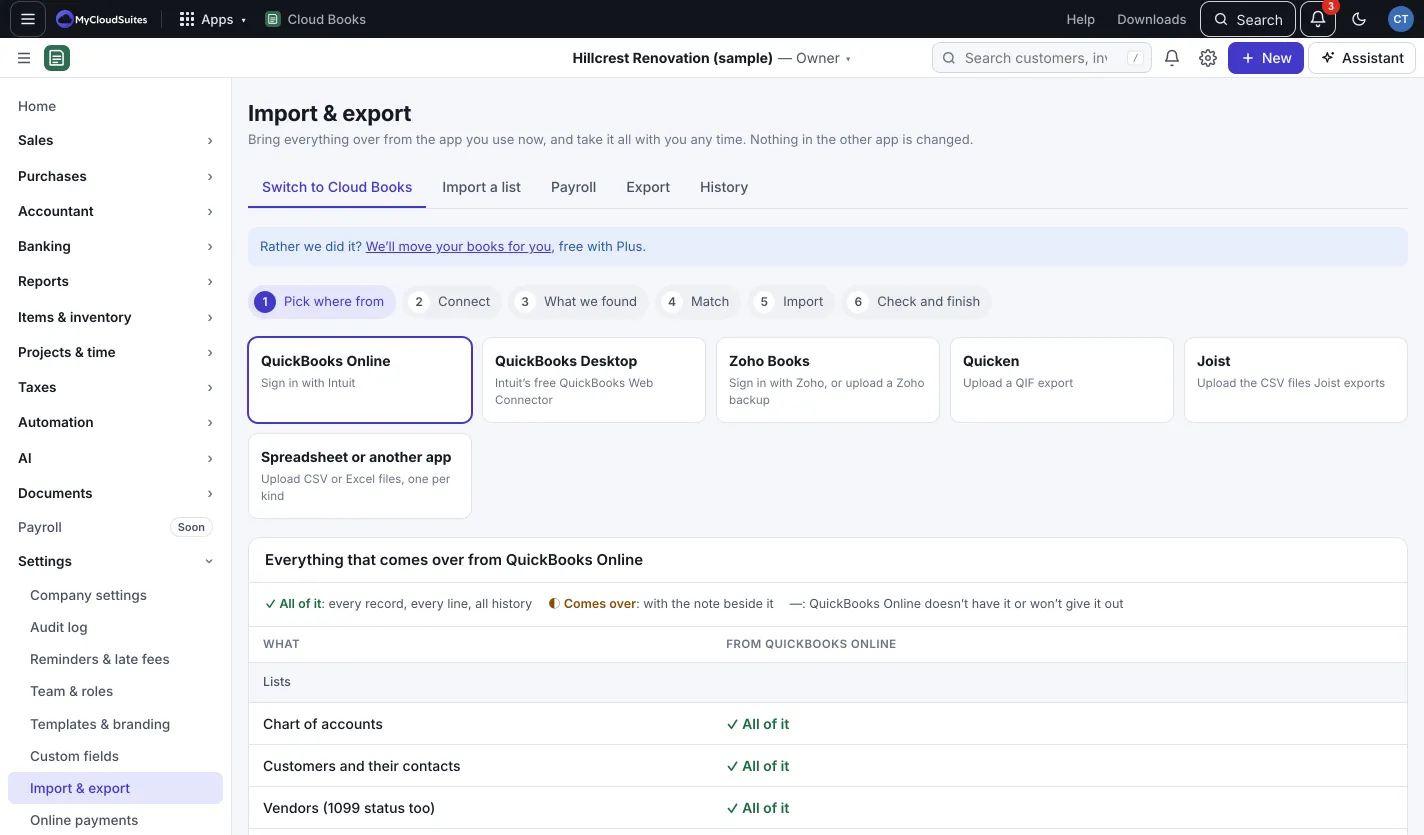
- Go to Settings › Import & export. The Switch to Cloud Books tab opens. (Owners and admins.)
- Pick where from: choose your app. The table shows Everything that comes over from it: ✓ All of it, ◐ Comes over (with a note), or Not available. Press Continue with (the app).
- Connect: sign in to the other app or upload its files. Cloud Books only reads.
- What we found: see how many records, how many years of history, attachments and currencies. Choose All of it (recommended) or From a date, and whether to bring attachments and voided documents. Press Continue.
- Match: check how accounts, sales tax rates and duplicates line up with what’s already in Cloud Books. Rows marked Check this need a look. Press Start the import.
- Import, then Check and finish: Books compares the other app’s own trial balance and aging reports with ours, account by account and customer by customer. When it looks right, press Finish: start using Cloud Books.
While it runs
You can close the page. It keeps going and we email you when it’s done. Cloud Books stays usable, but this company is read-only until you finish. Everyone in the company sees a note saying so.
Not right? Undo it
Before you press Finish, Undo the whole import removes everything it added, including every posting. The company goes back to how it was before. After Finish, the books open up again and the import can’t be undone.
Good to know
- Invoice, bill and estimate numbers stay the same, and new ones continue from the last number.
- Imported history sends no emails and runs no reminders or approvals.
- Bank feed and payment connections don’t come over: connect them again here.
- Past imports are listed in Import & export › History.