

Undo an import
Updated November 15, 2026
Take back an import for up to 7 days: added records go, and updated ones go back to how they were.
Steps
Right after importing
- On the results, choose Undo this import.
- Choose Undo it (or Keep to leave it).
Later
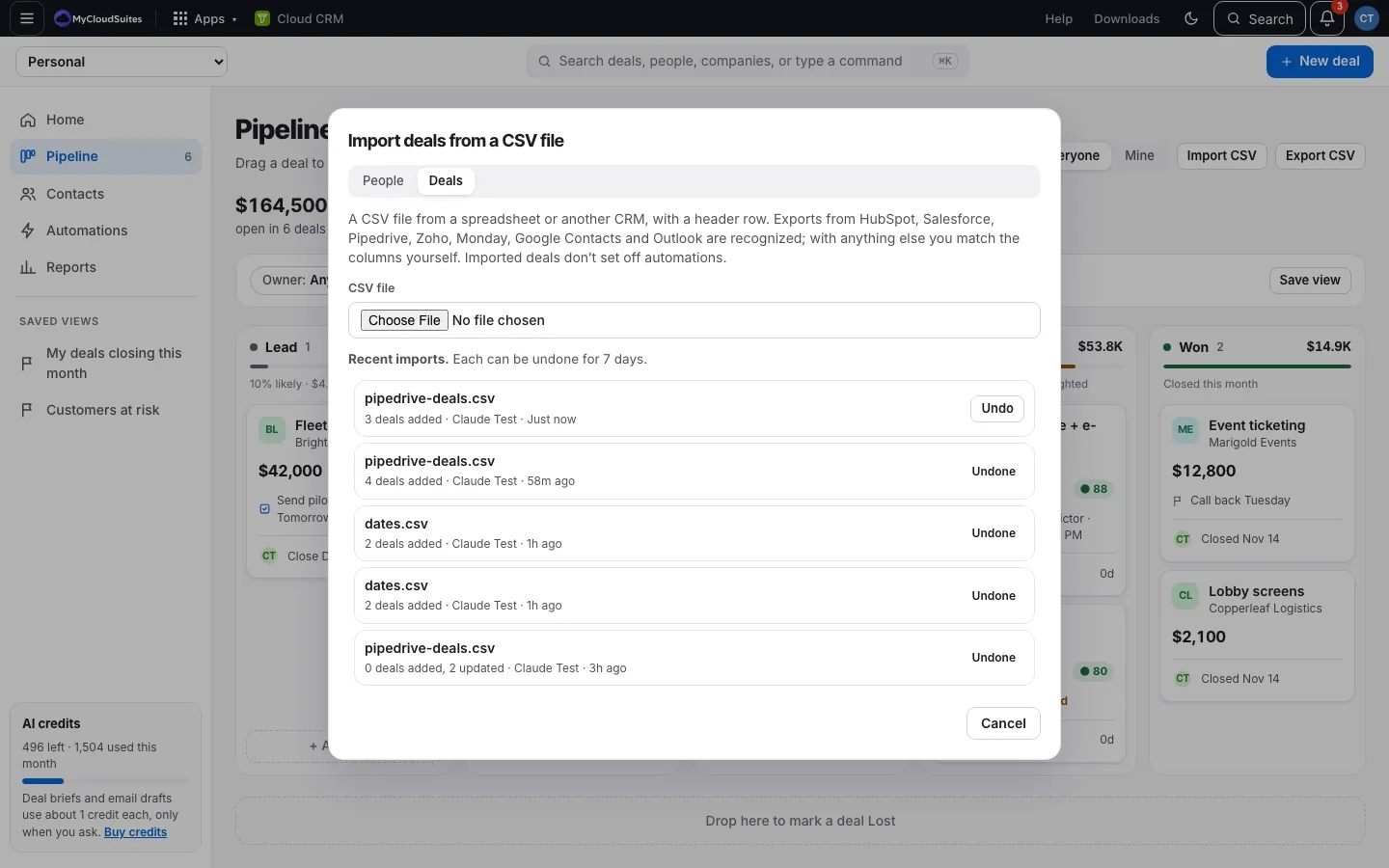
- Choose ⋯, then Import CSV… again (or Settings › Import and export).
- Under Recent imports, find the file and choose Undo, then Undo it.
How it works
- It says what it did, like “Undone: 3 removed, 2 put back as they were.”
- Anything someone changed after the import is left as it is, so no one’s later work is lost. Undo says so, like “Undone: 5 removed. 3 deals changed since the import were left as they are.” Change or delete those yourself if you need to.
- The import then shows Undone.
Good to know
- Recent imports lists the last 5, with who imported them and when. Each can be undone for 7 days.
- Undo removes what the import added and puts back the records it updated as they were before the import, except records changed since (see above). Notes it added from a Notes column go too.
- A company the import added stays if a deal or person not from that import is now on it.