

Import people
Updated November 15, 2026
Add many people at once from a CSV file.
Steps
- Open Contacts, choose ⋯, then Import CSV…. People is selected. (Or Settings › Import and export › Import people.)
- Choose your CSV file.
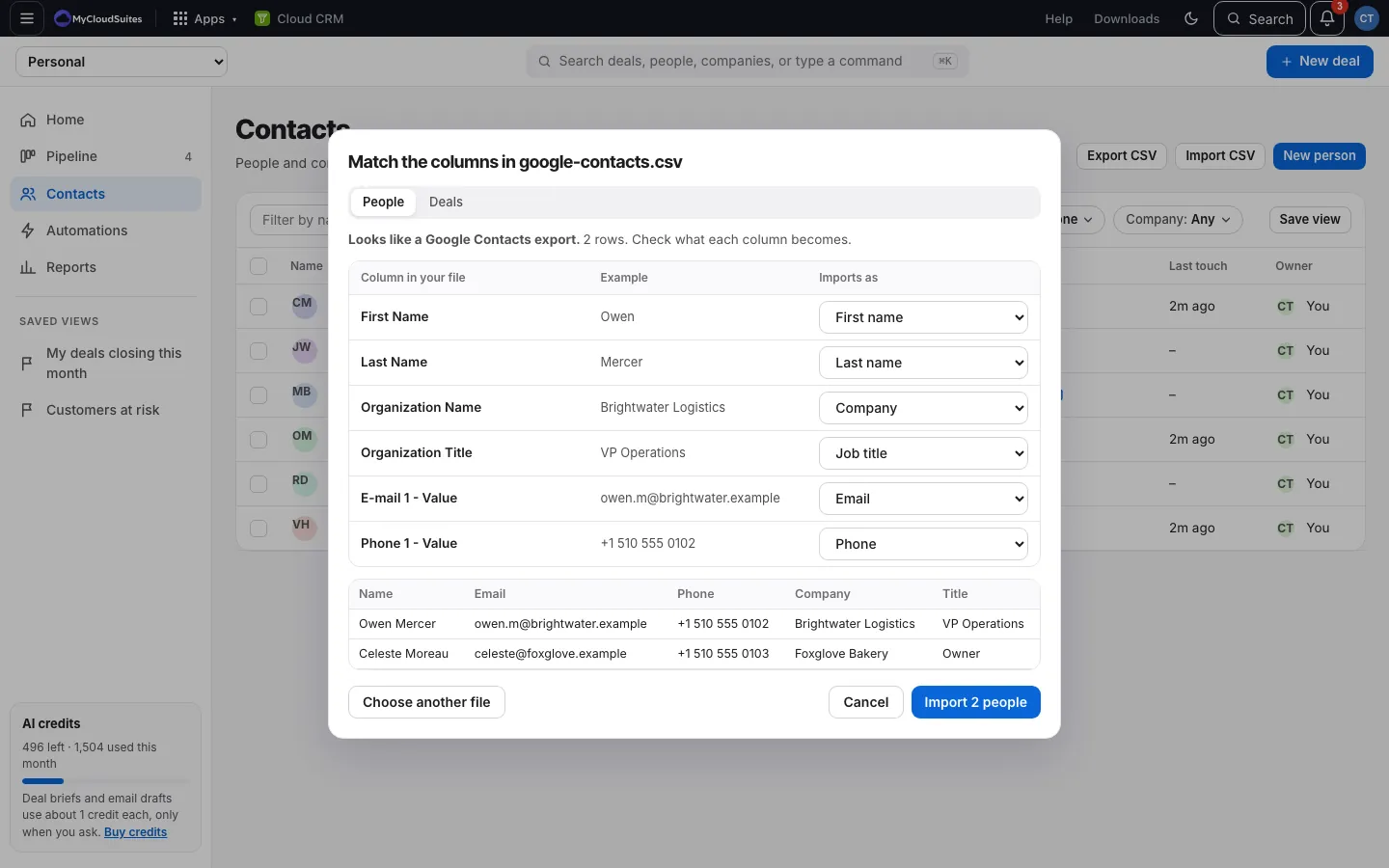
- Check what each column Imports as. See Match your columns.
- Check the preview, then choose Import [number] people.
- The results say what was added and updated, and list any rows left out.
What you can import
Full name (or First name and Last name), Job title, Email, Phone, Company, Lifecycle, Owner (email), Notes and Date added.
Good to know
- A person whose email is already in your CRM is updated, not added twice.
- New company names add companies.
- Lifecycle words like Customer, Prospect, Lead, At risk and Churned are understood, as are HubSpot’s lifecycle stages.
- Google Contacts files with several emails or phones use the first one that has a value.
- You need a name: match a column to Full name, or to First name and Last name.