

Match your columns
Updated November 13, 2026
Tell Cloud CRM what each column in your file is. It does most of it for you.
How it works
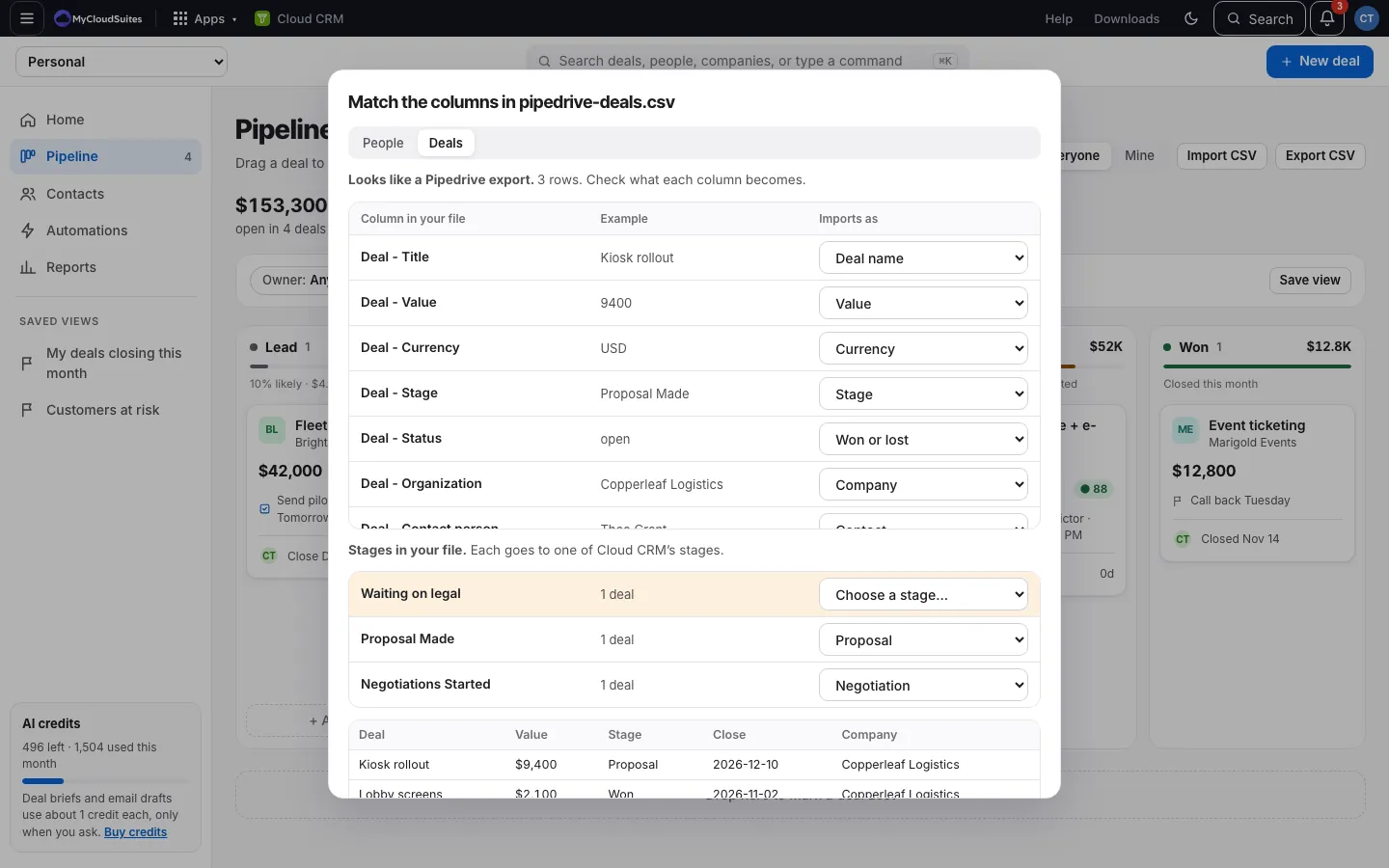
- After you choose a file, you see Match the columns in [file]: each Column in your file, an Example from it, and what it Imports as.
- If the file came from a CRM Cloud CRM knows, it says so at the top, like “Looks like a Pipedrive export.”, and the columns are already matched.
- Change any match with its menu. Choose Don’t import to leave a column out.
- If the file holds people but you started a deal import (or the other way round), Cloud CRM switches for you and says so.
Your matches are remembered
When you import, Cloud CRM remembers your matches in this browser for files with the same columns. Next time you import a file from the same place, it’s matched the way you left it.
Good to know
- Cloud CRM recognizes exports from HubSpot, Salesforce, Pipedrive, Zoho, Monday, Google Contacts, Outlook, and its own Export CSV.
- Some fields can take several columns (emails, phones, notes). The first one with a value is used.
- You can’t import until a name is matched: Deal name for deals, Full name or First name and Last name for people.