

Tag blocks with attributes (door marks, sizes, types)
Updated November 13, 2026
Attributes are values a block carries, like a door’s mark, width, type and hardware. Each placed door keeps its own, and schedules read them.
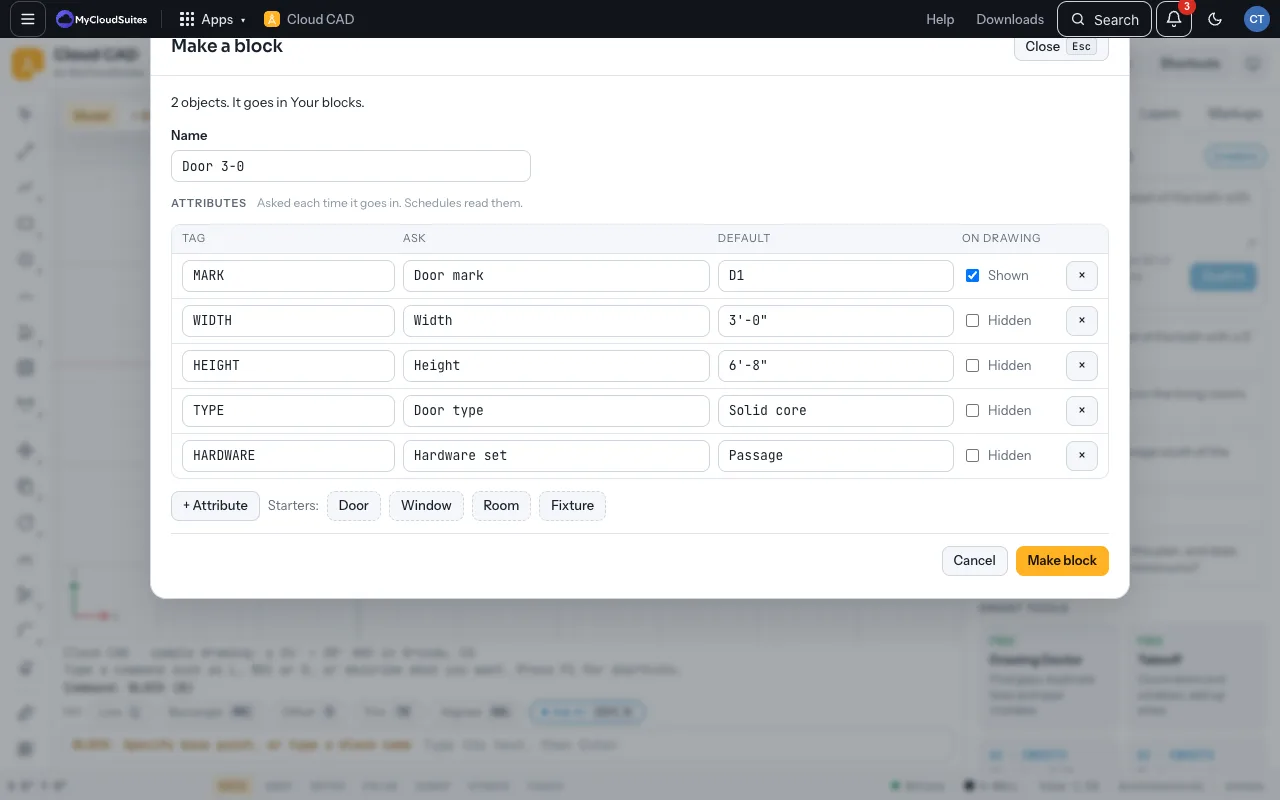
Make a block with attributes
- Select the objects and type B, then click the base point (a door’s hinge).
- In Make a block, type a name such as Door 3-0.
- Choose a starter (Door, Window, Room or Fixture) or + Attribute. For each: a Tag (MARK), what to Ask (Door mark), a Default (D1), and whether it’s Shown on the drawing.
- Choose Make block. The objects become the first one placed, with the default values.
Place one
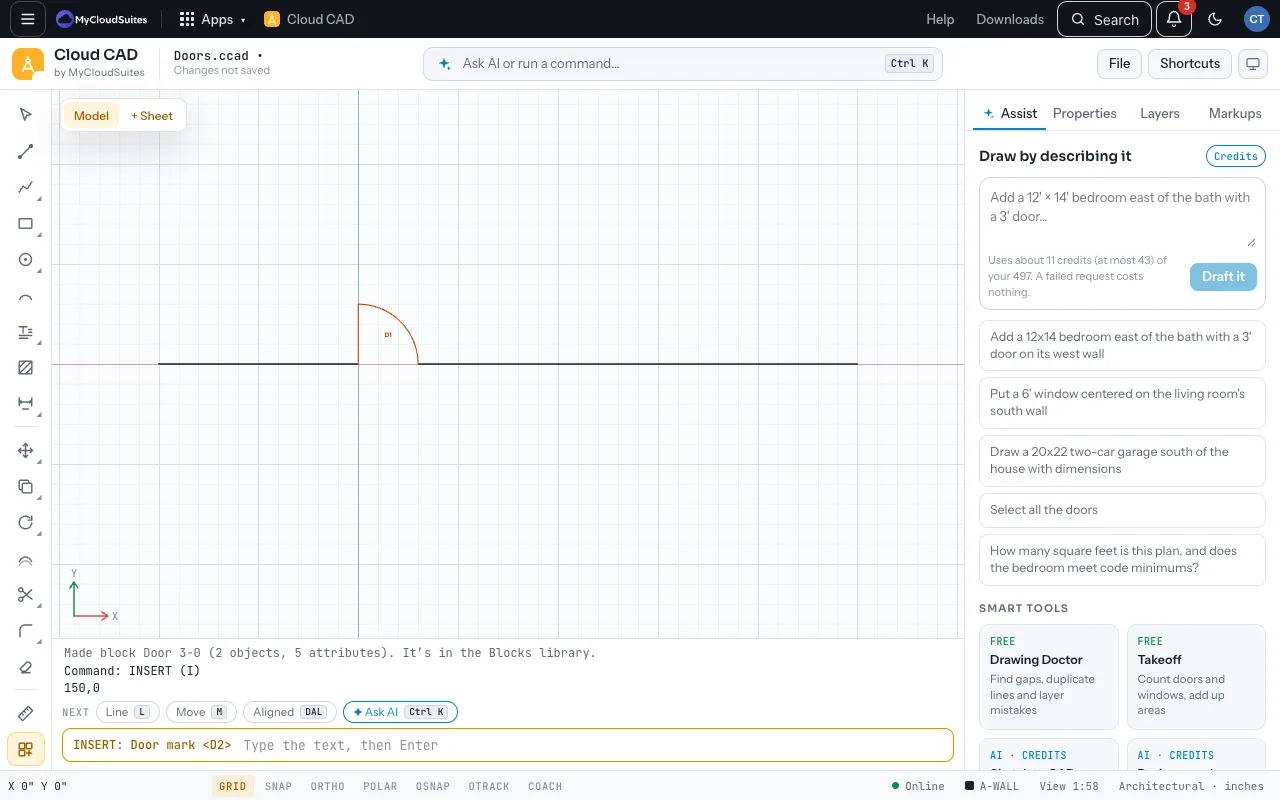
- Place it from the Blocks library as usual.
- Cloud CAD asks each value in the command line. Press Enter to keep the one offered: for a mark, that’s the next one (D4 after D3).
Change values
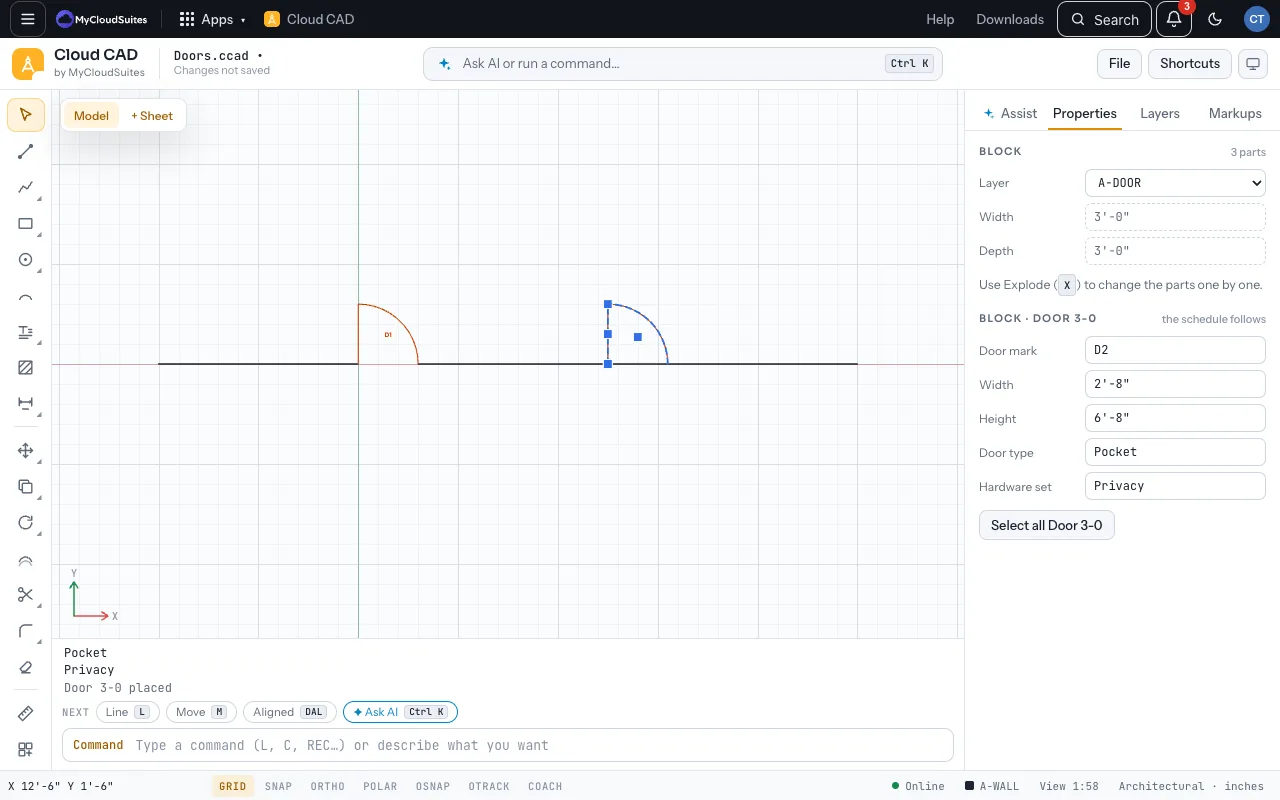
- Click a placed door. Its values are in Properties.
- Change one and press Enter. A shown value updates on the drawing, and any schedule follows.
- Select several doors to change a value for all of them, or Renumber marks in reading order.
Tips
- Copies keep their values. Select all Door 3-0 selects every one placed.
- DWG and DXF carry them as real block attributes, so other CAD programs read them too.
Need more? Schedules and tables, or contact us.