

Work with layers
Updated November 13, 2026
Layers keep walls, doors, furniture and notes apart, so you can show, hide and style each kind at once.
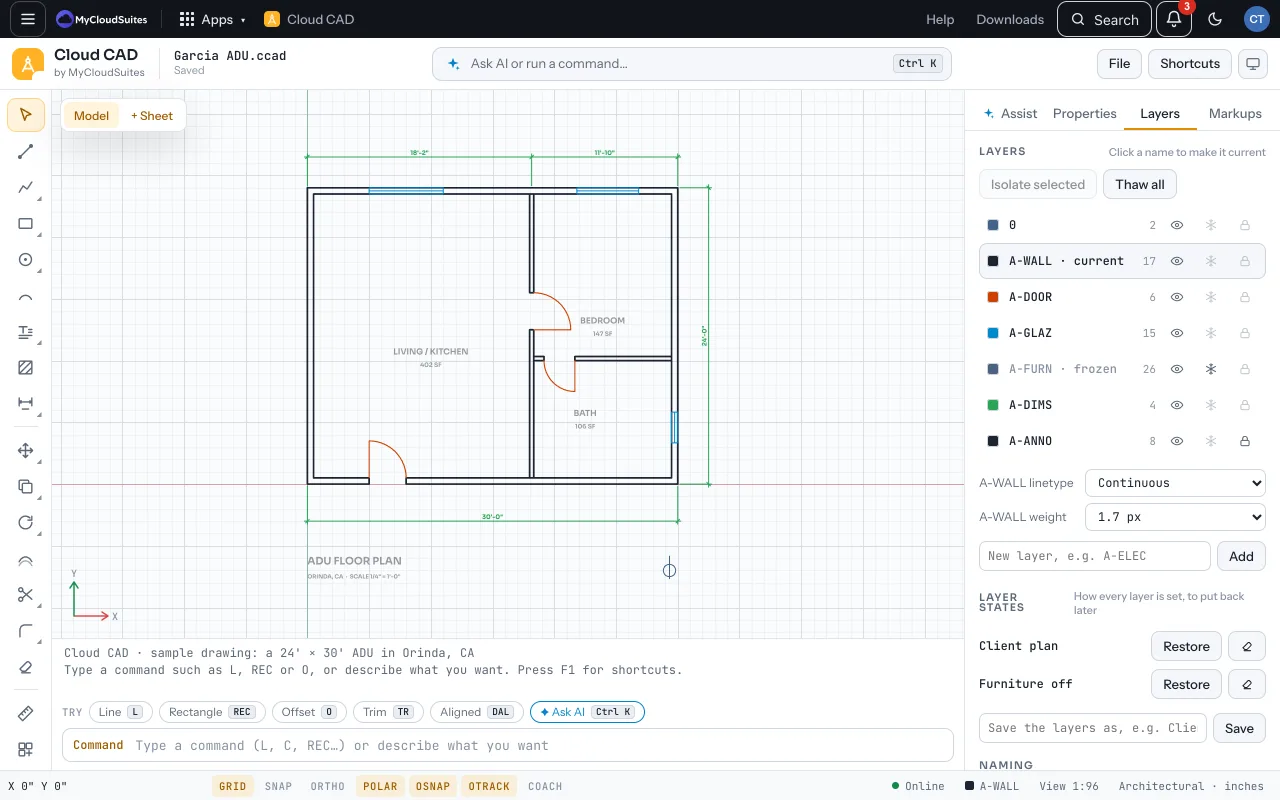
The Layers panel
- Open Layers on the right (or type LA).
- Click a layer’s name to make it current: new things go on it.
- On each row: the eye hides or shows it, the snowflake freezes or thaws it, the lock locks or unlocks it.
- Under the list, set the current layer’s linetype and weight. Type a name such as A-ELEC and choose Add to make a layer.
Hide, freeze, lock
- Hidden (off): not shown or printed.
- Frozen: not shown or printed, and left out of Select all and Quick Select. Kept as frozen in DWG and DXF.
- Locked: shown faded, and can’t be selected or changed.
Isolate
- Select something and choose Isolate selected (or type LAYISO): every other layer turns off. Show all layers (or LAYUNISO) puts them back.
- Type L at LAYISO’s prompt to lock and fade the other layers instead of hiding them.
From the command line
LAYFRZ, LAYOFF, LAYLCK, LAYULK and LAYMCUR each work on the layer of the object you click. LAYTHW thaws every layer and LAYON turns them all on.
Tips
- Layer names follow the US National CAD Standard: A- architectural, S- structural, E- electrical, P- plumbing, M- mechanical. The AI uses these names when it draws.
- The current layer can’t be hidden or frozen. Make another one current first.
Need more? Layer states, or contact us.