

Tips and tricks for Cloud Docs
Updated November 13, 2026
A few things in Cloud Docs that are easy to miss.
Writing and formatting
- Start from a template. Open a Word template (.dotx) and you get a new document based on it. The template stays as it was.
- Keep a line in the same paragraph. Shift+Enter starts a new line without starting a new paragraph, so spacing and numbering don’t change.
- Use the style tiles. Normal, Heading 1, Heading 2 and Title are one click away on the Home tab. Headings also build your table of contents. See Format text.
- Change a list’s level with Tab. With the cursor at the start of a list item, Tab moves it in a level and Shift+Tab moves it back out.
- Fix a word everywhere at once. In the Spelling pane, Change All fixes every copy of a misspelling. Double-click a suggestion to change just this one.
Pages and layout
- Edit headers and footers by double-clicking. Double-click the top or bottom margin of a page to type in its header or footer. Press Esc to go back to the body.
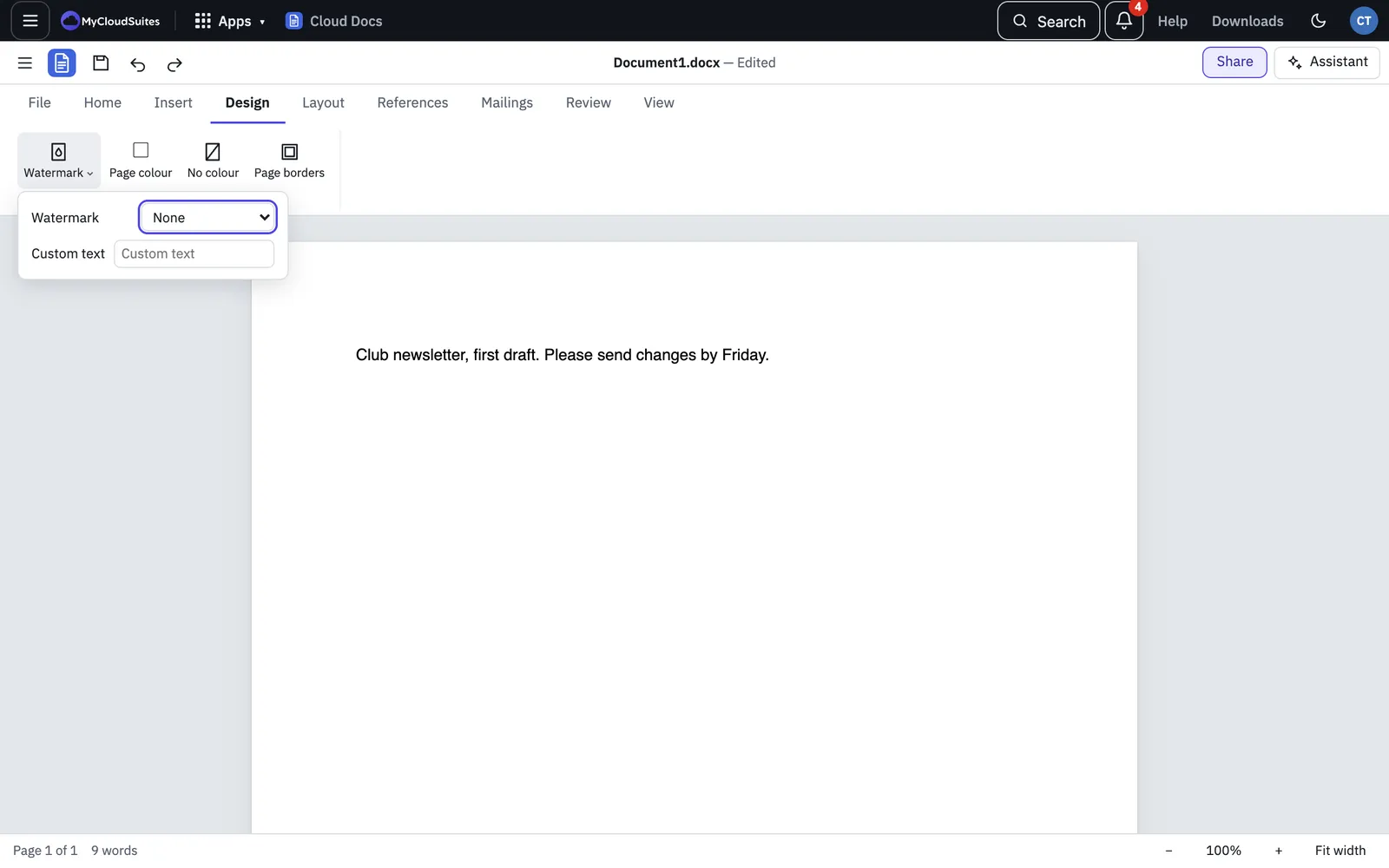
- Mark a draft. Design › Watermark puts DRAFT, CONFIDENTIAL or your own words behind every page.
- Place a picture in one click. Select it, then choose Layout › Position and pick a spot such as Top Right. Layout › Wrap text sets how the text flows around it.
- Number figures for you. References › Caption numbers figures and tables as you add them. After moving things around, press F9 to renumber them and update cross-references. See Table of contents, footnotes and citations.
Reviewing
- See the clean version. On the Review tab, set the Markup list to No Markup to read the document as if every tracked change were accepted, without accepting anything.
- Compare two versions. Review › Compare shows what changed between an earlier version and this one as tracked changes, in a new tab. Neither file is changed.
- Read without distractions. View › Read mode hides the ribbon so you can just read. Press Esc to leave it.
Working with PDFs and AI
- Turn a PDF into a document you can edit. Open the PDF and choose File › Export To › Word Document…. Then choose Open in Cloud Docs in the message.
- Make a PDF without leaving. File › Open as PDF opens a PDF of your document in the next tab, ready to sign, protect or combine with other files. See Print and save a document as PDF.
- Ask Claude about your document. View › Claude Chat (Ctrl+Shift+A, or ⌘⇧A on a Mac) opens the assistant beside the page. It can read the document, find text, go to a page, add comments and replace wording you ask it to. It uses AI credits, a few cents a question, or your own Claude API key.