

Format text in Cloud Docs
Updated November 13, 2026
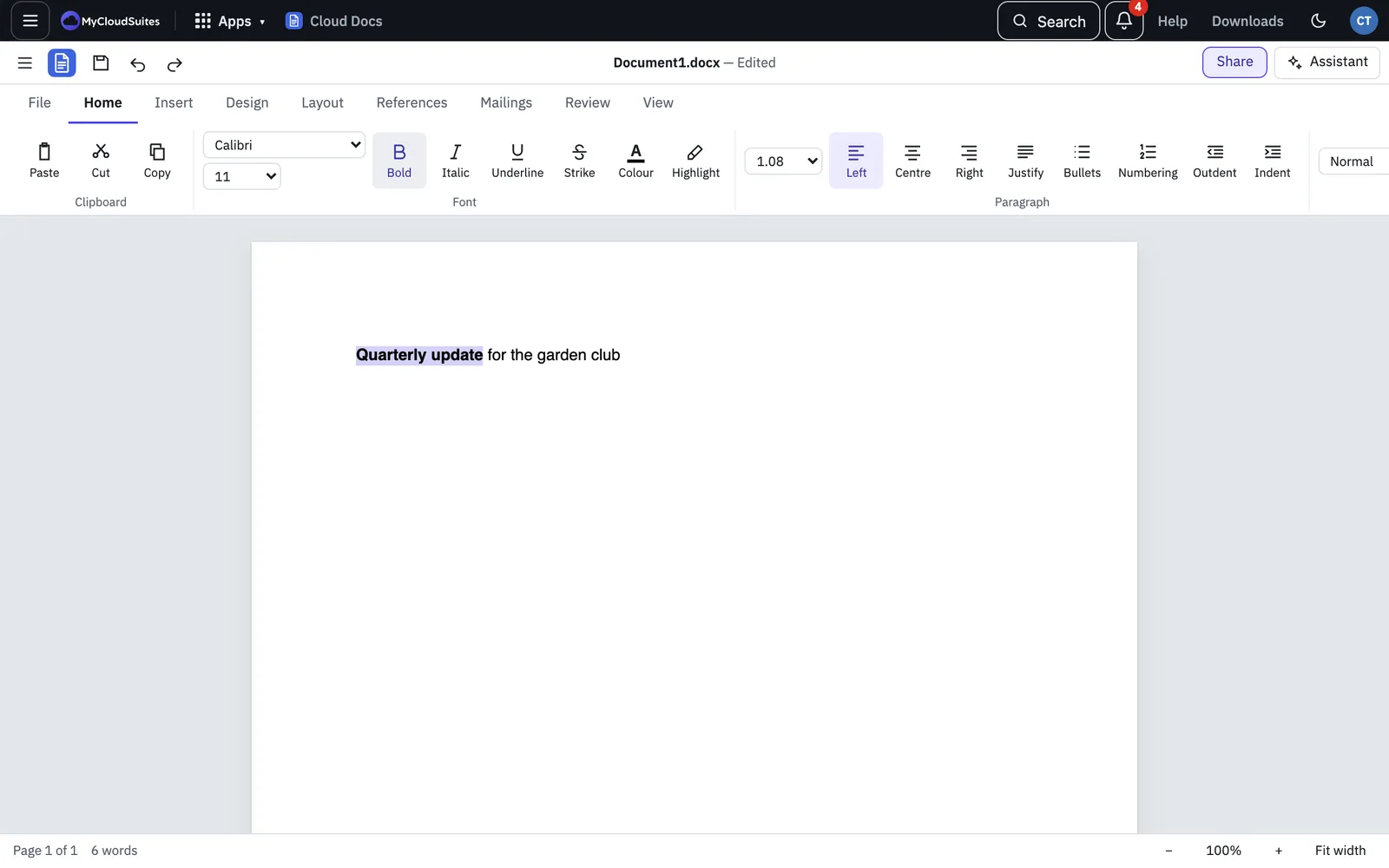
The ribbon’s Home tab in Cloud Docs has the formatting tools you know from Word. Select some text first, or set the formatting and then type.
Fonts
On the Home tab, in the Font group:
- Pick a font from the Font list and a size from the Font size list.
- Choose Bold (Ctrl+B), Italic (Ctrl+I), Underline (Ctrl+U) or Strike. On a Mac, use ⌘ instead of Ctrl.
- Choose Colour to pick a text color.
- Choose Highlight to mark the text in yellow. Choose it again to take the highlight off.
When the selection mixes fonts or sizes, the lists show “(mixed)” or “–”.
In the desktop app the Font list shows the fonts installed on your computer. In the browser it shows common Windows and Office fonts. If a font isn’t on your computer, the text is shown in a similar font. See Troubleshooting Cloud Docs.
Styles and headings
Styles set a paragraph’s look in one step, and headings make the table of contents.
- Put the cursor in a paragraph.
- In the Styles group, choose a tile: Normal, Heading 1, Heading 2 or Title.
- For any other style, pick it from the Style list. It lists the document’s paragraph styles first, then its character styles.
A character style changes only the selected text. A paragraph style changes the whole paragraph.
Paragraphs
In the Paragraph group:
- Left, Centre, Right and Justify set the alignment. Ctrl+E centers and Ctrl+J justifies.
- The Line spacing list sets 1.0, 1.08, 1.15, 1.16, 1.5, 2.0, 2.5 or 3.0.
- Outdent and Indent move the paragraph left or right.
To start a new line without starting a new paragraph, press Shift+Enter.
Bullets and numbering
- Select the paragraphs, or put the cursor where the list starts.
- Choose Bullets or Numbering. Choose it again to end the list.
To change an item’s level, put the cursor at the start of the item and press Tab to move it in, or Shift+Tab to move it out. You can also use Indent and Outdent.
Find and replace
- Choose Find & replace on the Home tab, or press Ctrl+F (⌘F on a Mac).
- Type what you’re looking for. The bar shows how many matches there are.
- Press Enter for the next match, or Shift+Enter for the one before. Tick Match case or Whole words to narrow the search.
- To replace, choose Replace…, type the new text in Replace with, and choose Replace or Replace All.
- Press Esc to close the bar.
On a phone
When the on-screen keyboard is up, a small bar above it has Bold, Italic, Underline, Bullets, Numbering and Undo, so you don’t have to scroll up to the ribbon.