

Table of contents, footnotes and citations
Updated November 13, 2026
The References tab in Cloud Docs has the tools for longer documents: a table of contents built from your headings, footnotes and endnotes, numbered captions, cross-references, and citations with a bibliography. They’re saved the way Word saves them, so they keep working when the document is opened in Word.
Table of contents
- Give your section titles a heading style (Heading 1, Heading 2 and so on). See Format text.
- Put the cursor where the table of contents goes.
- On the References tab, choose Contents.
Once the document has a table of contents, the button becomes Update table. Choose it after you add or change headings, or when page numbers move.
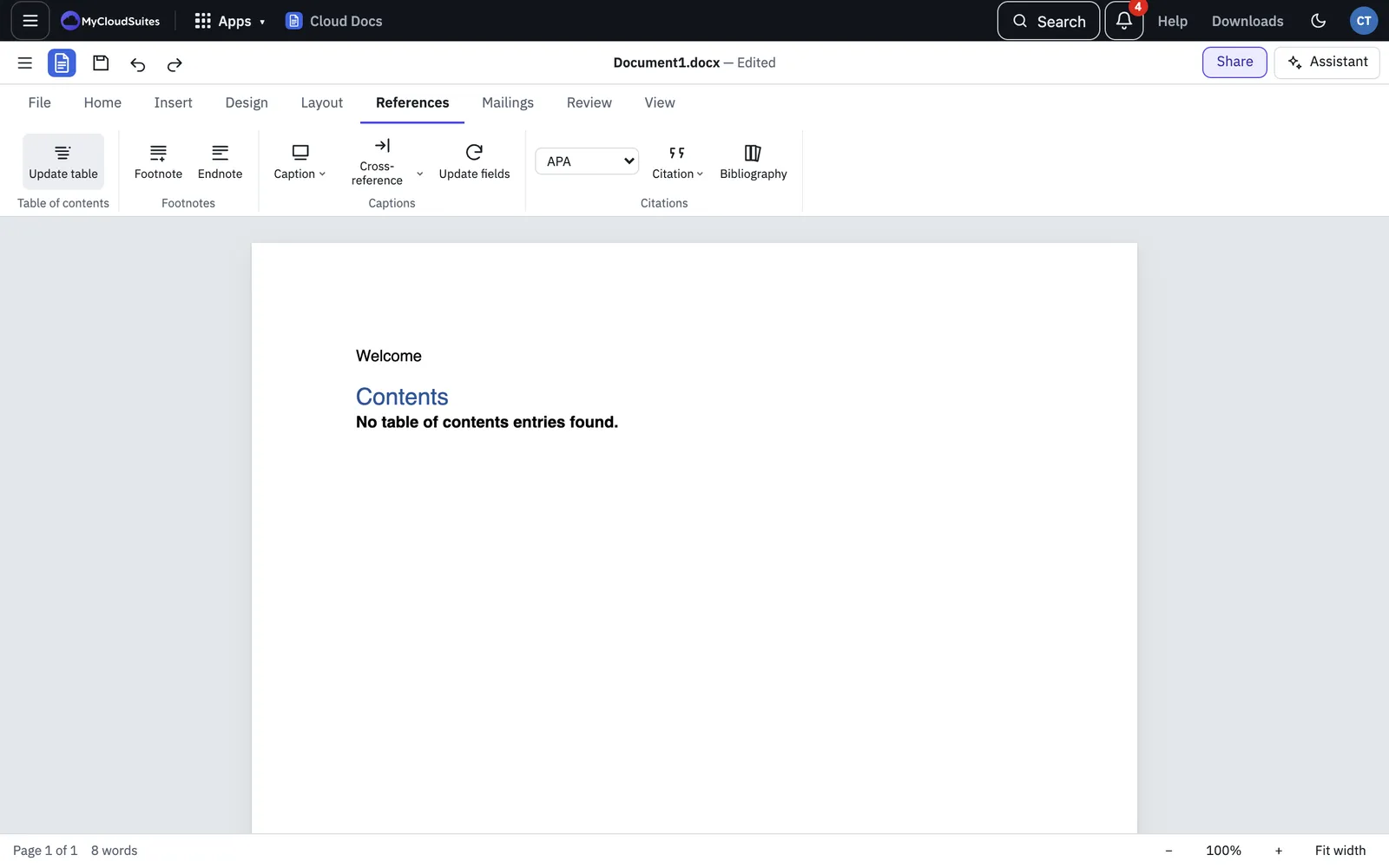
Footnotes and endnotes
- Put the cursor where the note mark goes.
- Choose Footnote or Endnote.
- Type the note. Footnotes go at the bottom of the page, endnotes at the end of the document.
Click in a note to edit it later. Click in the body to go back.
Captions
- Select the picture, table or equation, or put the cursor where the caption goes.
- Choose Caption.
- Pick a Label: Figure, Table or Equation. Add text after the number in Text.
- Tick Above the selection to put it above, then choose Insert Caption.
Captions are numbered for you: Figure 1, Figure 2 and so on.
Cross-references
A cross-reference points to a caption, such as “see Figure 2”.
- Put the cursor where the reference goes.
- Choose Cross-reference.
- Pick the caption, then what to show: Only label and number, Entire caption or Page number.
- Choose Insert.
When you add or move captions, choose Update fields, or press F9, to renumber the captions and bring every cross-reference up to date.
Citations and a bibliography
- Pick a style from the Style list in the Citations group: APA, MLA or Chicago.
- Put the cursor where the citation goes and choose Citation.
- To cite a new source, choose Add New Source…. Pick the Type of source (Book, Journal Article, Web site, Report or Miscellaneous), fill in the author, title, year and the other boxes, and choose OK. The citation goes in at the cursor.
- To cite a source you’ve already added, choose it from the Citation menu.
- When you’re ready, put the cursor where the list of sources goes and choose Bibliography.
Changing the style changes how the citations are written.