

Email reports on a schedule
Updated November 13, 2026
Have a report land in your inbox, or your accountant’s, without opening Books. Only the owner or an admin can set up scheduled emails, because they send your books outside the company.
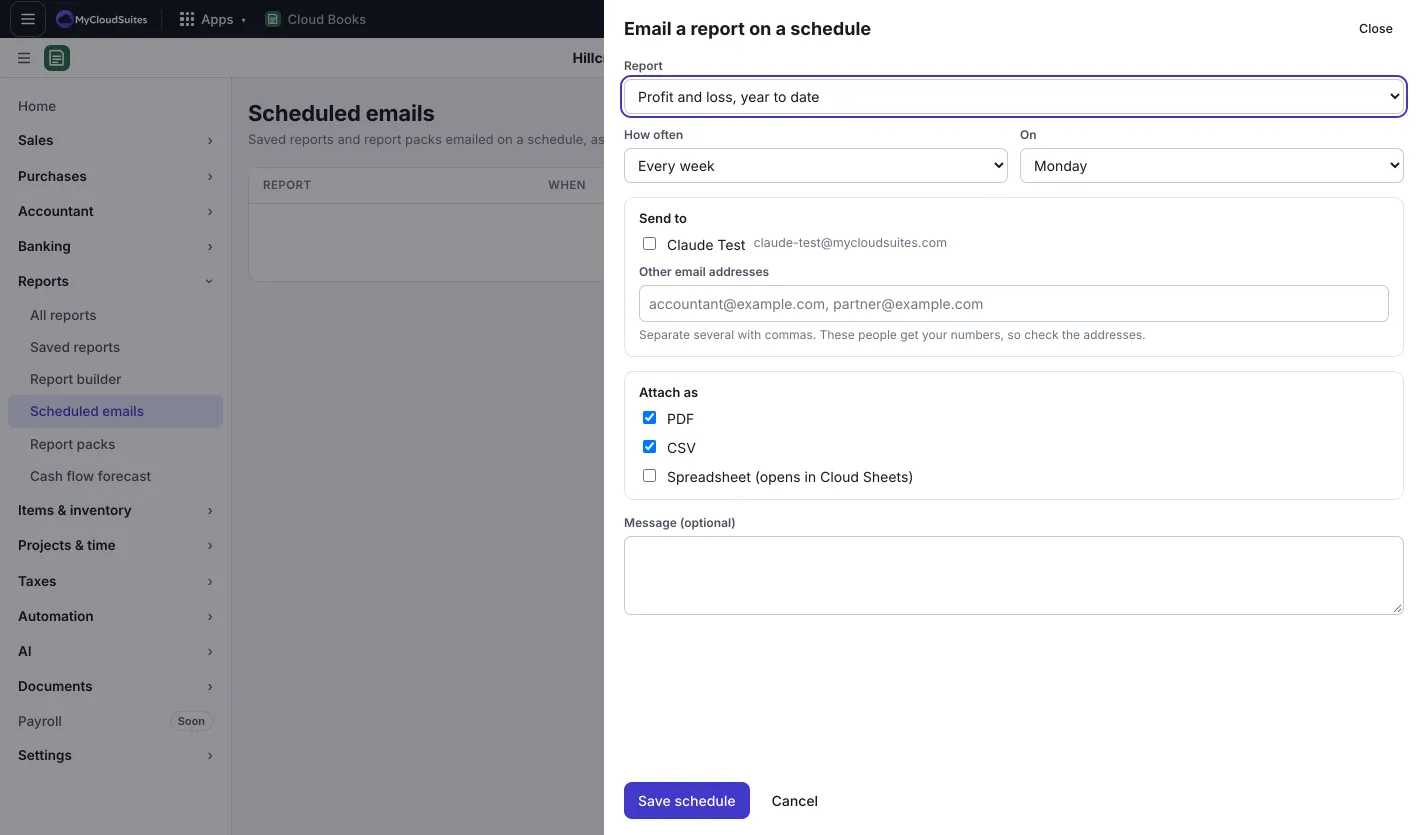
Schedule a report
- Save the report first: open it and press Save, or build one in the report builder. Or make a report pack.
- Go to Reports › Scheduled emails and press New schedule. Or open a report and press Schedule email.
- Pick the Report (saved reports and report packs are both listed).
- Pick How often: Every day, Every week (and the day) or Every month (and the date).
- Under Send to, tick people in the company, and add any Other email addresses, separated by commas. These people get your numbers, so check the addresses.
- Under Attach as, pick PDF, CSV or Spreadsheet (opens in Cloud Sheets). Report packs are always a PDF.
- Add a Message (optional), then press Save schedule.
Manage schedules
On Scheduled emails, each schedule shows When it goes next, who it goes To, and when it was Last sent (or why it failed). Press Send now to send it right away, Pause or Resume, Edit, or Delete.
Good to know
- Scheduled emails go out at about 7 AM Pacific.
- Deleting a schedule deletes nothing else.