

Run and share reports
Updated November 13, 2026
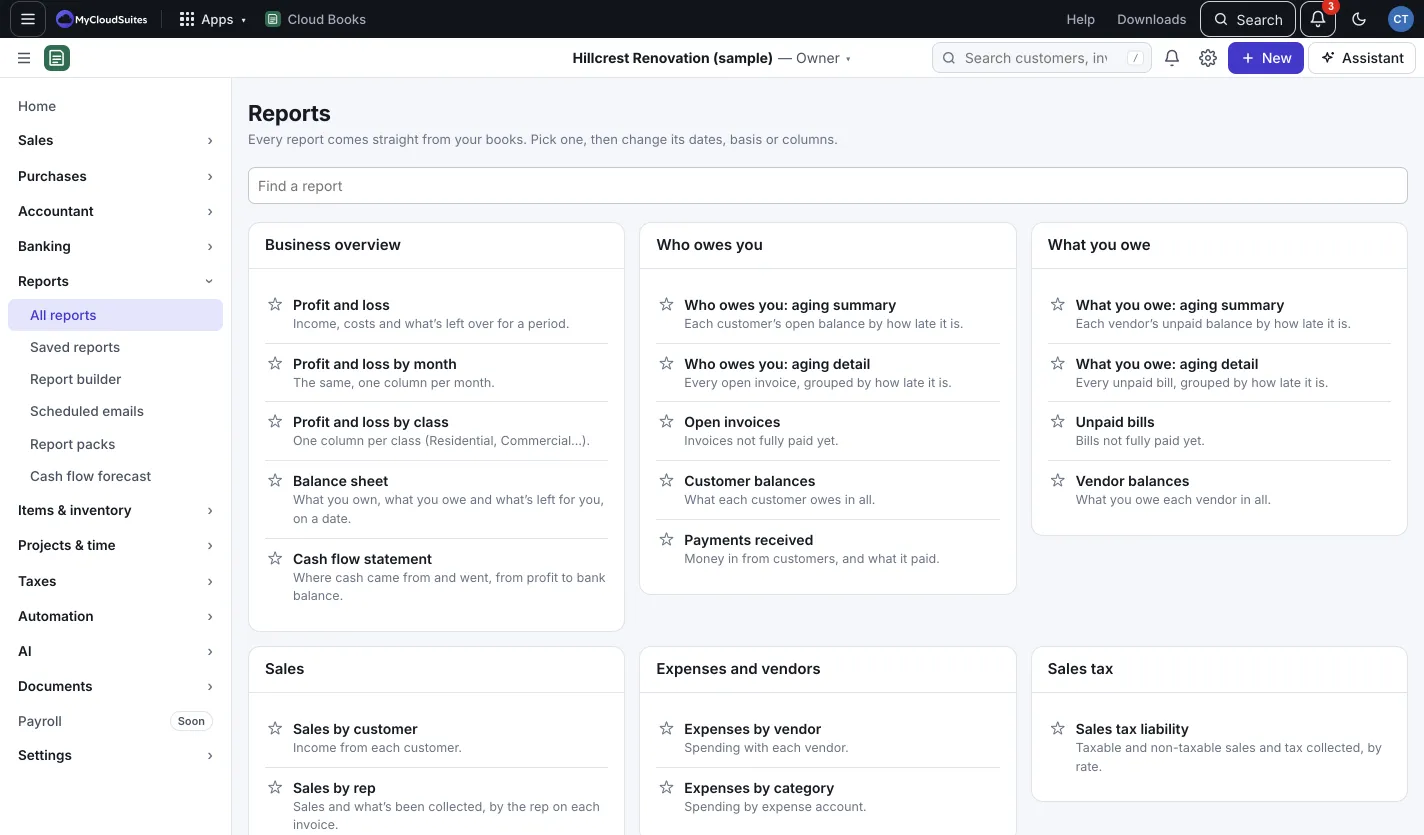
Every report comes straight from your books. Pick one, then change its dates, basis or columns.
Find a report
- Go to Reports › All reports.
- Reports are grouped: Business overview (profit and loss, balance sheet, cash flow), Who owes you, What you owe, Sales, Expenses and vendors, Sales tax and Accountant.
- Type in Find a report to search. Press the star beside a report to add it to Favorites at the top.
Change what it shows
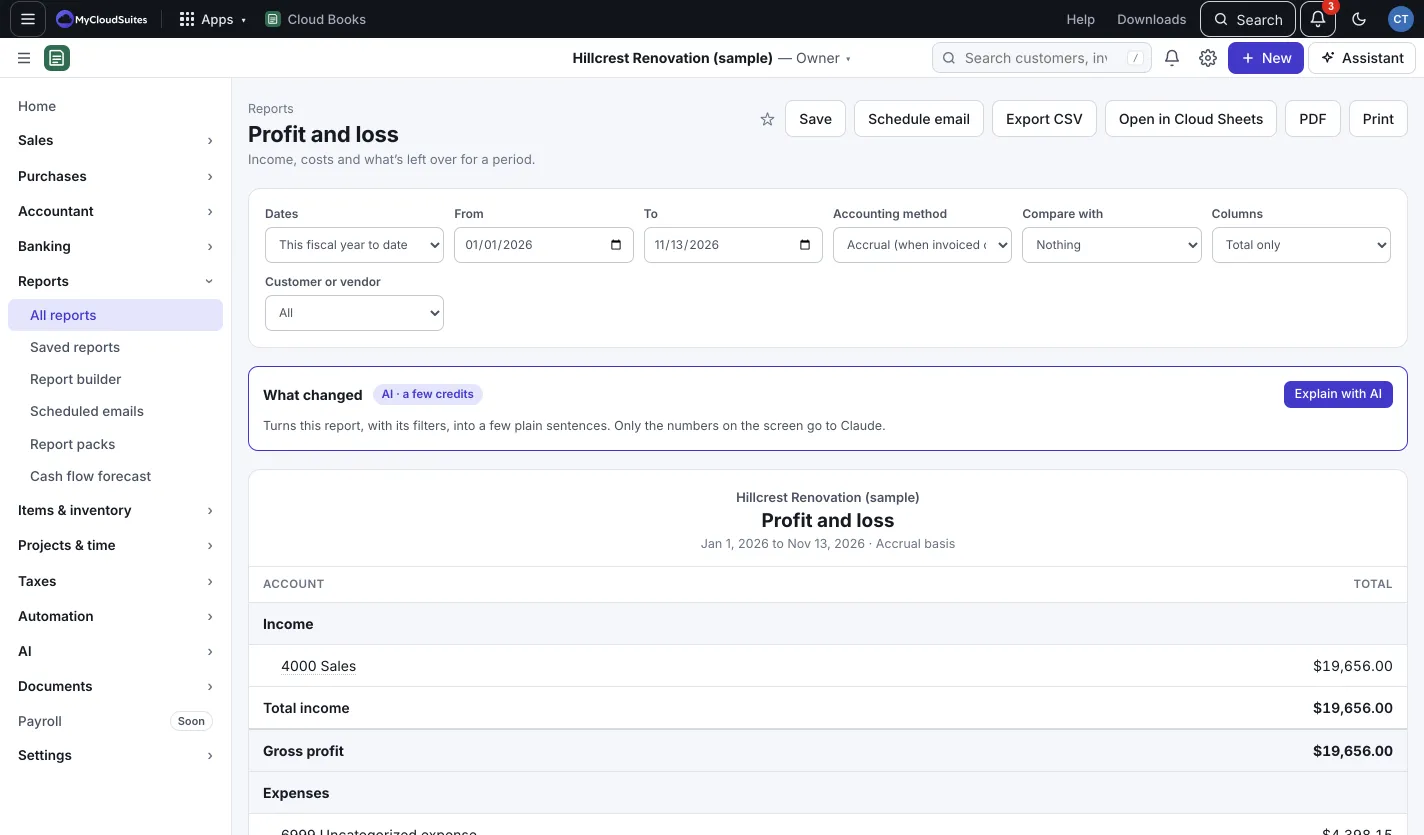
At the top of a report you can set:
- Dates: a preset like This month, Last month, This fiscal year to date or Last 12 months, or Custom with From and To. Some reports use As of instead.
- Accounting method: Accrual (when invoiced or billed) or Cash (when paid).
- Compare with: The period before or The same period last year.
- Columns: for example Months, Quarters, Classes, Locations, Customers or Vendors.
Click a line to drill down to the transactions behind it.
Share or keep it
- Export CSV or PDF to download.
- Open in Cloud Sheets downloads a spreadsheet file that opens in Cloud Sheets (or Excel).
- Print prints it.
- Save keeps it, with its dates and options, in Saved reports.
- Schedule email sends it on a schedule (owners and admins). See Email reports on a schedule.
Explain with AI
Under What changed, press Explain with AI to turn the report, with its filters, into a few plain sentences. It uses a few AI credits, and only the numbers on the screen are sent. Check before you act on it.
Good to know
- Home’s tiles and charts open the matching report when you click them.
- If you can’t open a report, your role may not be allowed to see it.