

Make a PDF file smaller
Updated November 13, 2026
Big PDFs are slow to email and upload. Cloud PDF has two ways to make them smaller. Reduce File Size is quick, with three presets. The PDF Optimizer lets you choose exactly what’s compressed and what’s removed, and saves a copy.
Reduce File Size
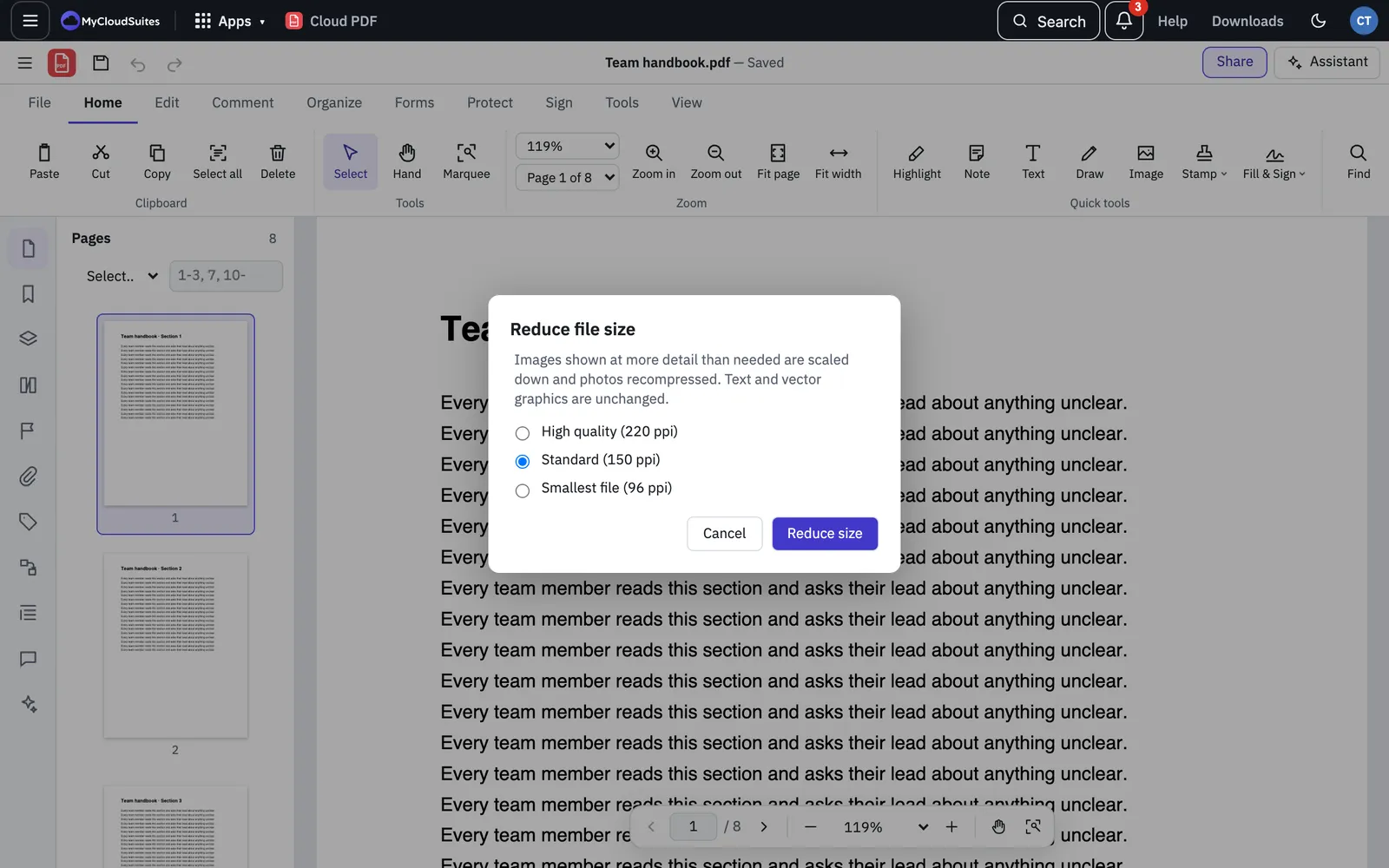
Reduce File Size scales down pictures that have more detail than the page needs and recompresses photos. Text and drawings aren’t changed, so they stay sharp.
- Open the PDF.
- Choose Tools › Convert & Export › Reduce File Size…. You can also choose Reduce size on the Tools tab of the ribbon.
- Choose a preset:
- High quality (220 ppi)
- Standard (150 ppi)
- Smallest file (96 ppi)
- Choose Reduce size.
- A message shows the size before and after, for example “Reduced from 12.4 MB to 3.1 MB”. Choose File › Save (Ctrl+S, or ⌘+S on a Mac) to keep it, or Edit › Undo to go back.
If the file can’t get any smaller with that preset, Cloud PDF says it’s already about as small as it gets and leaves it as it was.
PDF Optimizer
- Open the PDF.
- Choose File › Save as Other › Optimized PDF…. You can also choose Optimizer on the Tools tab of the ribbon.
- To see what takes up the space, choose Audit space usage…. It lists each kind of content with its size and share of the file.
- Tick the panels you want to use, and choose each one to set its options:
- Images: for colour, greyscale, and black and white images, how far to scale them down and how to compress them, such as JPEG with a quality from Minimum to Maximum, ZIP (lossless), CCITT Group 4 or JBIG2 (lossless). Pictures are only replaced when that makes them smaller.
- Fonts: leave out the standard fonts every PDF reader has, and keep only the characters the document uses.
- Transparency: flatten see-through areas into the page.
- Discard Objects: things such as JavaScript actions, embedded page thumbnails, document tags, embedded print settings and bookmarks.
- Discard User Data: comments, form fields, document information and metadata, attached files, private data saved by other apps and hidden layer content.
- Clean Up: compress the document structure, merge duplicate images, fonts and graphics, remove links and bookmarks that lead nowhere, and Optimize for Fast Web View.
- Choose Optimize and save…, then choose a name. The copy is named with “(optimized)” by default.
A message tells you the size before and after. Choose Standard settings to put every option back to its standard setting. The Optimizer remembers the settings you used last.
Fast Web View
File › Save as Other › Fast Web View PDF… saves a copy that a web browser can start showing at the first page while the rest is still downloading.
Things to know
- The PDF Optimizer and Fast Web View don’t work on signed or password-protected PDFs, because saving them this way would break the signature or lose the protection. Remove the password first. See Protect a PDF with a password.
- Lower resolutions make smaller files, but pictures look softer when printed or zoomed in. Standard (150 ppi) suits most documents you read on screen.
- To clean up scans, choose Tools › Scan & Recognize › Optimize Scanned Pages….