

Convert a PDF to Word
Updated November 13, 2026
Export To › Word Document turns a PDF into a .docx file you can edit in Cloud Docs, Microsoft Word or any word processor. Rich Text Format does the same as an .rtf file. Your PDF isn’t changed.
Convert a PDF
- Open the PDF.
- Choose File › Export To › Word Document…. For an RTF file, choose File › Export To › Rich Text Format… instead. You can also choose Word on the File tab of the ribbon.
- Wait while Cloud PDF converts the pages.
- Choose a name and place for the file and save it.
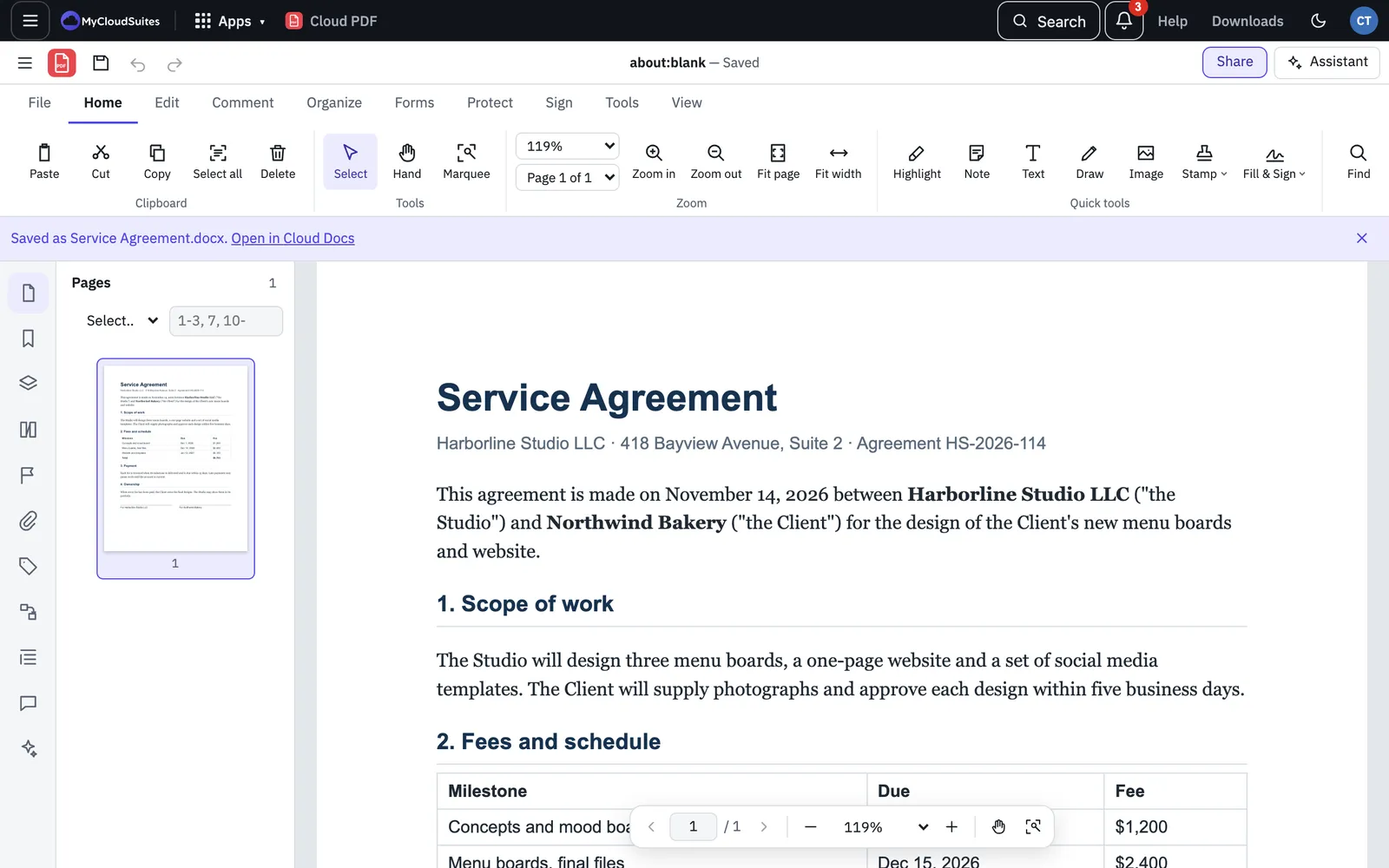
- In the browser, the message that says the file was saved has an Open in Cloud Docs button. Choose it to start editing right away.
Browser and desktop app
- In the browser at mycloudsuites.com/app, Cloud PDF uses its own converter. There’s nothing to install.
- The desktop app 1.0.21 still uses Microsoft Word or LibreOffice for Word and RTF export, so one of them needs to be on your computer. The next desktop update converts on its own, the same way the browser does.
What comes across
- Paragraphs with their fonts, sizes, bold and italic words, alignment, indents, line spacing and text colour. A paragraph cut in two by a column or page break is joined up again.
- Headings, worked out from large text.
- Bulleted and numbered lists, with their levels.
- Tables, where text is lined up in rows and columns.
- Pictures and drawings such as photos, charts, logos and shapes, as pictures.
- Web links, which stay clickable.
- Reading order. A page in two columns is read column by column, so the text flows the right way in Word.
- Page size and margins, taken from the first page.
Fonts that most computers have keep their names. Other fonts are swapped for Arial, Times New Roman or Courier New, depending on the kind of font.
What doesn’t come across yet
- Different colours for single words inside a paragraph. The paragraph takes one colour.
- Underline and strikethrough.
- Word’s own headers and footers. Text at the top and bottom of the page comes across, but not as a Word header or footer.
- Tables with merged or wrapped cells may not come out exactly as they look in the PDF.
Scanned PDFs
A scanned page is a picture, so the Word file gets the picture and no text to edit. To get text you can edit, run Recognize Text (OCR) on the PDF first, then export it.
If it doesn’t work
- “This PDF’s security doesn’t allow copying its contents.” The PDF’s owner turned off copying. You need the permissions password to change that. See Protect a PDF with a password.
- The layout looks different in Word. Word lays out text itself, so lines can break in different places. Check the result and fix spacing where needed.
For other formats, such as Excel, PowerPoint and images, see Export a PDF to other formats.