

Export a PDF to Excel, PowerPoint, images and more
Updated November 13, 2026
File › Export To saves a copy of your PDF in another format. Your PDF isn’t changed. Every format here works in the browser and in the desktop app, with nothing else to install. For Word and RTF, see Convert a PDF to Word.
Export a PDF
- Open the PDF.
- Choose File › Export To, then the format you want. The File tab of the ribbon also has Excel, PowerPoint and Images buttons, and More formats for the rest.
- If a dialog opens, choose its options, then choose Save as… or Choose folder….
- A message tells you where the file was saved.
Excel Workbook
Each page becomes a sheet. Each line of text becomes a row, split into cells where there are wide gaps, and the cells are lined up in columns. Tables in the PDF come out as tables, and plain numbers come out as numbers you can add up.
PowerPoint Presentation
Each page becomes a slide. The page’s pictures and drawings are on the slide, and its text is in text boxes you can edit.
Images
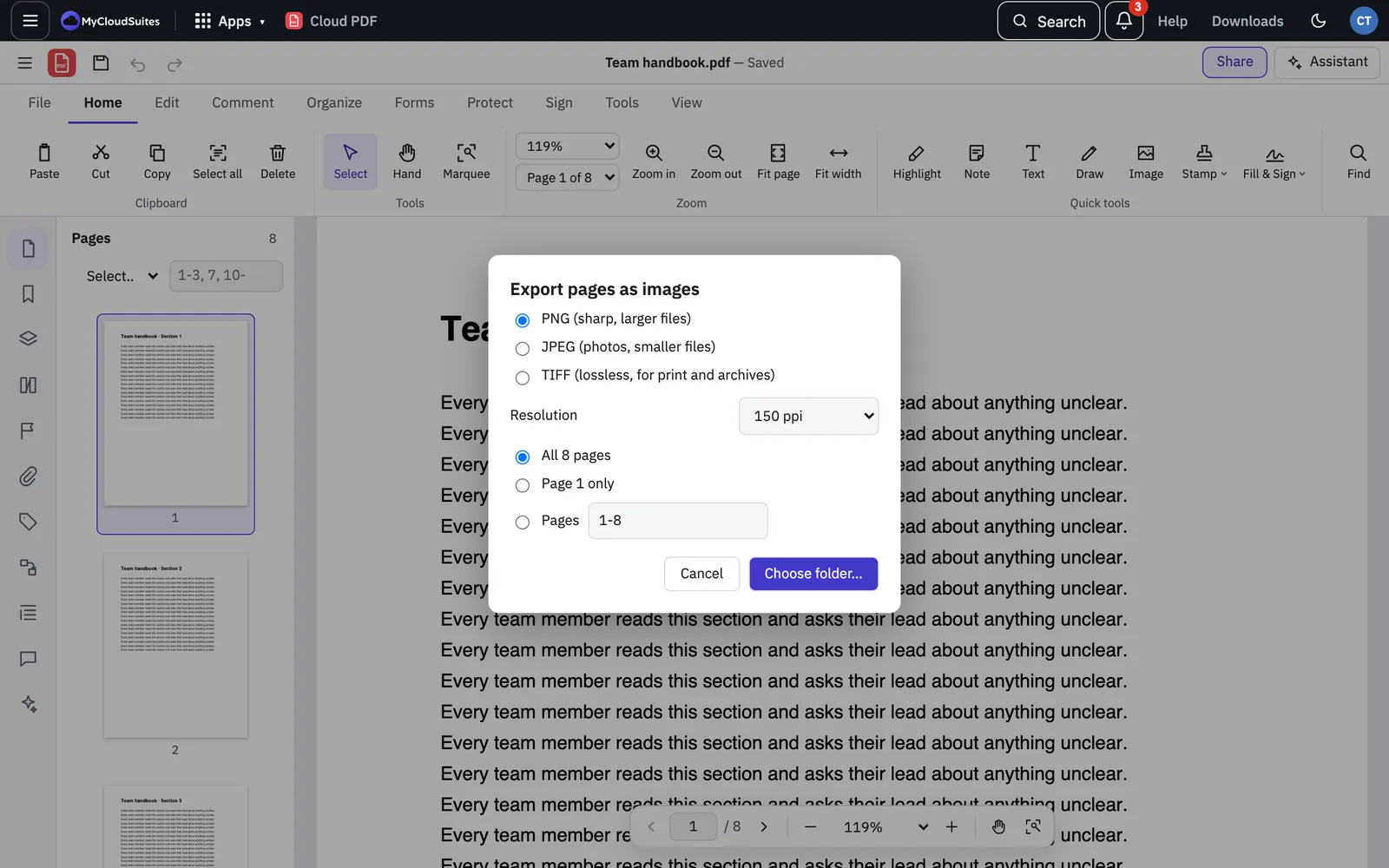
Choose File › Export To › Images… to save pages as pictures.
- Format: PNG (sharp, larger files), JPEG (photos, smaller files) or TIFF (lossless, for print and archives).
- Resolution: 72 ppi (screen), 150 ppi, 300 ppi (print) or 600 ppi.
- Pages: All, the current page, or a range such as 1-3, 7, 10-.
- TIFF only: choose Compression (LZW, Deflate (ZIP) or None) and Colour (RGB, CMYK or Greyscale). Tick All pages in one file to save one TIFF with every page in it.
Each page is saved as its own file in a folder you choose, unless you save all pages in one TIFF.
To save the pictures inside the PDF at their own resolution, choose File › Export To › All Embedded Images…. Pick PNG, JPEG or TIFF, tick Save JPEG pictures exactly as they are (.jpg) to keep photos untouched, and set Skip pictures smaller than to leave out small icons.
Text, HTML and XML
- HTML Web Page… saves the PDF as a web page, with headings, paragraphs, lists and tables.
- XML 1.0… saves the same structure as XML.
- Plain Text… saves all the text as a .txt file.
- Text (Accessible)… saves the text in reading order, following the document’s structure.
HTML, XML and accessible text follow the PDF’s tags. If the PDF has none, Cloud PDF works out the structure from the layout and says so.
PostScript and EPS
- PostScript… saves the document as a .ps file for printers and print shops. Choose Level 3 (gradients, smaller pictures) or Level 2 (older printers).
- Encapsulated PostScript… saves pages as .eps files. An EPS file holds one page, so each page is saved as its own file.
In the browser
Exports that make several files, such as page images, All Embedded Images and EPS of more than one page, save into a folder. That works in browsers that let a website save into a folder, such as Chrome and Edge on a computer. In other browsers, save page images as one TIFF with All pages in one file, or use the desktop app.
If it doesn’t work
- “This PDF’s security doesn’t allow copying its contents.” The PDF’s owner turned off copying, which Excel, PowerPoint, text, HTML, XML and embedded images need. PostScript needs printing to be allowed.
- A scanned PDF exports no text. Run Recognize Text (OCR) first.