

Copy and paste edits between photos
Updated November 13, 2026
Edit one photo the way you like, then put the same edits on another.
Copy and paste
- On the photo you like, choose Edit › Copy edits (⌥⇧⌘C; Ctrl+Alt+Shift+C on Windows).
- Open the other photo.
- Choose Edit › Paste edits… (⌥⇧⌘V).
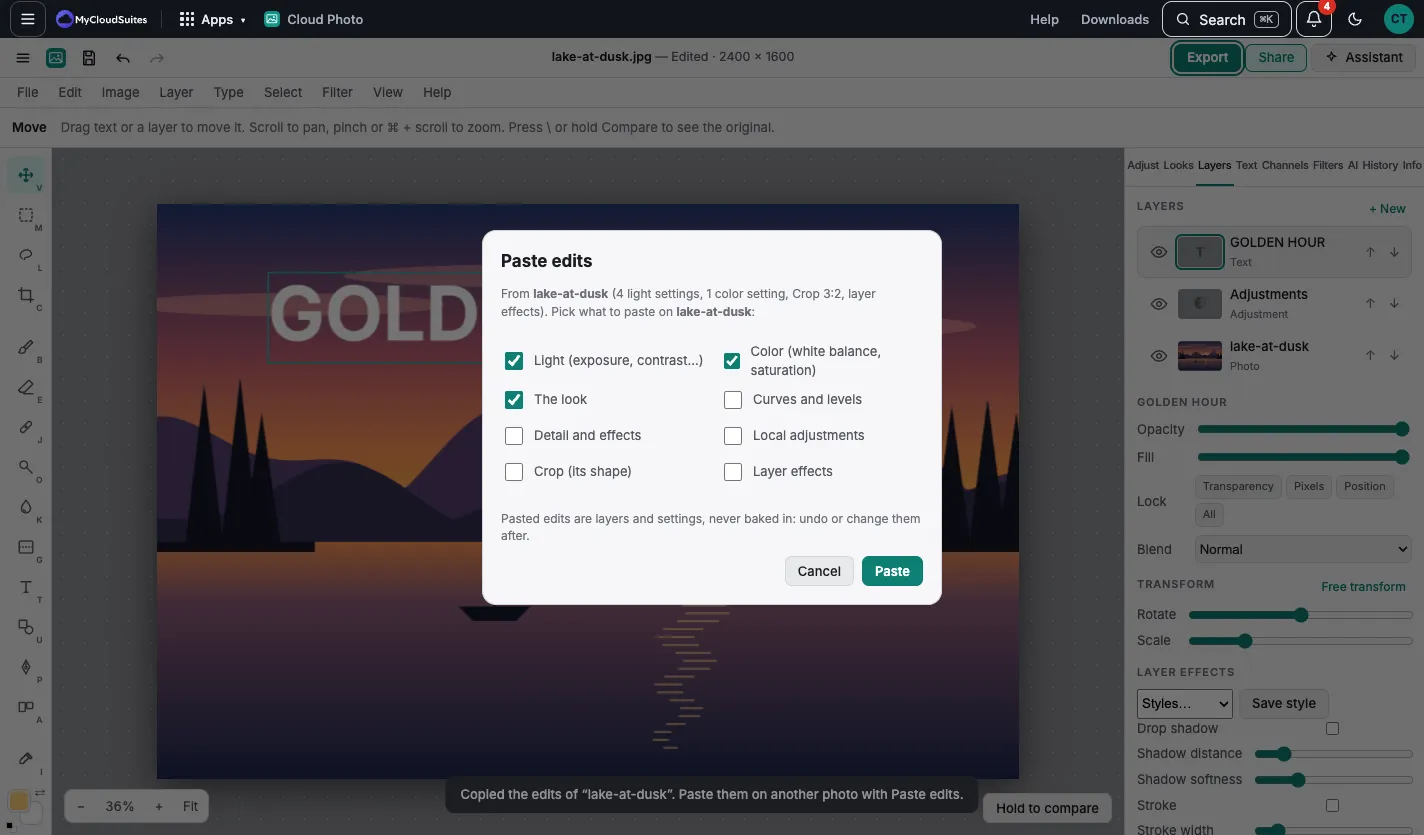
- Tick what to paste: Light, Color, The look, Curves and levels, Detail and effects, Local adjustments, Crop (its shape) or Layer effects.
- Choose Paste.
Good to know
- Pasted edits are layers and settings, never baked in. One Undo takes them away, and the crop is a step of its own.
- Crop cuts the photo to the first photo’s shape, from the middle.
- Local adjustments made with a gradient move over, sized to the new photo. Ones painted with a brush, or made from the subject or sky, belong to the first photo and don’t.
- The copy stays in this browser, so you can paste it into a photo you open later.
- On a phone, the Looks sheet has Copy edits and Paste edits….