

Edit many photos at once
Updated November 13, 2026
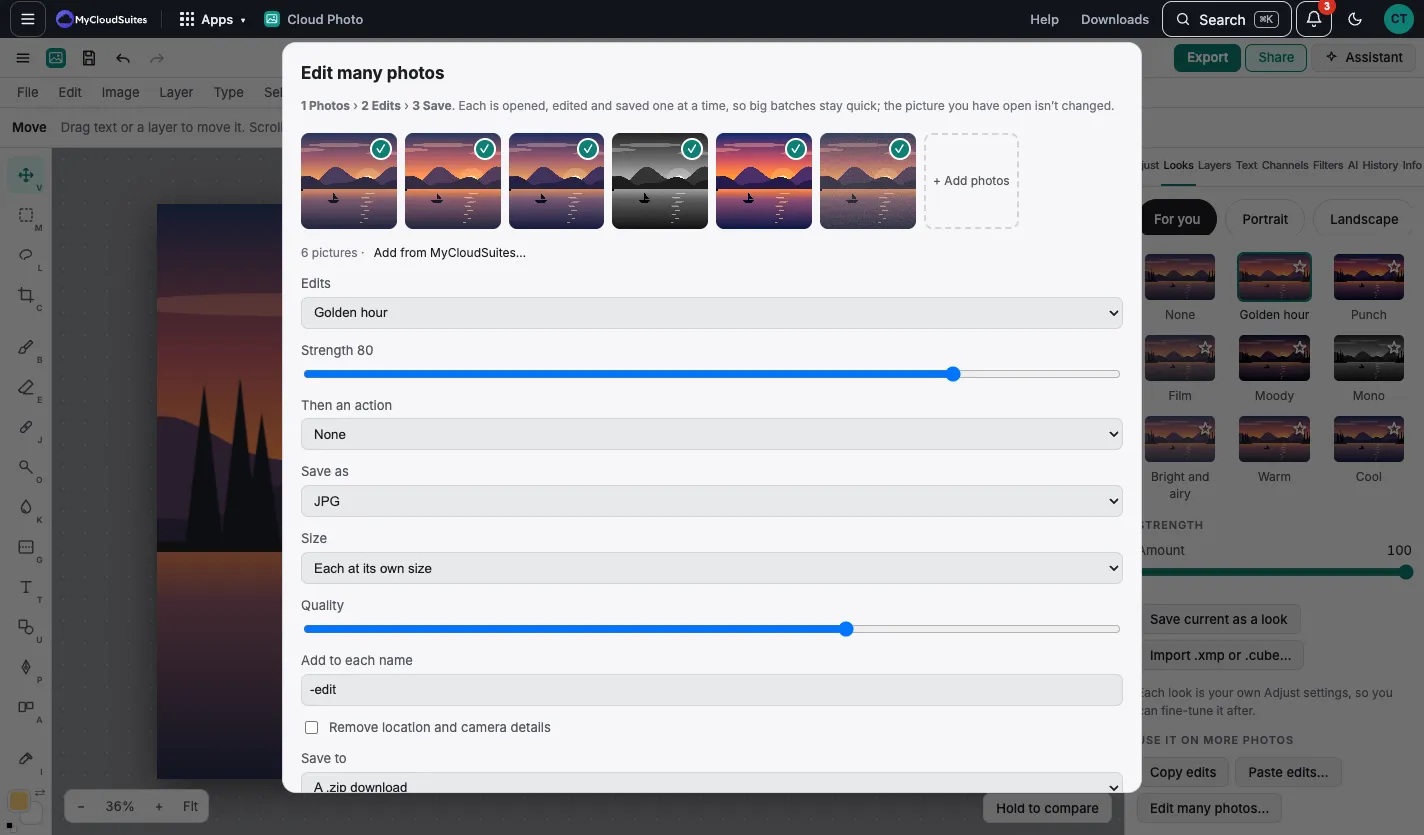
Edit many photos
- Choose File › Edit many photos…, or Edit many photos… in the Looks tab.
- + Add photos from your computer, or Add from MyCloudSuites…. Tap a photo to leave it out.
- Under Edits, pick:
- a look, then its Strength,
- Paste edits from the photo you copied (see Copy and paste edits),
- or Auto fix.
- Optionally Then an action: one you recorded. See Actions and scripts.
- Choose Save as (JPG, PNG, WebP, AVIF, .psd and more), Size, Quality and what to Add to each name.
- Under Save to, pick A .zip download or A MyCloudSuites folder (Plus).
- Choose Edit with the number of photos.
Good to know
- The photo you have open isn’t changed.
- Photos are done one at a time, so big batches stay quick.
- Edit › Paste edits on many photos… opens the same window.