

Adjust light and color
Updated November 13, 2026
The Adjust tab changes light and color. Every change goes on an Adjustments layer above the photo, so you can change it or turn it off later.
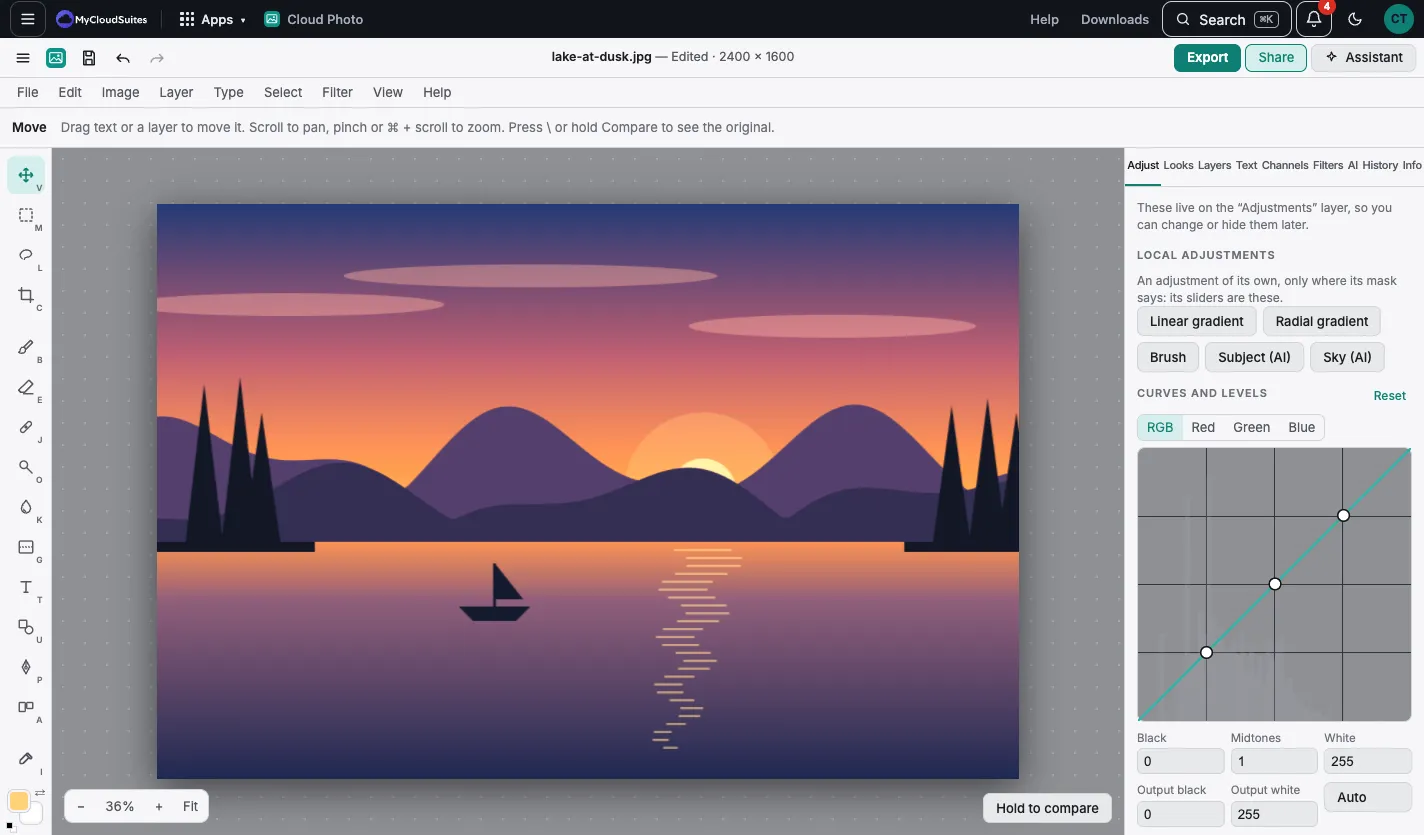
Adjust
- Choose the Adjust tab.
- Drag a slider:
- Light: Exposure, Contrast, Highlights, Shadows, Whites and Blacks.
- Color: Temperature, Tint, Saturation and Vibrance.
- Detail and effects: Texture, Clarity, Dehaze, Vignette and Grain.
- Double-click a slider (double-tap on a phone) to put it back to 0. Reset puts a whole group back.
Quick fixes
- Image › Auto fix (⇧⌘L) brightens shadows and adds a little contrast and color in one step.
- Hold Hold to compare, or press \, to see the photo without your changes.
Only part of the photo
Select part of the photo first, and the adjustment applies only inside the selection. Or make a local adjustment with a gradient or a brush.
Tips
- Turn the Adjustments layer off in Layers to see before and after.
- More tools for color are in Image › Adjustments: see Color tools.