

Layers
Updated November 13, 2026
Layers keep each part of a picture separate, so you can change one without touching the others.
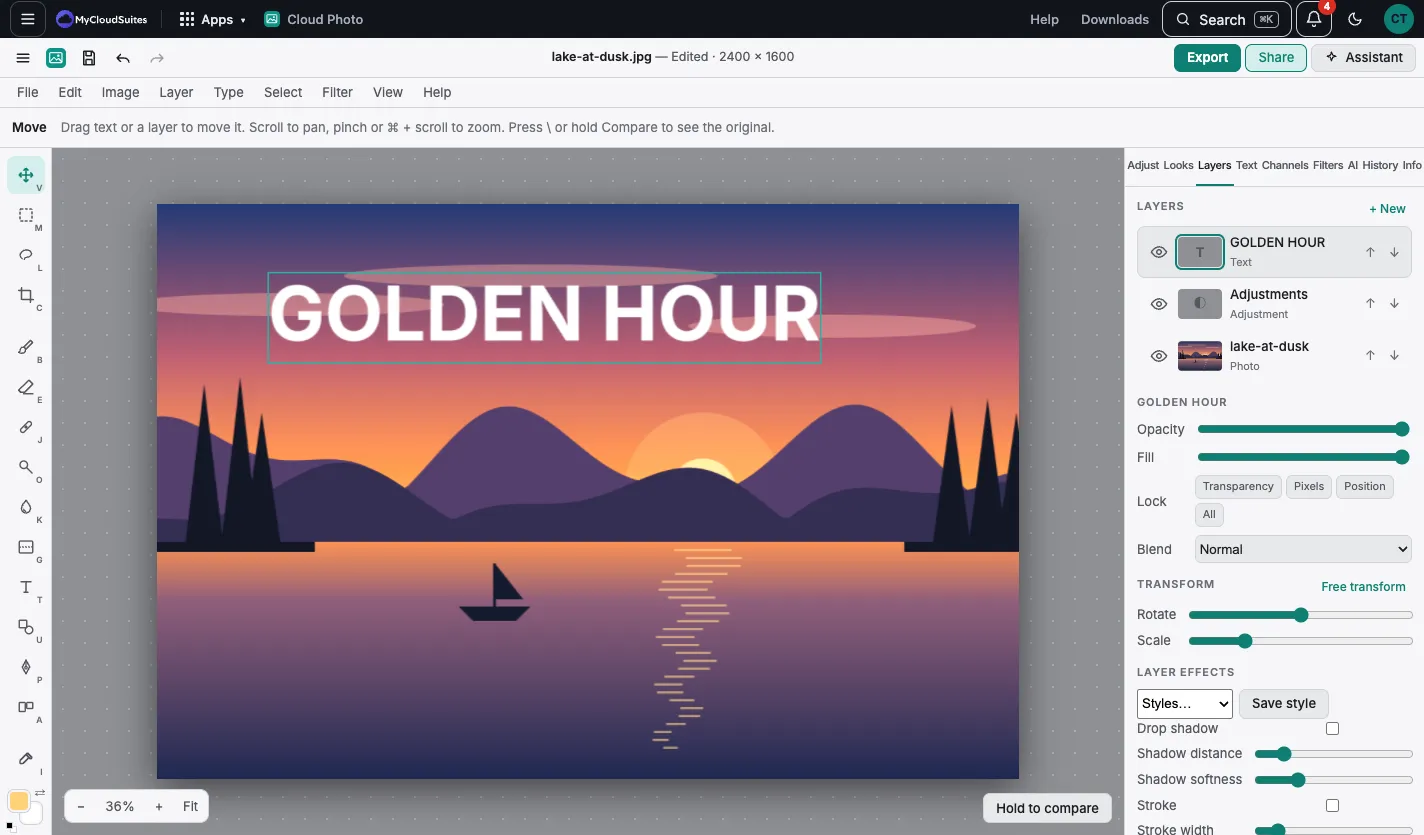
Work with layers
- Choose the Layers tab.
- Choose a layer to work on it. The eye shows or hides it. The arrows move it up or down.
- Set its Opacity, Fill (its own pixels, not its effects), Blend and Lock.
Add and arrange
- Layer › New layer (⇧⌘N), Duplicate (⌘J), Layer via copy and Layer via cut (⇧⌘J).
- New gradient layer, New color fill layer, New pattern fill layer and New shape.
- Arrange, Align and Distribute line up layers. Pick several in the Layers tab first.
- Group (⌘G) and Ungroup (⇧⌘G). Merge down (⌘E), Merge visible, Stamp visible and Flatten.
Blend modes
Blend sets how a layer mixes with what’s under it: 27 modes, including Multiply, Screen, Overlay, Soft light and Color.
Tips
- Convert to smart object keeps a layer’s pixels safe while you scale, turn and filter it.
- Auto-align layers and Auto-blend layers line up and blend photos of the same scene, such as for focus stacking.