

Find words in pictures and PDFs
Updated November 17, 2026
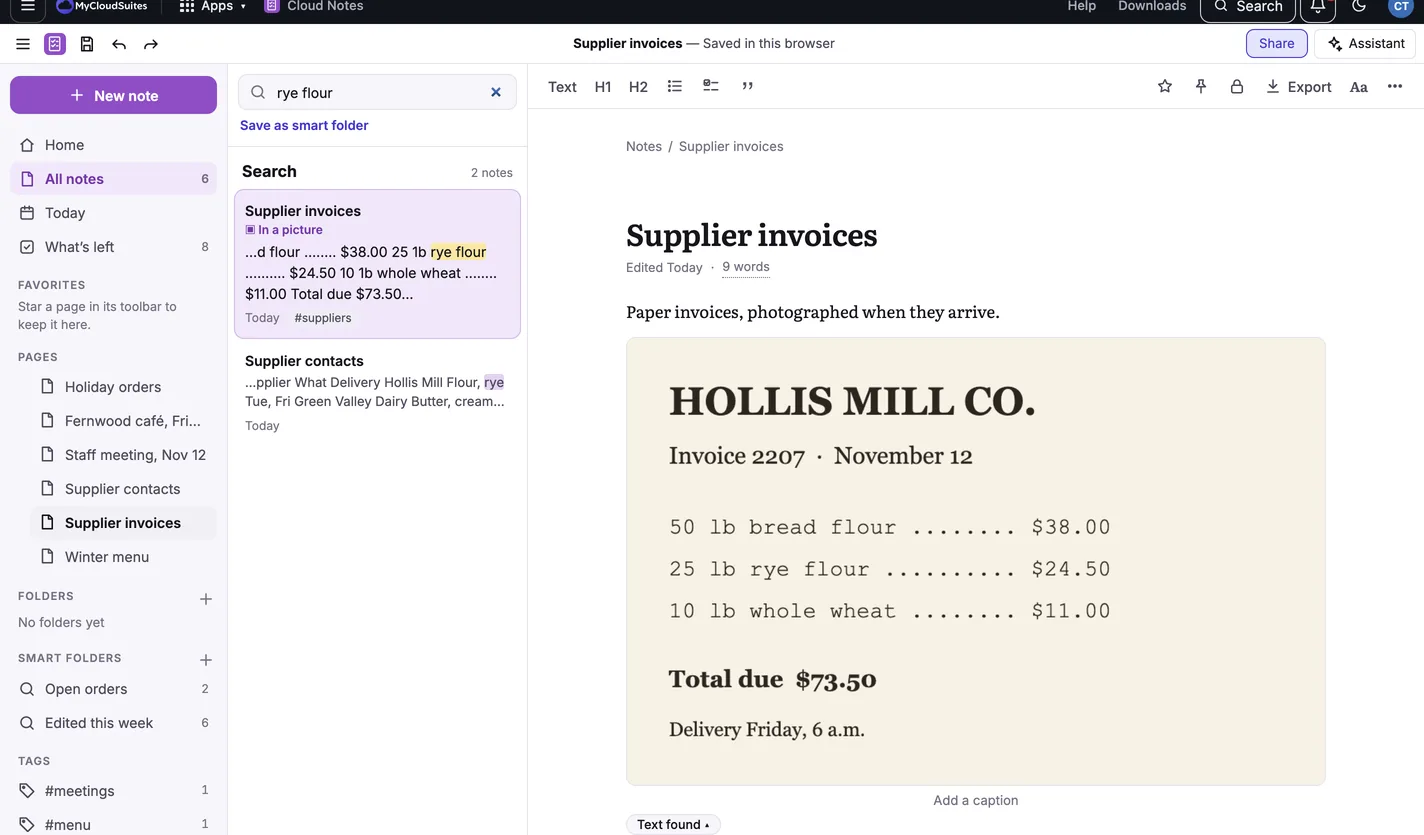
A photo of a receipt, a picture of a whiteboard or a scanned PDF can be found by its words, like any note.
Turn it on
- Choose the ☰ menu at the top left of the toolbar, then Settings….
- Turn on Find words in pictures and PDFs.
- Choose Done.
From then on, new pictures and PDFs are read as you add them. To read the ones already in your notes, turn it on, then choose Start in the same place.
See the words
Under a picture or PDF with words, choose Text found. Choose Copy the text to copy them.
Good to know
- It’s read on your device. Nothing is sent anywhere and it uses no AI credits.
- The first time, your browser downloads the reading engine, about 7 MB. After that it works offline.
- Your notes stay plain Markdown: the words are kept beside them, in your notes folder’s .cloud-notes folder, not in the notes.
- It reads English. Each device reads its own pictures.
- It works in the browser and in the Mac and Windows apps. On a computer, turn it on in File › Settings….
- Want the words written into the note as a checklist, a table or a contact? That’s Photo to note, which uses AI credits.
If something goes wrong
- No Text found under a picture. The words may be too small, blurry or handwritten to read. A sharper photo helps.
Need more? Search every note, or contact us.