

Smart folders
Updated November 13, 2026
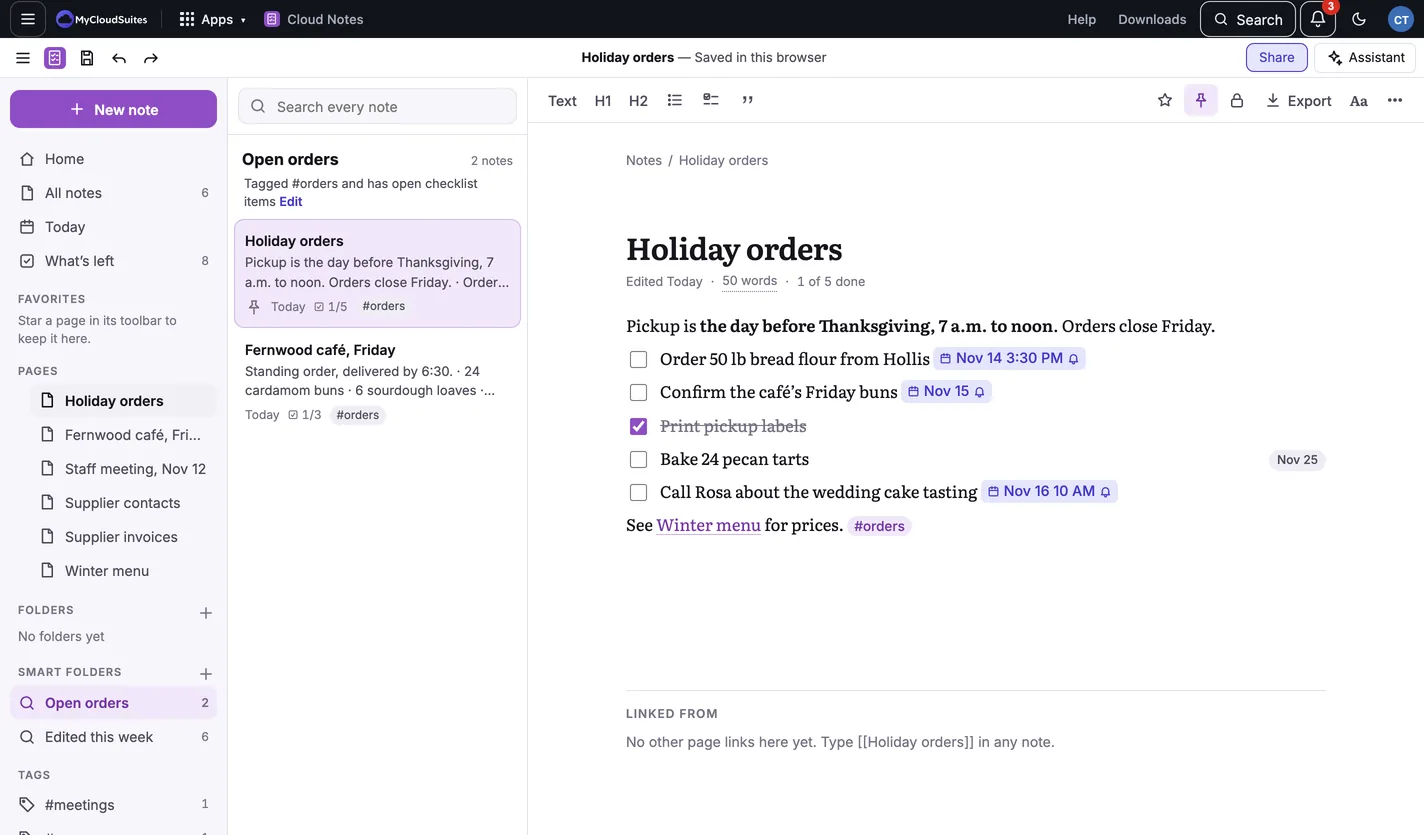
A smart folder lists every note that matches a few rules, and keeps up as notes change. Nothing moves: a note stays where it is and can show up in several smart folders.
Make one
- Choose + beside Smart folders in the sidebar.
- Give it a name, for example Open orders.
- Choose its rules. A note has to match all of them:
- Tagged a tag, In folder a folder, Contains some words
- Edited today, this week or this month
- Has open checklist items, Has a due date (overdue, today or this week)
- Has pictures or files, Pinned, Favorite
- Under the rules it says how many notes match right now. Choose Save.
From a search
While searching, choose Save as smart folder under the search box. The search becomes its rule.
Change or delete one
Open it and choose Edit beside its rules. To delete it, choose Delete, then Delete it. Its notes stay where they are.
Tips
- Smart folders are kept with your notes, so with sync they follow you to every device and the Mac and Windows apps.
Need more? Search every note, or contact us.