

Search every note
Updated November 13, 2026
Search
- Choose Search every note at the top of the list, or press ⌘K (Ctrl+K on Windows).
- Type a few words. The list shows the notes that have them, with the words highlighted.
- Press Enter to open the first one.
To clear the search, choose the × in the box.
Save a search
While you’re searching, choose Save as smart folder under the box to keep it in the sidebar. See Smart folders.
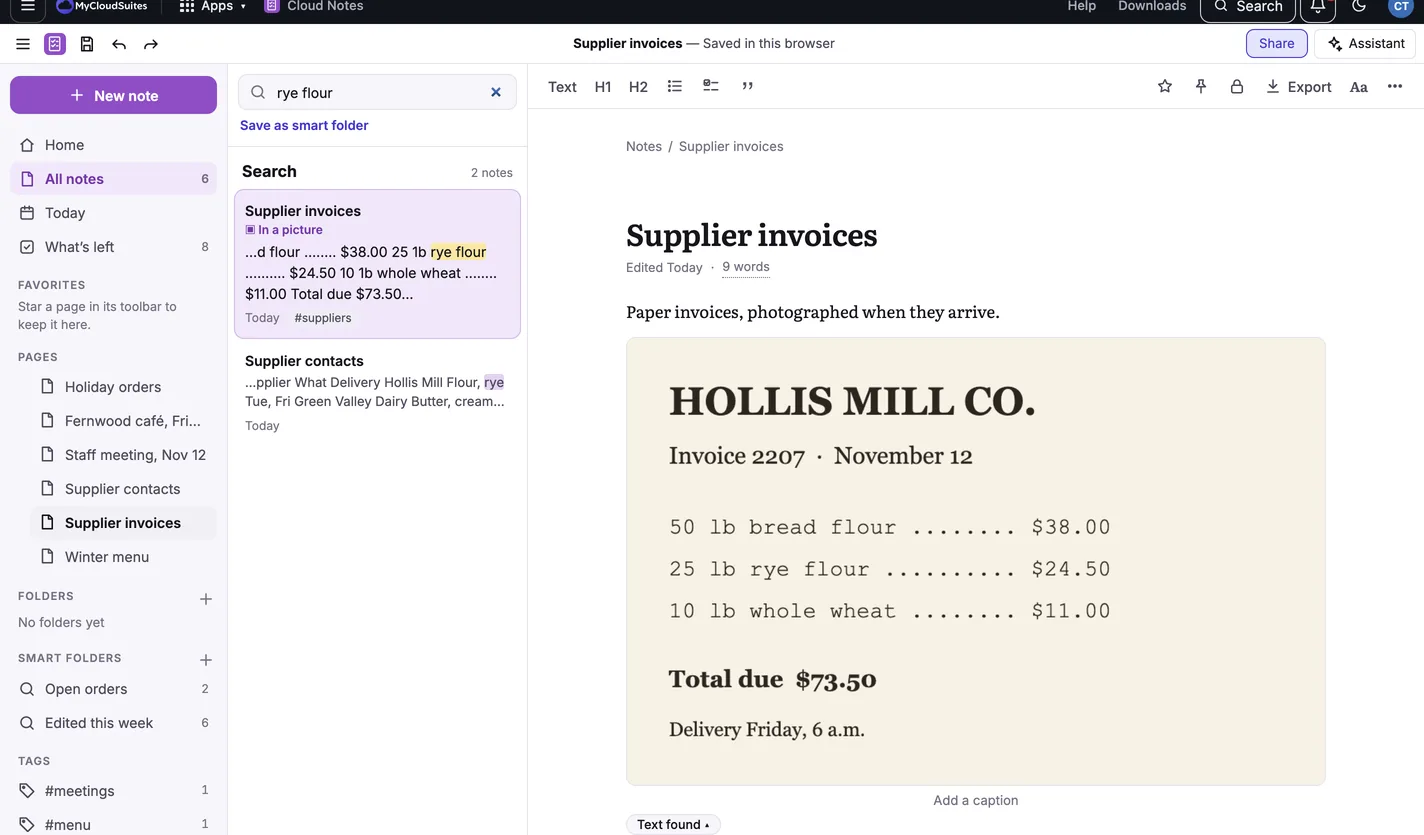
Words in pictures and PDFs
If Find words in pictures and PDFs is on, search finds those too and says where: In a picture or In a PDF, page 2.
Find in a page
- ⌘F (Ctrl+F) finds words in the page you’re in.
- ⌥⌘F on a Mac or Ctrl+H on Windows finds and replaces.
Need more? Smart folders, or contact us.