

Track the work on an invoice (job status)
Updated November 13, 2026
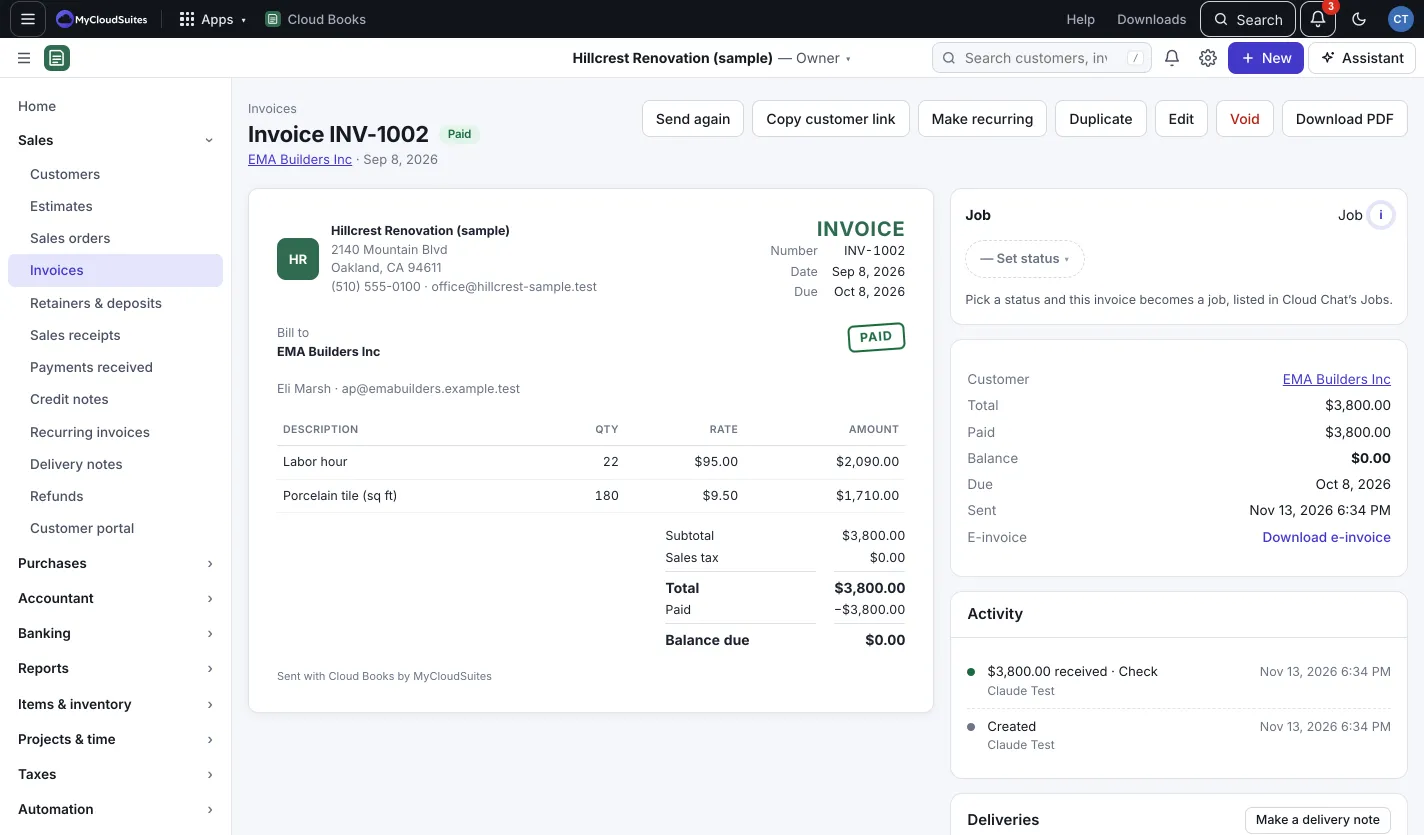
An invoice has no job status until you set one. Pick a status and the invoice becomes a job. The job shows in Cloud Chat’s Jobs, so your team can talk about it in its own channel. Crew see the scope of work, never the prices.
Set a job status
- Open an invoice (or an estimate or sales order). Find the Job card.
- Pick a status:
- Scheduled…: Books asks the date. It shows on the job and in its chat.
- In progress
- On hold…: Books asks why, for example Waiting on parts, Waiting on a permit, Waiting on the customer or Weather.
- Completed
- Cancelled
- Press Save if asked.
You can also set it from the Job column on the Invoices list. Press the small i beside Job for a short reminder of what a job status does.
Talk about the job
On the Job card, press Open job chat to open its channel in Cloud Chat.
Choose what crew can see
Crew are people in the company with no Books role, like Cloud Time workers and anyone else in Cloud Chat. In Settings › Team & roles, under What crew can see, pick:
- The scope of work (recommended): the job’s name, address, schedule, status and its invoice’s descriptions. No quantities, prices, totals or balances.
- Scope and quantities: the same, plus each line’s quantity. Still no prices.
- Nothing from Books: only the job’s name and status.
Good to know
- Marking a draft invoice Completed offers to send it right away.
- Once a job is Completed and paid in full, its channel closes. It stays readable, and opens again if the job does.
- Pick No status to clear it.