

The Cloud Time phone app
Updated November 13, 2026
The phone app is for clocking in and out, breaks, job photos, days off, swaps and open shifts. Foremen also get the Crew tab.
Get it
- Android: Cloud Time by MyCloudSuites on Google Play.
- iPhone: the app is with Apple for review. Until it’s out, open mycloudsuites.com/apps/time in Safari. To open it like an app, tap Share, then Add to Home Screen.
Sign in
- Open Cloud Time and tap Sign in with MyCloudSuites.
- Use the email address your company invited. New to MyCloudSuites? Open the invitation email first: it sets up your account and adds you to your company.
- If you belong to more than one company, pick one under Which company?
You stay signed in on the phone, so you can clock in with no signal. See When you have no signal.
Just looking? Tap Try the demo for a sample company. Nothing you tap there is saved.
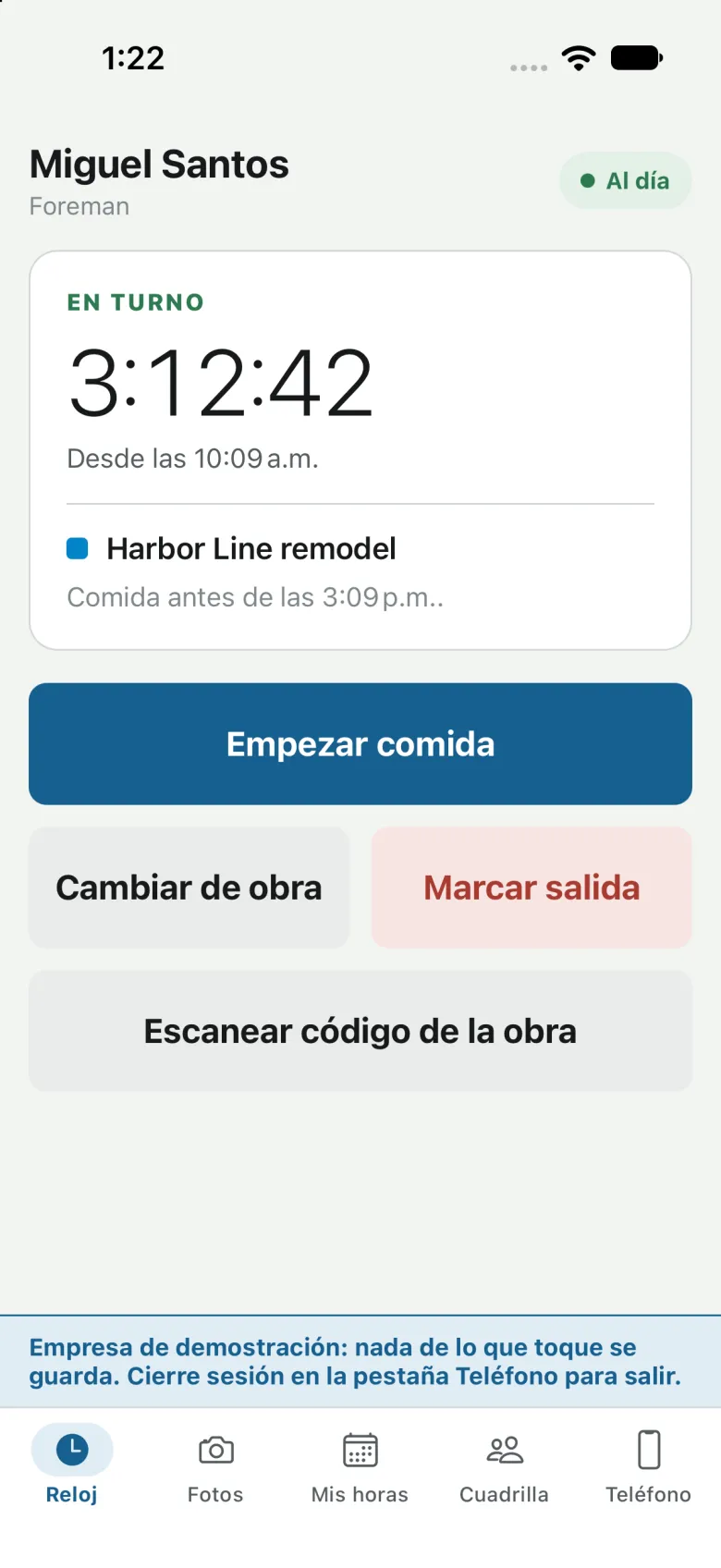
The tabs
- Clock: clock in and out, start and end your meal break, switch job, or scan a jobsite code.
- Photos: take job photos for the office.
- My time: your hours, the days you’re planned, open shifts, swaps and Ask for days off.
- Crew: for foremen. Who is on the clock, and Days to OK if the office uses Foreman OK.
- Phone: break reminders, things waiting to send, your account and Sign out of this phone.
The app shows in English or Spanish: your own choice, or else the phone’s language. See Use Cloud Time in Spanish.
Good to know
- The app does not use your location.
- Your estimated pay and miles driven for work are on the website, under My Week and Me. See Your estimated pay and Hand in miles.
- Before signing out, check Phone says Everything is with the office. Signing out deletes anything not sent yet.