

Clock in and out
Updated November 13, 2026
Cloud Time records your hours from the Cloud Time phone app, or from the website at mycloudsuites.com/apps/time on any phone or computer.
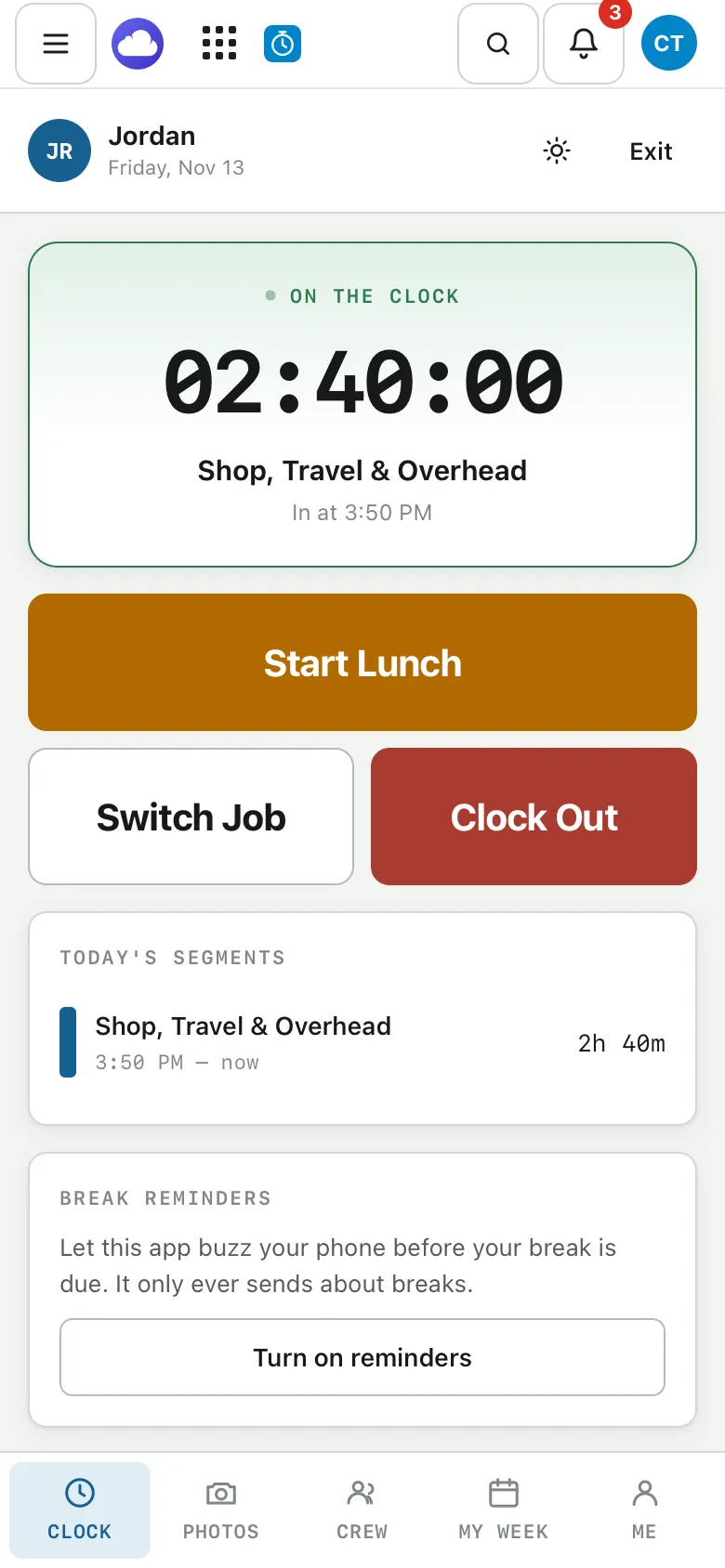
In the phone app
- Open Cloud Time. You land on Clock.
- Tap Clock in.
- Pick the job you’re working on.
The timer starts and shows On the clock. To finish, tap Clock out, then Clock out again to confirm. Tap Stay on the clock if you didn’t mean to.
On the website
- Open Cloud Time and go to Clock.
- Under Pick a job to start, choose your job.
- If your company uses cost codes, pick one under Cost code (optional), or leave it on No code.
- Choose Clock in.
To finish, choose Clock Out. You’ll see how long you worked, or how many things were flagged for the office to look at.
Good to know
- The time comes from our server, not your phone’s clock.
- Your lunch is never taken off for you. Start and end it yourself: see Meal and rest breaks.
- You can also clock in by scanning the code on the jobsite poster: see Clock in with a jobsite code.
- If you forget to clock out, tell your foreman or the office. They can correct the day, and the change is kept in the activity log.
- Cloud Time does not track where you are while you work. See Questions.