Getting started with Cloud Books
Updated November 13, 2026
Cloud Books keeps your invoices, bills, bank and reports in one place. Invoices and customers are unlimited on the free plan. You use it in your browser at mycloudsuites.com/apps/books, or in the Windows and Mac apps, which show the same books.
Set up your company
- Sign in to MyCloudSuites and open Cloud Books from the Apps menu.
- On Set up your company, fill in Your business: Business name, Street address, City, State, ZIP, Phone, Email on invoices and What you do.
- Under Your books, pick the month Your year starts in. Most businesses use January.
- Pick how to Count income and expenses:
- When invoiced or billed (accrual): income counts when you send the invoice, costs when you get the bill.
- When money moves (cash): income and costs count when money comes in or goes out. Not sure? Ask your accountant. You can change it later.
- Press Start using Cloud Books.
Cloud Books sets up a standard US chart of accounts (the list of categories your money is sorted into). You can rename, add or hide accounts any time.
Work through the Get started list
Your Home page shows a Get started checklist until each step is done:
- Add a customer: the name, email and address you invoice.
- Add a product or service: what you sell and your price.
- Add your sales tax rate: in Company settings, under Sales tax rates, press Add a rate.
- Send your first invoice: see Create and send an invoice.
Coming from another app?
Bring your books over from QuickBooks, Zoho Books, Quicken, Joist or a spreadsheet in Settings › Import & export. See Switch to Cloud Books.
Good to know
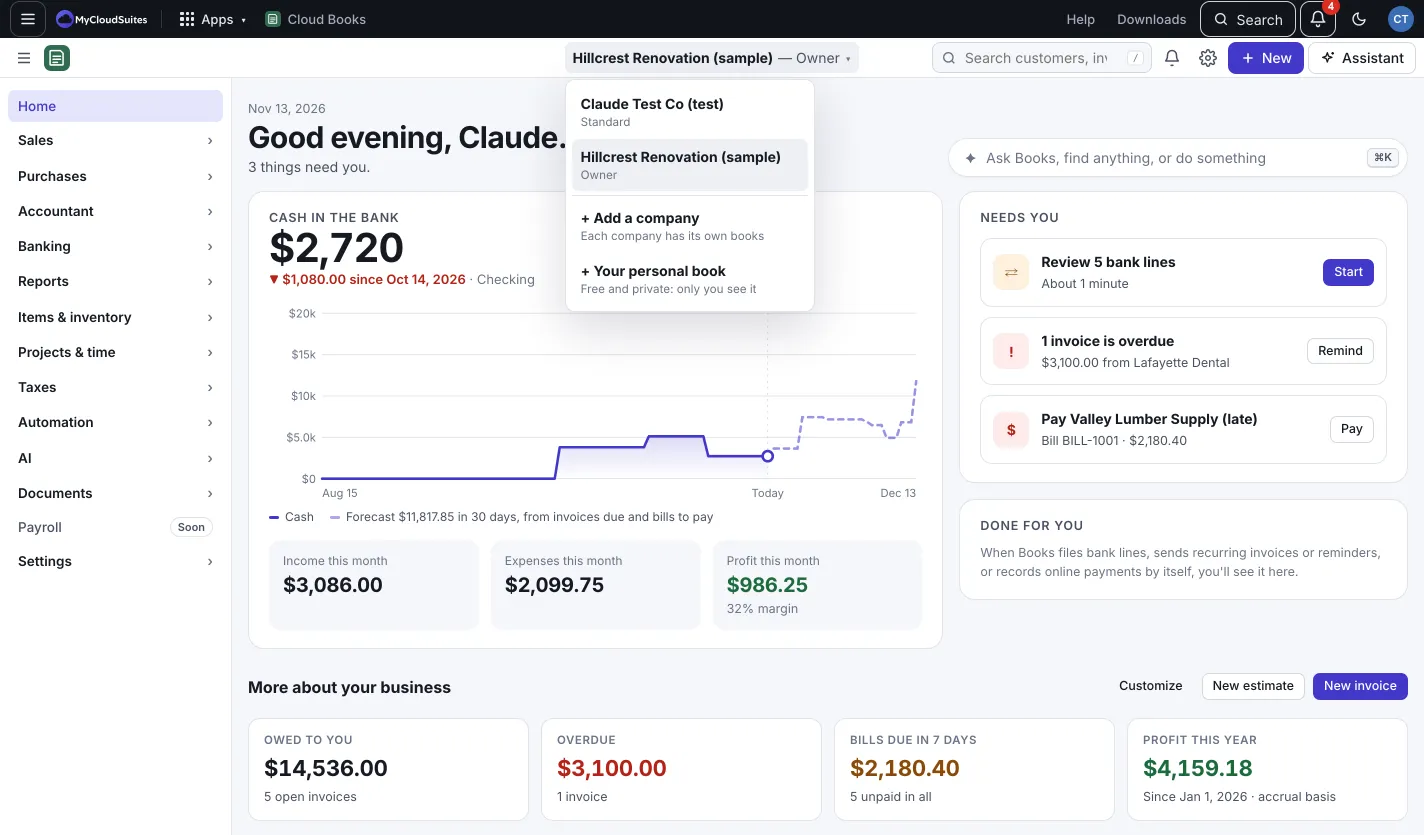
- More than one business? Click the company name in the top bar, then + Add a company. Each company has its own books, customers and settings.
- Your personal book. The same menu offers + Your personal book: free and private, only you see it.
- Invite your bookkeeper. Accountants and bookkeepers are free and unlimited. See Invite your accountant.