

Track your signature requests
Updated November 13, 2026
Sign › Track lists every PDF you’ve sent for signature. It shows who has viewed and signed each one, and lets you remind signers, cancel a request, or open the signed copy.
Open your requests
Choose Sign › Track. You don’t need a PDF open. If you’re in Request signatures, choose Track requests at the top instead.
In the desktop app 1.0.21, sign in to MyCloudSuites first (Preferences › Account).
Filter the list
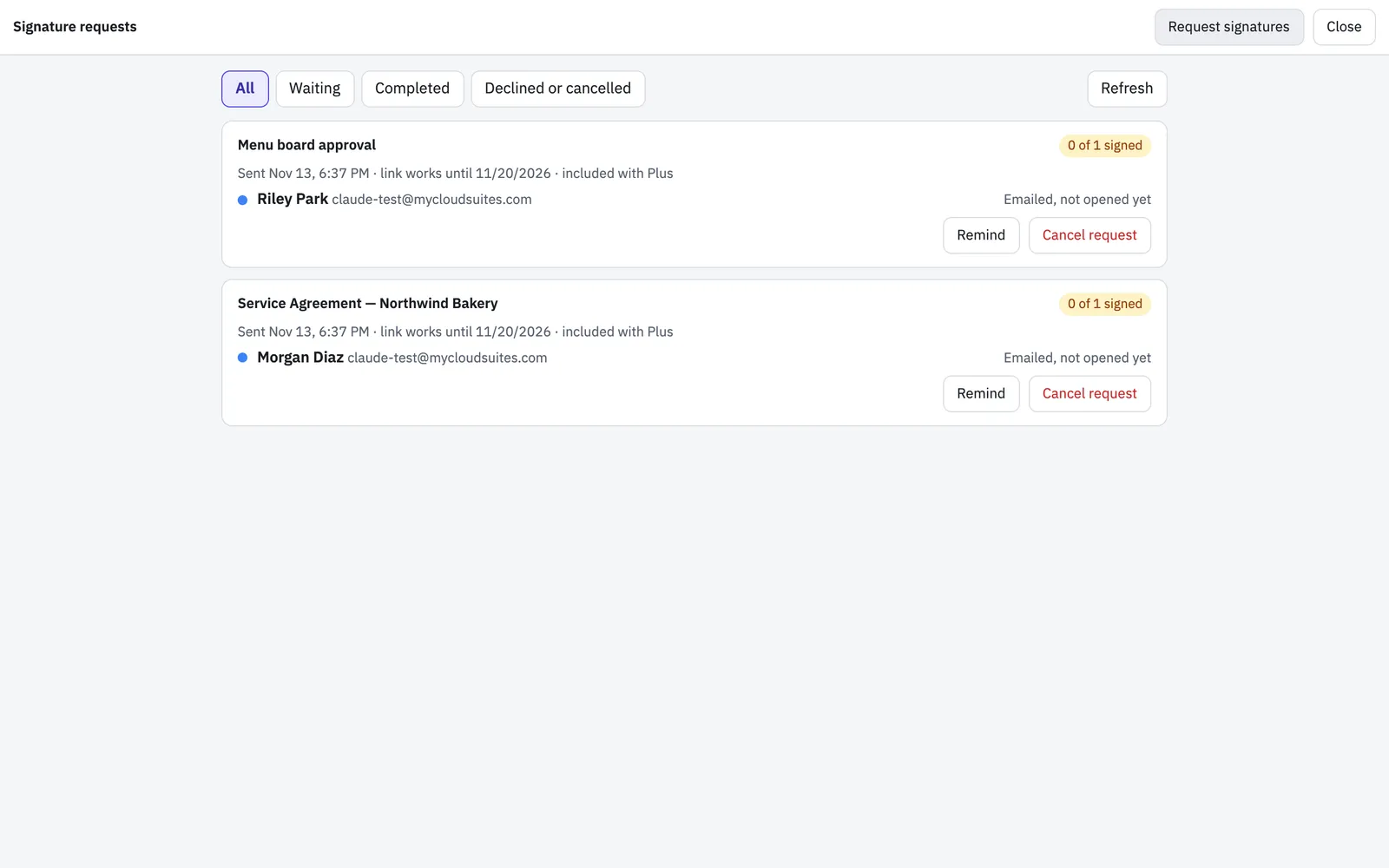
Use the buttons at the top to show All, Waiting, Completed, or Declined or cancelled. Choose Refresh to see the latest.
Each request shows:
- its status: how many have signed so far (for example, 1 of 2 signed), Completed, Declined, Cancelled or Expired
- when you sent it, and when it was completed or until when its link works
- whether it was included with Plus or how many credits it used
Under the request, each signer has their own line:
- Signed, with the date and time
- Viewed: they opened it but haven’t signed yet
- Emailed, not opened yet
- Waits for the signer before: in a request signed in order, it isn’t their turn yet
- Declined, with their reason if they gave one
Send a reminder
For a request that’s still waiting, choose Remind. Cloud PDF emails everyone whose turn it is and who hasn’t signed yet, and tells you how many reminders went out. Each reminder has a new link, and only the newest one works. If a reminder went out recently, Cloud PDF asks you to try again tomorrow.
Reminders also go out by themselves if you chose that when you sent the request.
Cancel a request
- Choose Cancel request on a waiting request.
- Confirm. The links stop working and nobody can sign it.
A request was charged when it was sent, so cancelling it doesn’t give the charge back.
Get the signed copy
When everyone has signed, the request shows Completed.
- Choose Open signed copy. The signed PDF opens in a new tab, named with “(signed)” added.
- Choose File › Save As… (Ctrl+Shift+S, or ⌘⇧S on a Mac) to keep it on your computer or phone.
The signed PDF has a certificate page with who signed, when, and from which IP address. It also has a MyCloudSuites seal that shows if anything is changed later.
The email when everyone has signed
When the last person signs, you get an email titled “Signed by everyone:” and the document’s name. Its Open signature requests button opens Cloud PDF’s list of your requests, where you can open the signed copy.
Each signer gets their own email with a Download the signed PDF button. Their link works for 30 days, so they should download their copy and keep it.
If a signer declines, you get an email with their reason. The request has ended. You can fix the document and send it again.