

Add transitions between slides, including Morph
Updated November 13, 2026
A transition is how a slide arrives in the slide show.
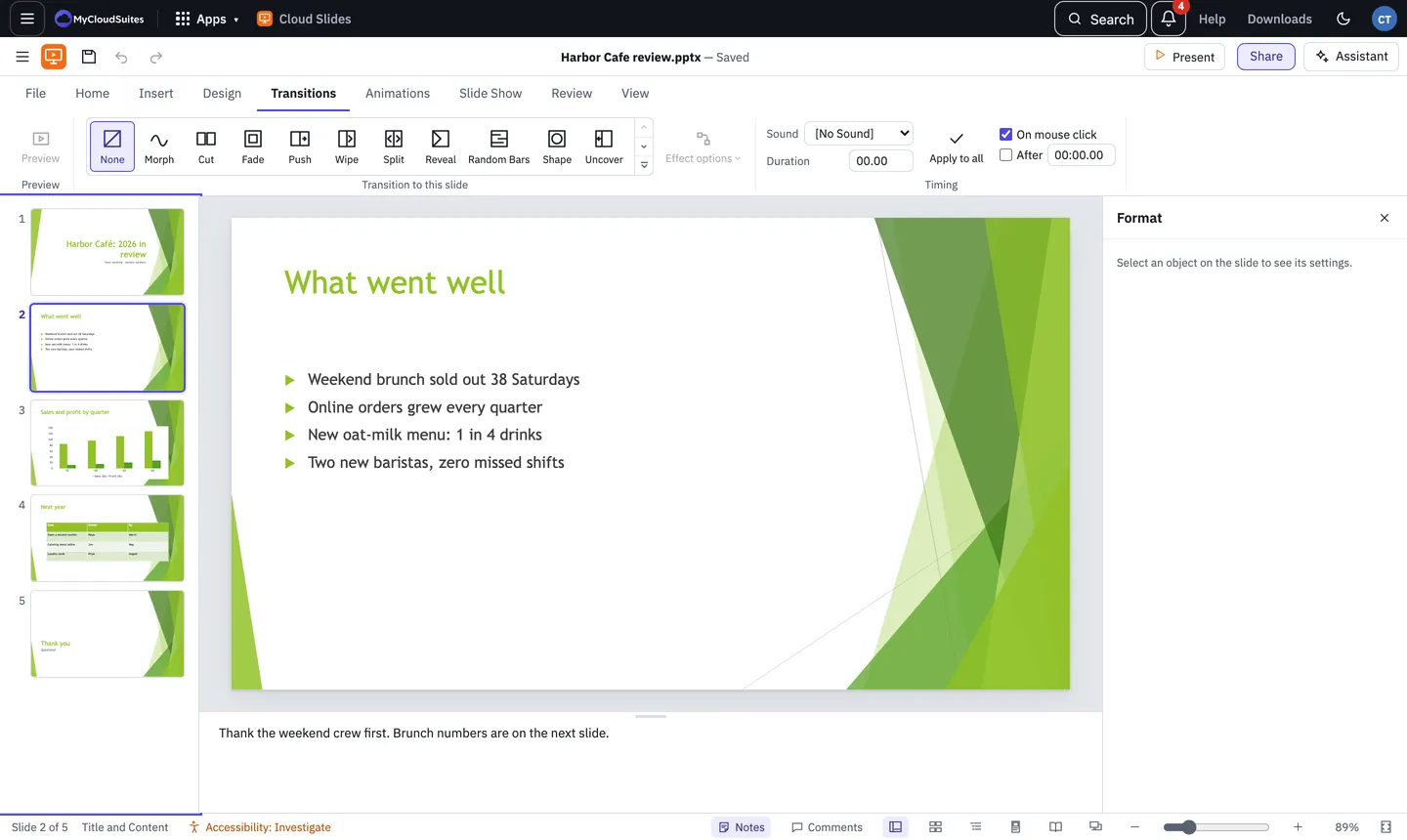
Add a transition
- Select the slide (or several).
- On the Transitions tab, pick one from the gallery. Cloud Slides plays it once so you can see it.
- Effect options changes its direction or style.
- Choose Preview to watch it again.
Timing
- Sound plays a sound with it.
- Duration sets how long it takes.
- On mouse click waits for you. After moves on by itself after the time you type.
- Apply to all gives every slide the same transition.
Slides with a transition have a star in the slide list.
Morph
Morph makes objects glide, grow, turn and change colour from one slide to the next.
- Duplicate a slide and move, resize or recolour things on the copy.
- Select the copy and choose Morph at the start of the gallery.
- In Effect options, choose Objects, Words or Characters for how text changes.
Objects with the same name on both slides are paired. To pair two that differ, give both names starting with !! in the Selection pane.
Need more? Animate text and objects, or contact us.