

Animate text and objects
Updated November 13, 2026
Animations play on a slide during the show: entrances, emphasis, exits and motion paths.
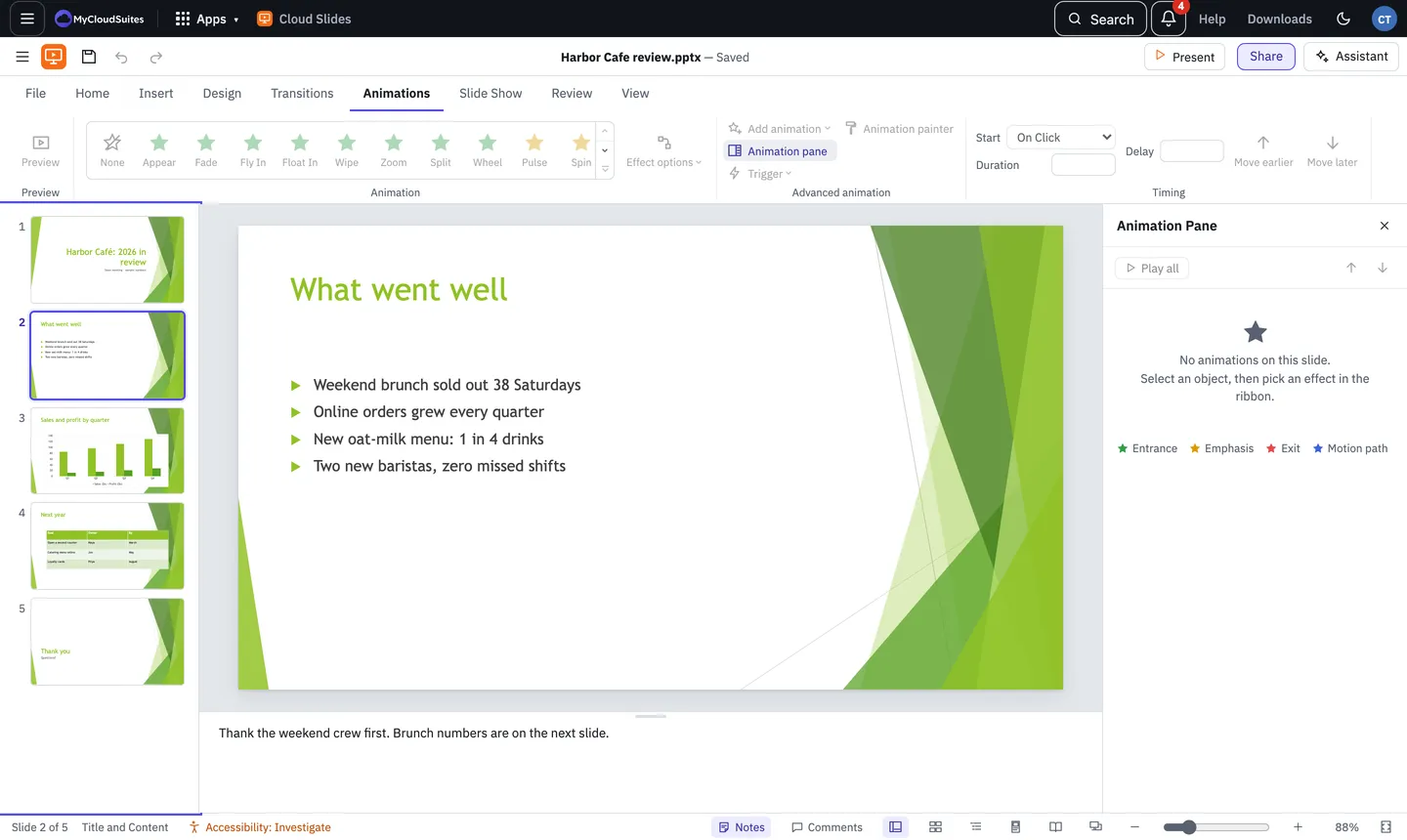
Add an animation
- Select a shape, picture or text box.
- On the Animations tab, pick an effect from the gallery. To give it a second effect, use Add animation.
- Effect options sets its direction, and for text As One Object or By Paragraph.
- Choose Preview to watch the slide’s animations.
A number beside the object shows its place in the order.
Timing
- Start: On Click, With Previous or After Previous.
- Duration and Delay in seconds.
- Move earlier and Move later change its place in the order.
The Animation Pane
Choose Animation pane to list every effect on the slide, with bars showing when each one runs. Drag a row to reorder it, choose Play all or play from one effect, and open an effect’s options for its sound, what happens after it plays (such as Hide After Animation), text By word or By letter, and repeats.
More
- Trigger starts an effect when you click a certain object, or when a video reaches a bookmark.
- Animation painter copies one object’s animations onto another. Double-click it to paint several; press Escape to stop.
- A custom path lets you draw where an object goes: click for corners, drag for curves, and press Enter or double-click to finish.
Need more? Start a slide show, or contact us.