

Start a slide show and find your way around it
Updated November 13, 2026
The slide show fills the screen with your slides, plays transitions and animations, and moves on when you click.
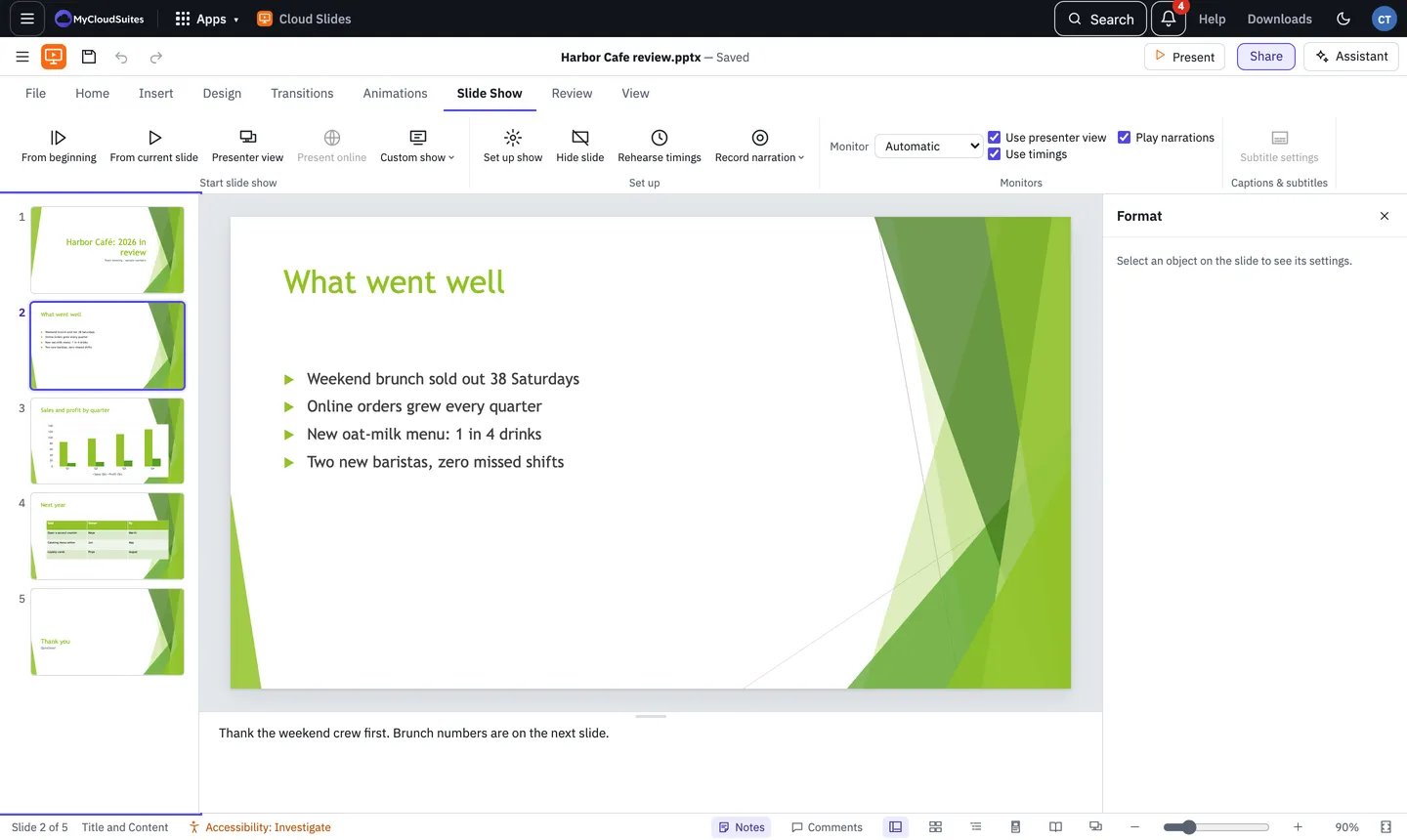
Start the show
- From the start: choose Slide Show › From beginning, or press F5.
- From this slide: choose Present in the title bar, Slide Show › From current slide, or press Shift+F5.
Online, the show takes over the browser’s whole screen. Leaving full screen ends it.
Move around
| To do this | Press |
|---|---|
| Next slide or animation | Space, Enter, N, Right arrow, Down arrow, Page Down, or click |
| Back | Backspace, P, Left arrow, Up arrow or Page Up |
| Go to a slide | its number, then Enter |
| First or last slide | Home or End |
| See every slide | G or - |
| Black or white screen | B or ., W or , (press again to come back) |
| End the show | Escape |
Right-click for the show’s menu, or use the faint buttons at the bottom left. Online on a phone, tap to bring them back.
Draw on your slides
- Ctrl+P pen, Ctrl+I highlighter, Ctrl+E eraser, Ctrl+L laser pointer, Ctrl+A back to the arrow. (Cmd on a Mac.)
- E erases everything you drew on this slide. Ctrl+M hides or shows your drawing.
When the show ends, Cloud Slides asks whether to Keep your drawing on the slides or Discard it.
Tips
- View › Reading view plays the show inside the window, handy for checking it.
- Links you set with an object’s click action work in the show.
Need more? Presenter view, or contact us.