

Get started with Cloud Docs
Updated November 13, 2026
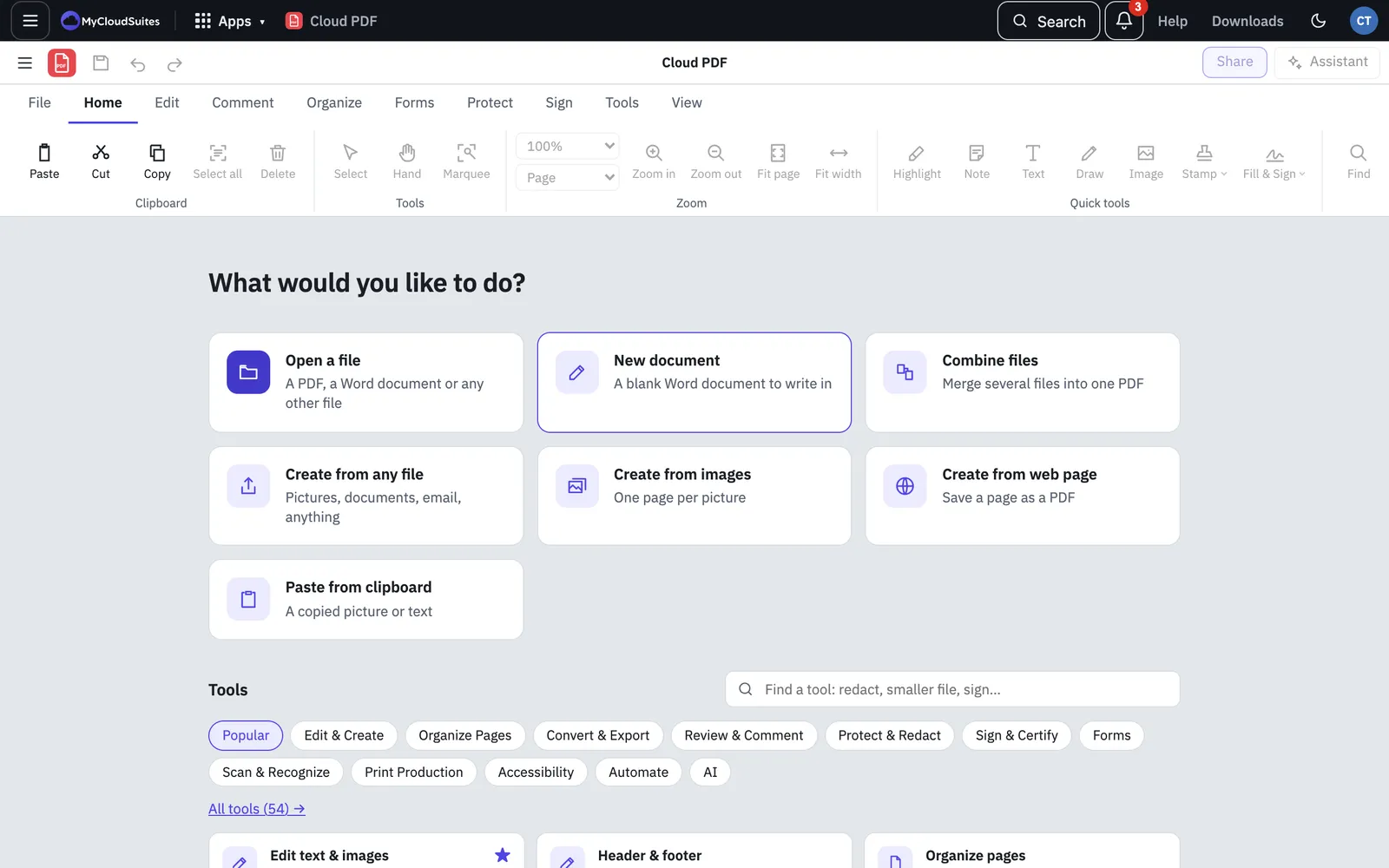
Cloud Docs is the Word-compatible editor that comes with Cloud PDF. It opens and saves Word documents (.docx and .doc) and works in the same window as Cloud PDF. Each document gets its own tab, with a ribbon like Word’s. Cloud Docs is free, in the browser at mycloudsuites.com/app and in the desktop app for Windows and Mac.
Start a new document
Do one of these:
- On the start screen, choose New document.
- Choose File › New Document. In the desktop app the shortcut is Ctrl+N (⌘N on a Mac). In the browser, Ctrl+N opens a new browser window, so use the menu.
- In the browser, open Apps on the MyCloudSuites bar and choose Cloud Docs.
A new document is named Document1.docx until you save it.
Open a Word document
- On the start screen, choose Open a file, or choose File › Open… (Ctrl+O, or ⌘O on a Mac).
- Pick a Word file. It opens in a new tab.
You can also drag a file onto the window. Cloud Docs opens .docx, .doc, Word templates (.dotx, .dot), .rtf, .odt, .txt and Markdown files. See Open, create and save Word documents.
Find your way around
Tabs. Each document has a tab in the row under the title bar. A PDF you have open keeps its own tab, so you can switch between a PDF and a Word document.
The menu. The ≡ button at the left of the title bar holds the File, Edit and View menus.
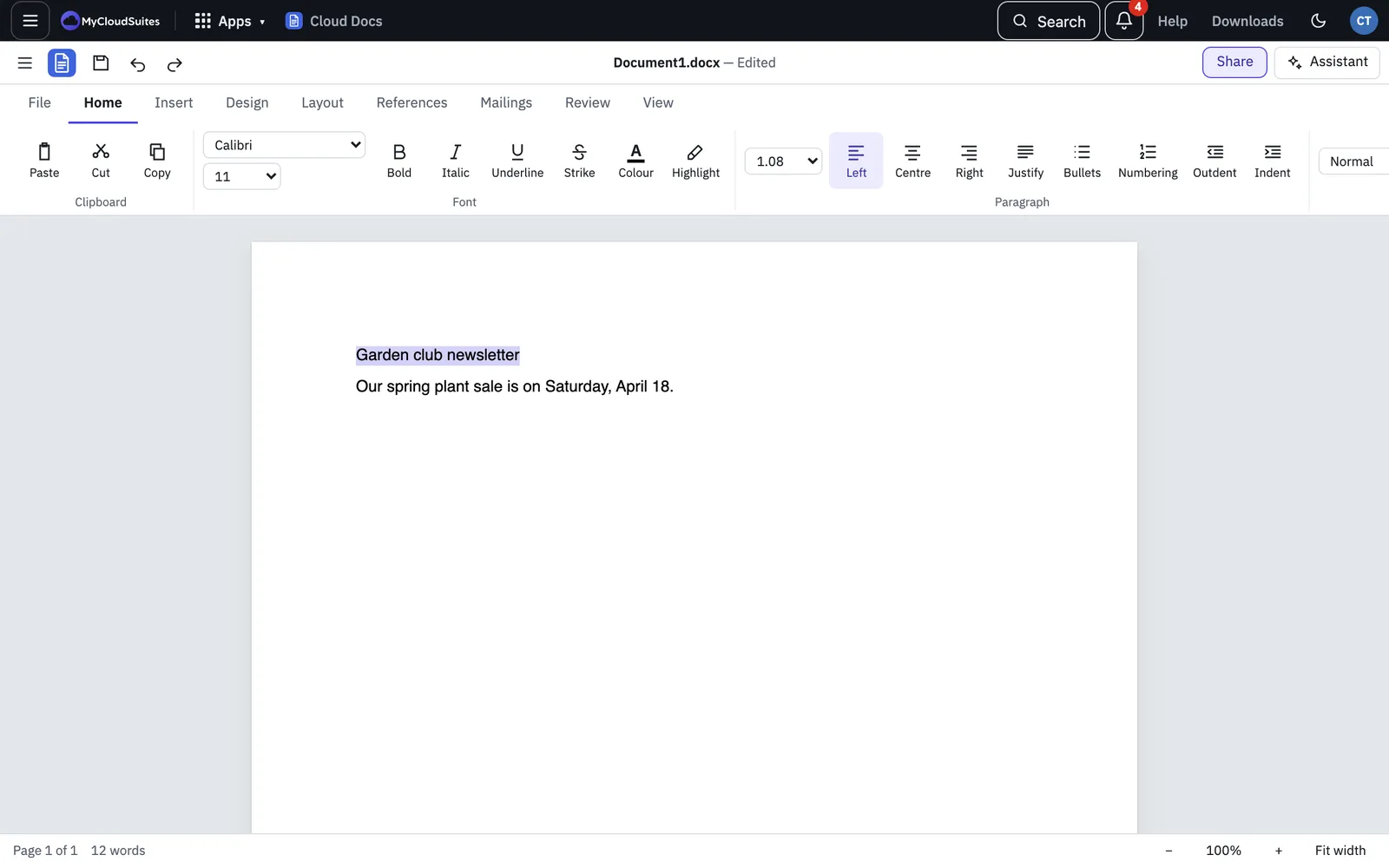
The ribbon. The ribbon’s tabs are:
- File: Open, Save, Save As, Save as PDF, Open as PDF and Print.
- Home: Paste, Cut and Copy, the font and size, Bold, Italic, Underline, Strike, Colour and Highlight, alignment, Bullets, Numbering, indents, line spacing, styles and Find & replace.
- Insert: Table, Picture, Shapes, Chart, Text box, Equation and Page break.
- Design: Watermark, Page colour and Page borders.
- Layout: Margins, Orientation, Size, Columns, breaks, and Wrap text, Position and Size for a picture or shape.
- References: table of contents, footnotes and endnotes, captions, cross-references, citations and a bibliography.
- Mailings: mail merge.
- Review: Spelling, New comment, Compare, Track changes and Restrict editing.
- View: Read mode.
- Table: shows only while the cursor is in a table.
Double-click a ribbon tab, or press F8, to fold the ribbon away. Do it again to bring it back. Undo and Redo are on the title bar.
The status bar
The bar at the bottom shows the page the cursor is on, the number of pages and the word count. On the right are − and + to zoom, the zoom percentage (click it to go back to 100%) and Fit width. On a phone, a document opens at Fit width.
Save your work
Press Ctrl+S (⌘S on a Mac), or choose Save on the ribbon’s File tab. The first time, you choose a name and a place. In the browser, a file you opened from your computer can be saved back in place after your browser asks for permission. Browsers that can’t save in place download a copy instead.
If you go to another MyCloudSuites page in the browser, your unsaved document is kept for you, so you can pick it up again later.