

People
Updated November 15, 2026
The people you sell to, with every touch in one place.
Add a person
- Open Contacts (People is selected) and choose New person. Their business card opens full screen.
- Type their name on the card, and anything else you know: title, company, email and phone. Pick a Lifecycle and an Owner chip.
- If they might already be here, Before you save says so (“Same email as …”) with Open them.
- Choose Add person. They open on the right.
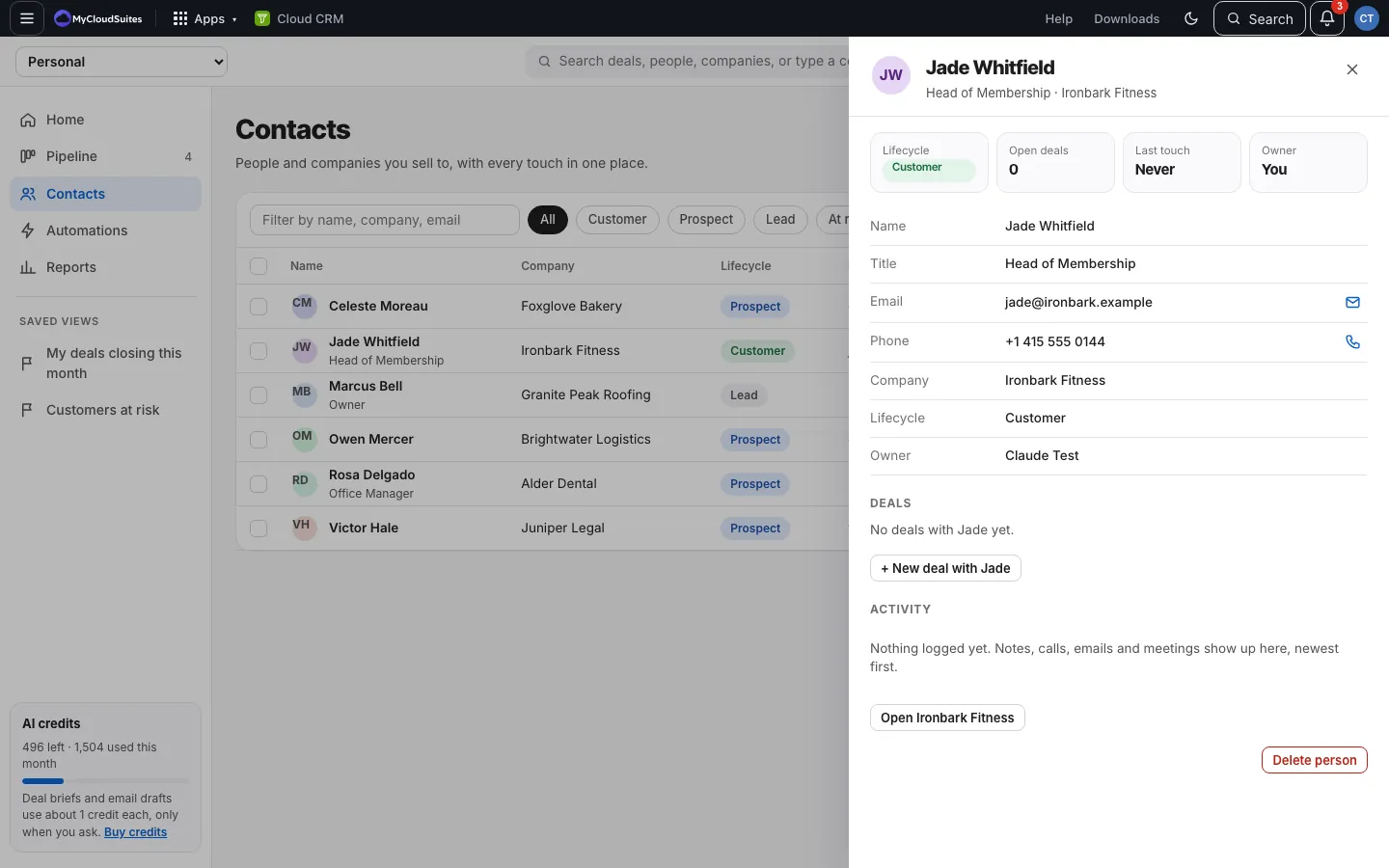
Find people
- Type in Filter by name, company, email.
- Choose a lifecycle: All, Customer, Prospect, Lead, At risk or Churned. See Lifecycle.
A person’s page
- Lifecycle, Open deals, Last touch and Owner at the top.
- Every field, editable in place, like a deal’s details.
- Their Deals and their Activity.
- Tap their email or phone to email or call them.
Delete a person
Choose Delete person and confirm. Their deals keep going, with no person on them. This can’t be undone. In a team CRM you can delete people you own; owners and admins can delete anyone.
Good to know
- Adding a deal with a new person’s name adds them too.
- The list shows up to 500 people by name. Search to find anyone else.