

Set monthly goals for each person
Updated November 15, 2026
Give each person on your team a monthly goal for the deals they win. Everyone sees how they’re doing on Home and in Reports.
Set goals
- Choose Reports on the left, then Set goals on Goals this month (or Settings › Targets and goals › Set goals). Only owners and admins see it.
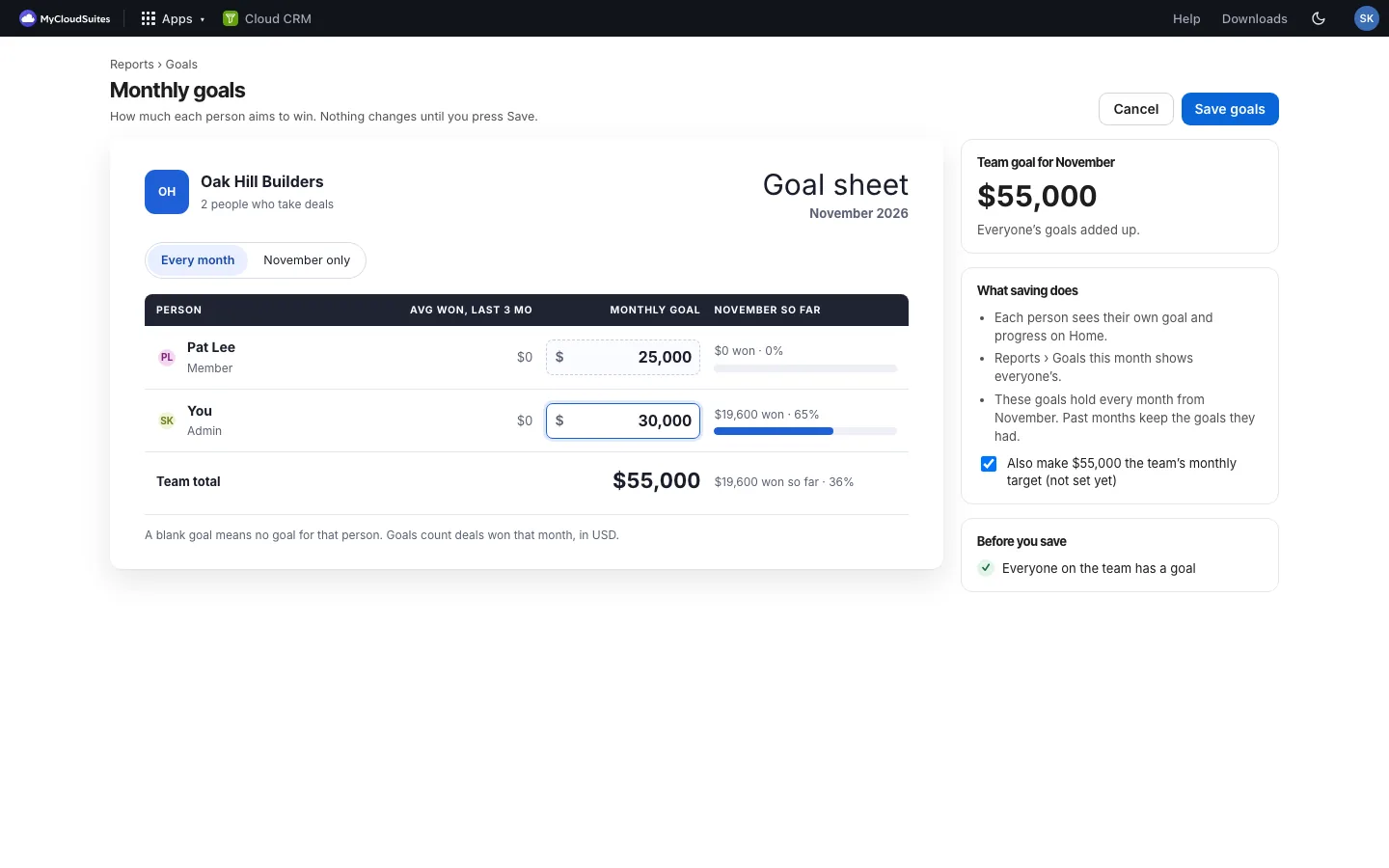
- The goal sheet opens. Type each person’s monthly goal in its box. Leave a box empty for no goal.
- Choose Every month to keep these goals from now on, or [this month] only for just this month.
- Check Before you save on the right, then choose Save goals.
What the goal sheet shows
- Next to each goal, what that person won on average over the last 3 months, and how this month is going.
- Team total adds up as you type.
- Before you save points out anything worth a second look, like a goal well above what someone usually wins, or someone with no goal.
- Tick Also make … the team’s monthly target to use the total as your monthly target.
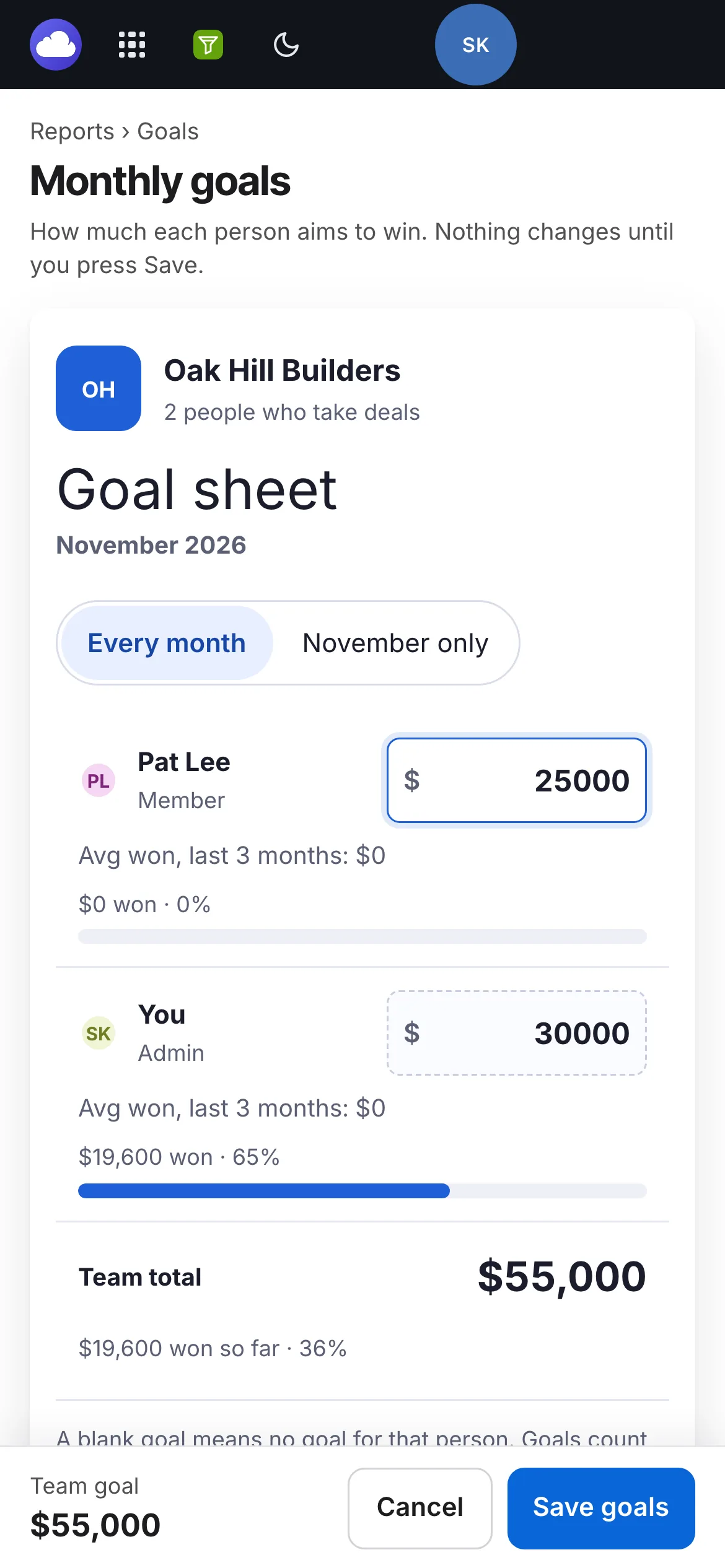
On a phone, the cards move under the sheet and Save goals stays at the bottom.
Where goals show
- Home: your own goal and what you’ve won toward it, under Won in this month.
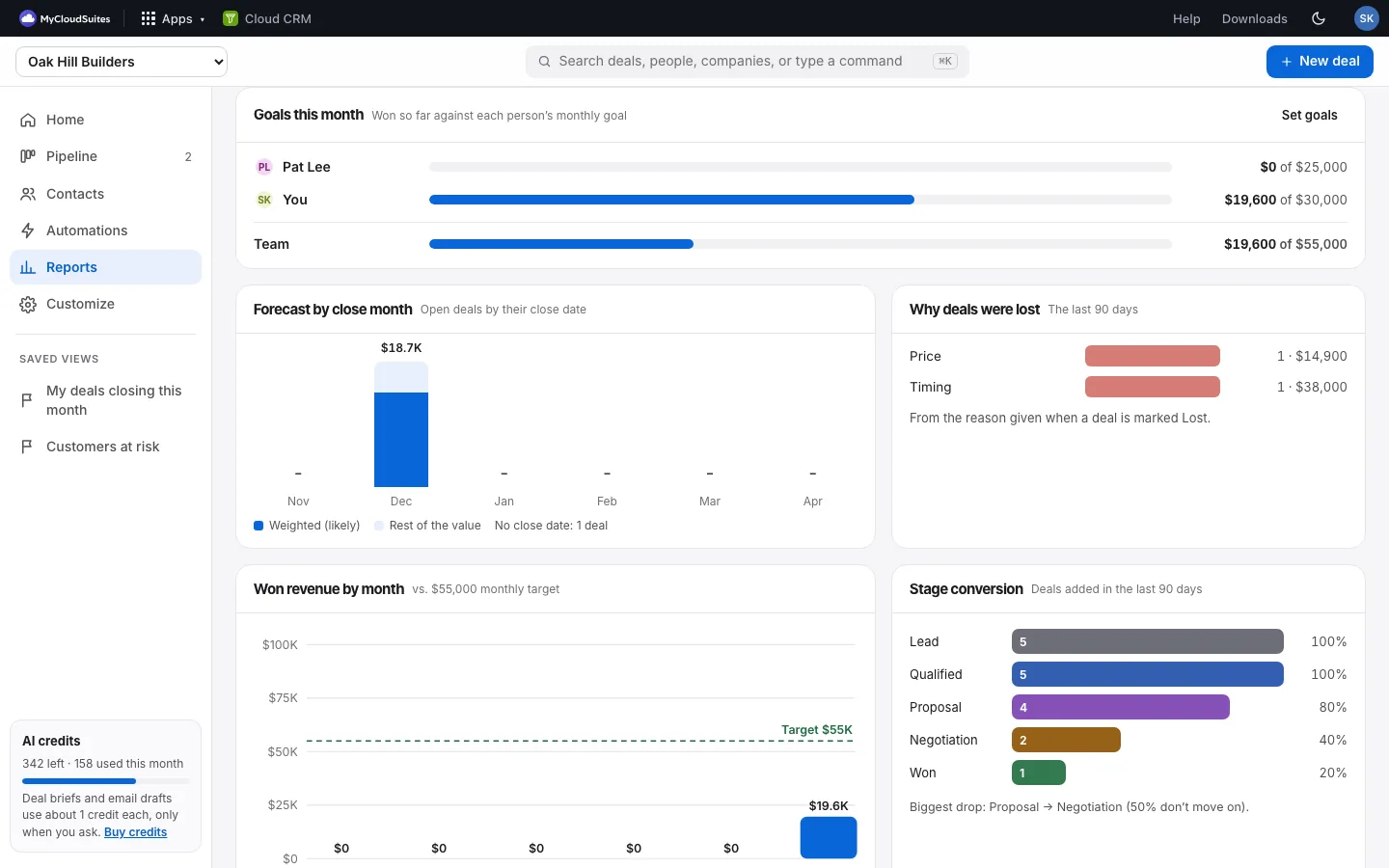
- Reports › Goals this month: everyone’s progress and the team’s.
Good to know
- Goals count deals won that month, in your main currency. See Currencies.
- Changing goals doesn’t change past months: they keep the goals they had.
- Goals are for people who can add and edit deals in this CRM.