Split screen
Updated November 13, 2026
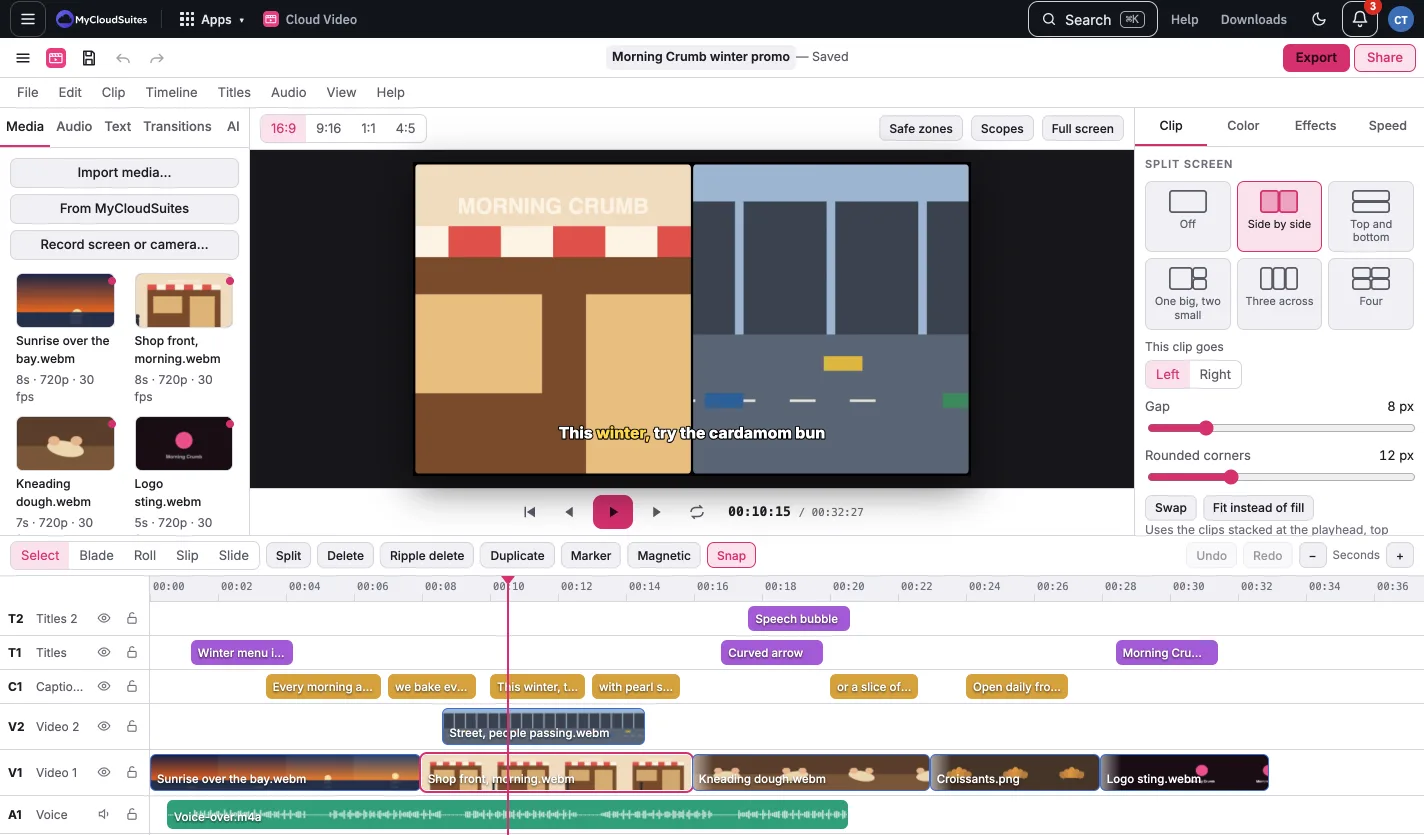
Stack the clips you want on video tracks at the same time (for example one on Video 1 and one on Video 2). Put the playhead where they overlap, select one, and open the Clip tab, Split screen.
- Pick a layout: Side by side, Top and bottom, One big, two small, Three across or Four.
- This clip goes picks the selected clip’s space; the clip that had it swaps.
- Gap and Rounded corners set the spacing for all of them.
- Swap trades two clips’ places.
- Fit instead of fill shows the whole picture in its space rather than filling it.
- Scale and Position in the Clip tab move the picture inside its space.
Off puts every clip back as it was. Split screen is free and looks the same in the export.