Pan and zoom on photos
Updated November 13, 2026
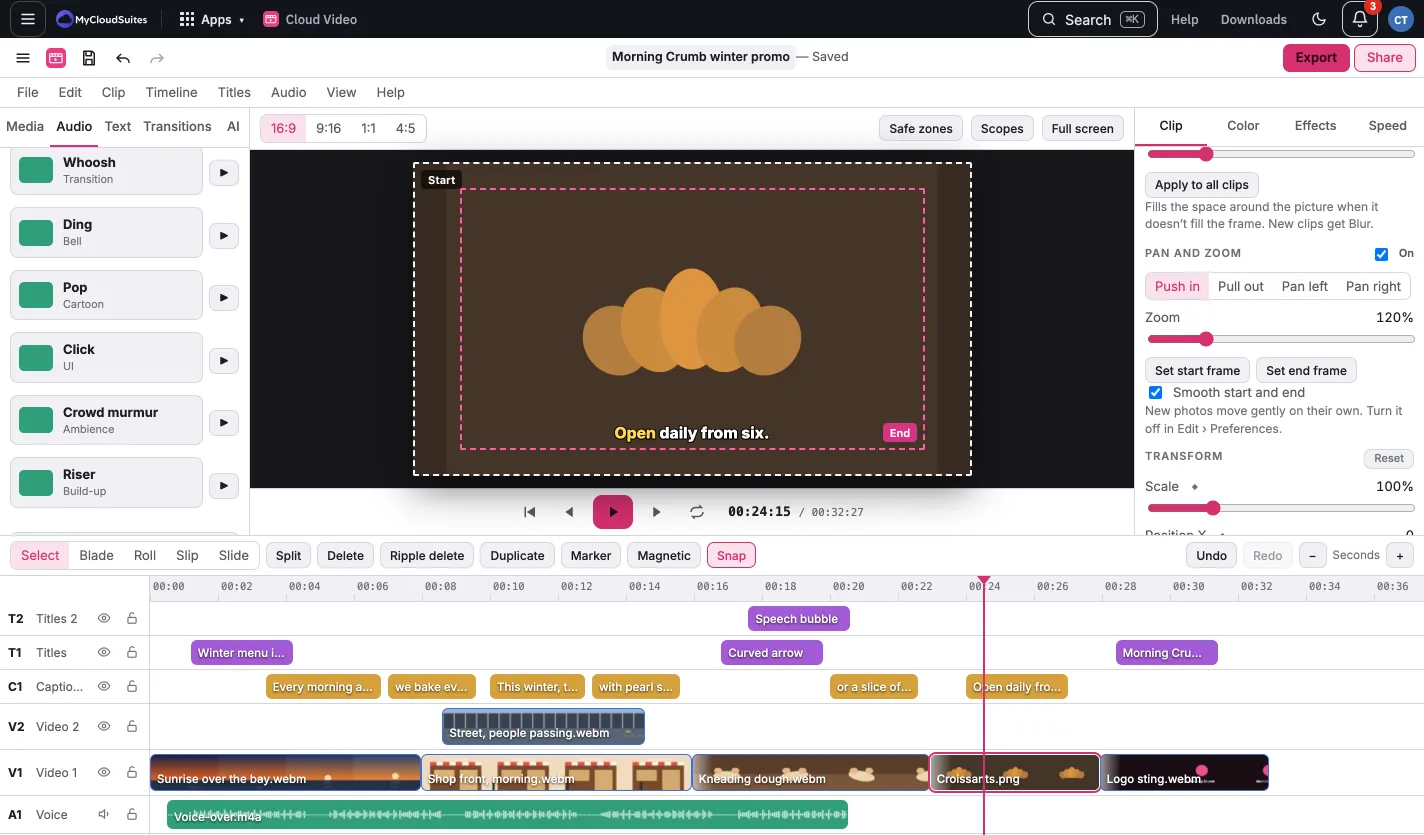
New photos push in slowly on their own. Select a photo and open the Clip tab, Pan and zoom:
- Pick a move: Push in, Pull out, Pan left or Pan right, and set the Zoom.
- Or set your own frames: Start and End jump to that end of the clip and show its frame over the viewer; change the zoom and position there.
- Smooth start and end eases the move.
- Turn the switch off for a still photo.
To stop new photos moving on their own, open Edit › Preferences… (⌘,) and turn off Pan and zoom new photos.