

Share a presentation by email or link
Updated November 13, 2026
Share sends a copy by email or makes a link anyone can open. It’s part of MyCloudSuites Plus and works in Cloud Slides online.
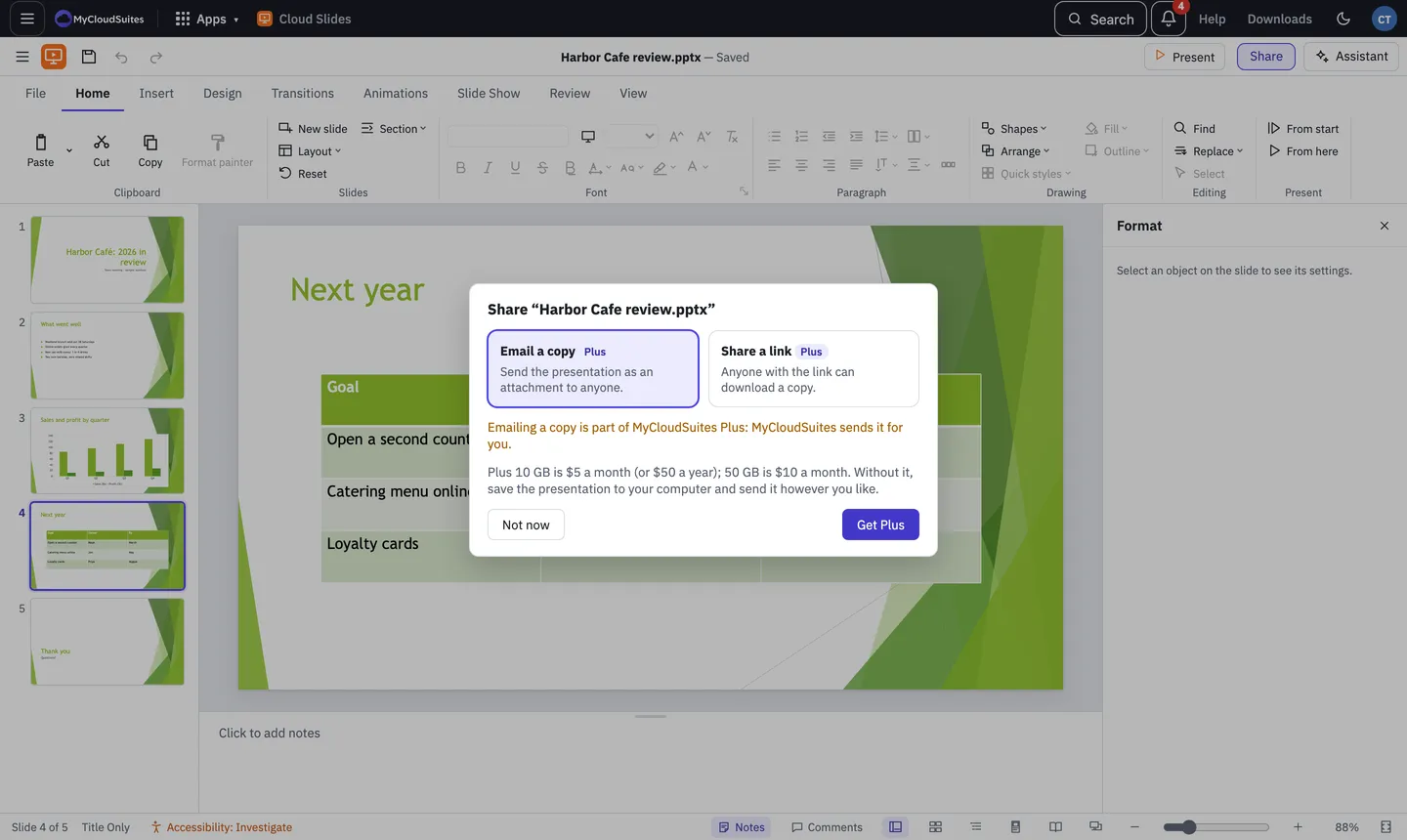
Email a copy
- Choose Share at the top right, then Email a copy. Or choose File › Email.
- Check that Email a copy is picked.
- Add up to 10 email addresses and a message if you like, then choose Send.
MyCloudSuites sends the presentation as an attachment.
Share a link
- Choose Share, then Share a link. Or choose File › Share link.
- If the presentation isn’t in MyCloudSuites yet, Cloud Slides saves it to your files first.
- Choose Copy link and send it however you like. Pick when it expires under Link expires: Never, In 7 days or In 30 days.
Anyone with the link can download a copy. They always get the latest version you’ve saved. To stop it, open Share again and choose Stop sharing.
Good to know
- Without Plus, Share offers it. You can still save the presentation and send it yourself.
- The desktop app doesn’t have Share yet. Use Save to MyCloudSuites and share from Cloud Slides online, or attach the file to an email yourself.
Need more? Send to another app, or contact us.