

Save a presentation
Updated November 13, 2026
Cloud Slides saves presentations as .pptx files that other presentation apps open too.
Save
- Choose Save in the title bar, or press Ctrl+S (Cmd+S on a Mac).
- The first time, pick a name and a place.
The title bar says Saved once it’s done.
Save as another kind of file
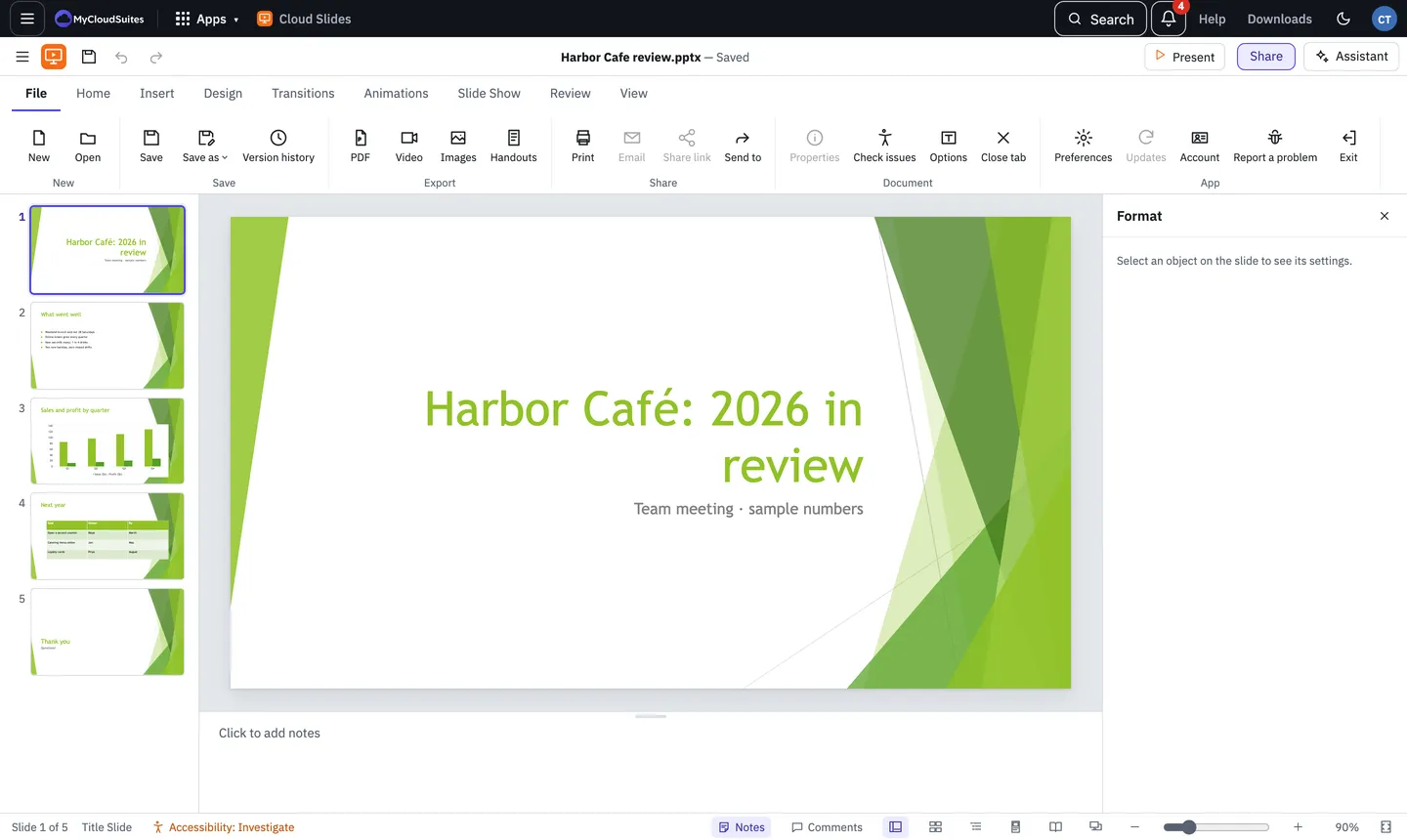
- Open the File tab and choose Save as.
- Pick Presentation (.pptx)…, Template (.potx)… or Show (.ppsx)…. A show opens straight into the slide show.
Saving in your browser
- Chrome and Edge save straight back to the file you opened.
- Safari and Firefox download a copy each time you save. Your browser puts it in your downloads.
- Your work is kept as you go. Every few seconds, and when you leave the page, Cloud Slides keeps your changes as a draft in this browser. Open Your apps on mycloudsuites.com/apps to carry on where you left off. The draft goes once you save or close the presentation.
Embed fonts
If you use fonts that other computers may not have, choose File › Options and turn on Embed fonts in the file. Fonts whose makers allow it go into the file when you save. Online, this needs Chrome or Edge with the computer’s fonts allowed (see Text and fonts).
If something goes wrong
- Safari or Firefox keeps making new copies. That’s how those browsers save. Use Chrome or Edge, or save to MyCloudSuites, to keep one file.
Need more? Save to MyCloudSuites, or contact us.