

Get started with Cloud Slides
Updated November 13, 2026
Cloud Slides makes, edits and presents slide decks. It opens and saves .pptx files, so you can work on presentations made in other presentation apps and send yours to people who use them. It’s free.
Where you can use it
- In your browser at mycloudsuites.com/apps/slides: Chrome, Edge, Firefox and Safari on a computer, and the browser on your phone.
- As an app on your computer for Mac and Windows. See Install Cloud Slides.
- iPhone and Android apps aren’t out yet. See Cloud Slides phone apps.
Almost everything works in both places. A few things work only in one; Online and desktop: what’s different lists them.
Find your way around
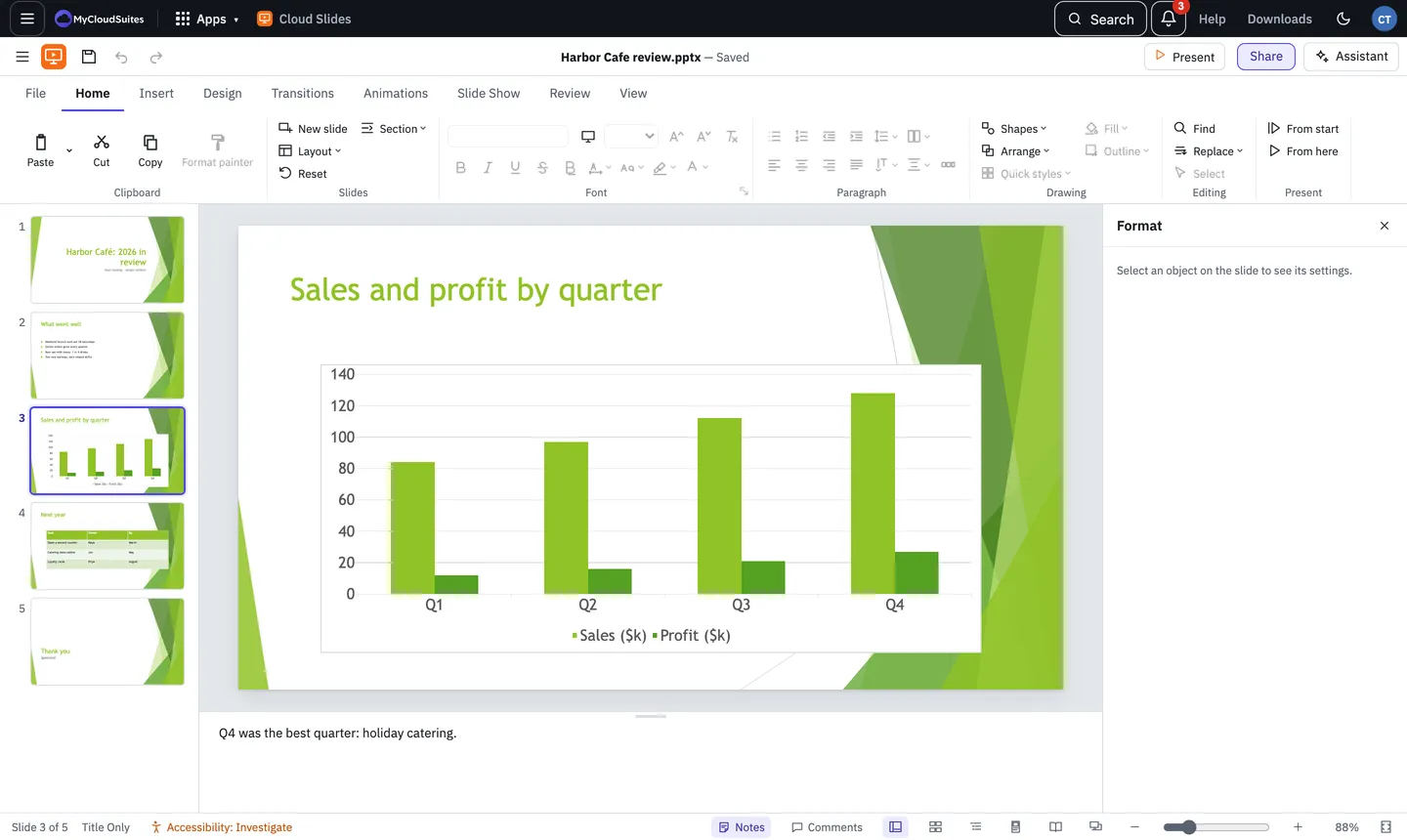
- The title bar has the menu (≡), Save, Undo and Redo, the presentation’s name, and Present and Assistant on the right. Online there’s also Share.
- The ribbon has the tabs: File, Home, Insert, Design, Transitions, Animations, Slide Show, Review and View. More tabs appear when you select something, such as Shape Format for a shape or Chart Design for a chart.
- The slide list on the left shows every slide. Click one to work on it.
- The Format pane on the right shows the settings of whatever you’ve selected.
- Notes sit under the slide, for what you want to say.
- The status bar at the bottom shows the slide number and layout, an accessibility reading, buttons for Notes, Comments and the views, and the zoom.
Start now
- Open Cloud Slides online. A blank presentation is ready.
- Click Click to add title and type.
- Choose Home › New slide to add the next slide.
Need more? Open a presentation, or contact us.