

Get layout ideas with Design Ideas
Updated November 13, 2026
Design Ideas looks at what’s on the slide, such as a title, a list, pictures or a big number, and offers layouts that fit it.
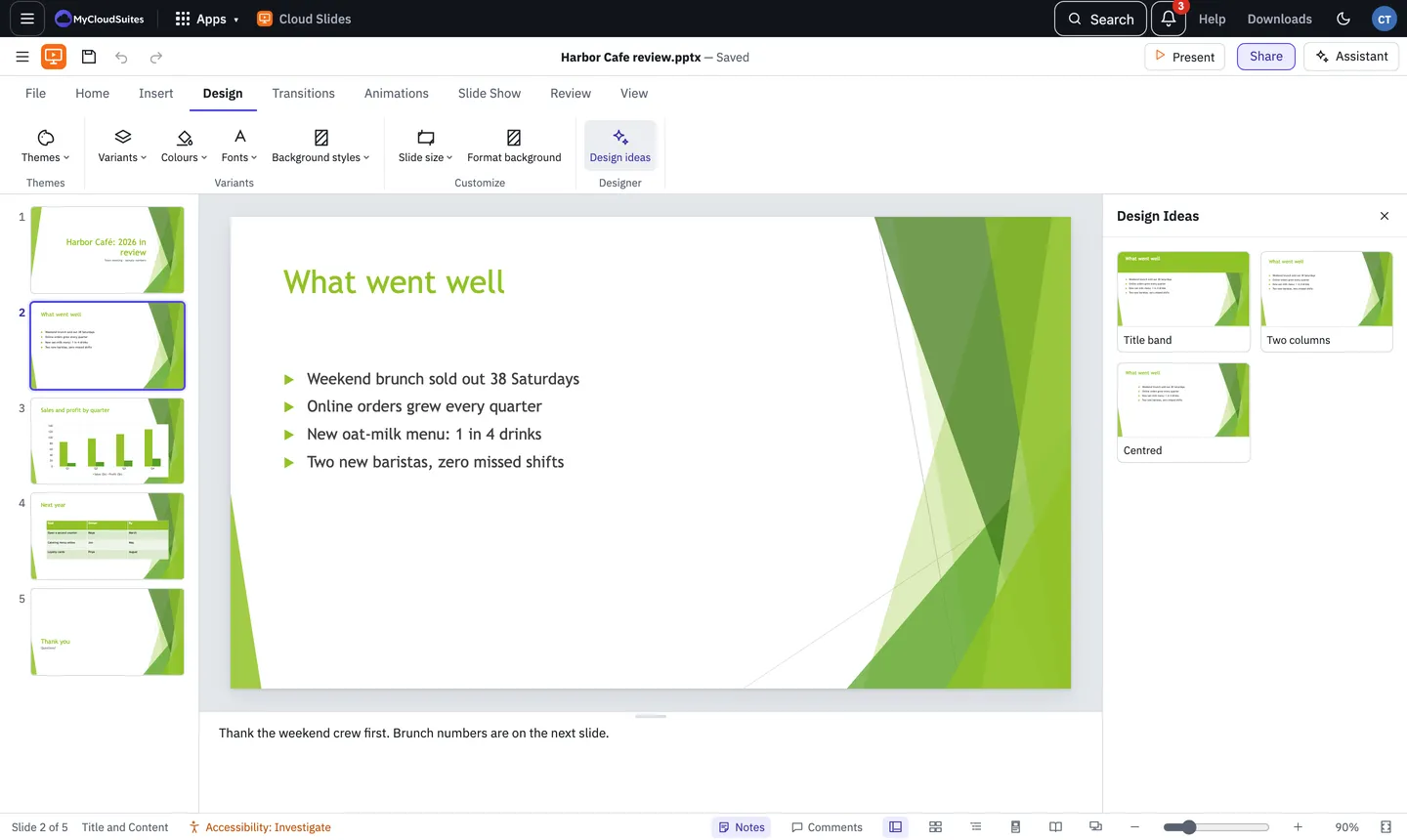
Do it
- Go to the slide you want to improve.
- Choose Design › Design ideas. The Design Ideas pane opens on the right.
- Click an idea to put it on the slide. Don’t like it? Press Ctrl+Z (Cmd+Z on a Mac) to undo it, or click another.
Ideas include a picture on the left, right, top or filling the slide, a title band, two columns, a picture grid or strip, a big number, and centred text. You see the ones that suit your slide.
More ideas from the assistant
If you have AI credits, or you’ve set up the assistant, choose More ideas from the assistant at the bottom of the pane. It sends this slide’s text and layout to the assistant and shows its ideas as more tiles.
What it costs
- Design Ideas are free. They come from rules built into Cloud Slides and use no AI credits.
- More ideas from the assistant is a question to the assistant, so it uses AI credits, or nothing from us with your own Claude key.
If something goes wrong
- The pane is empty. Add a title, some text or a picture to the slide first.
Need more? Themes and colours, or contact us.