

Work with the assistant
Updated November 13, 2026
The assistant reads your presentation and can change it: add slides, rewrite text, write speaker notes, change layouts, formatting and the theme. You see each change before it’s made.
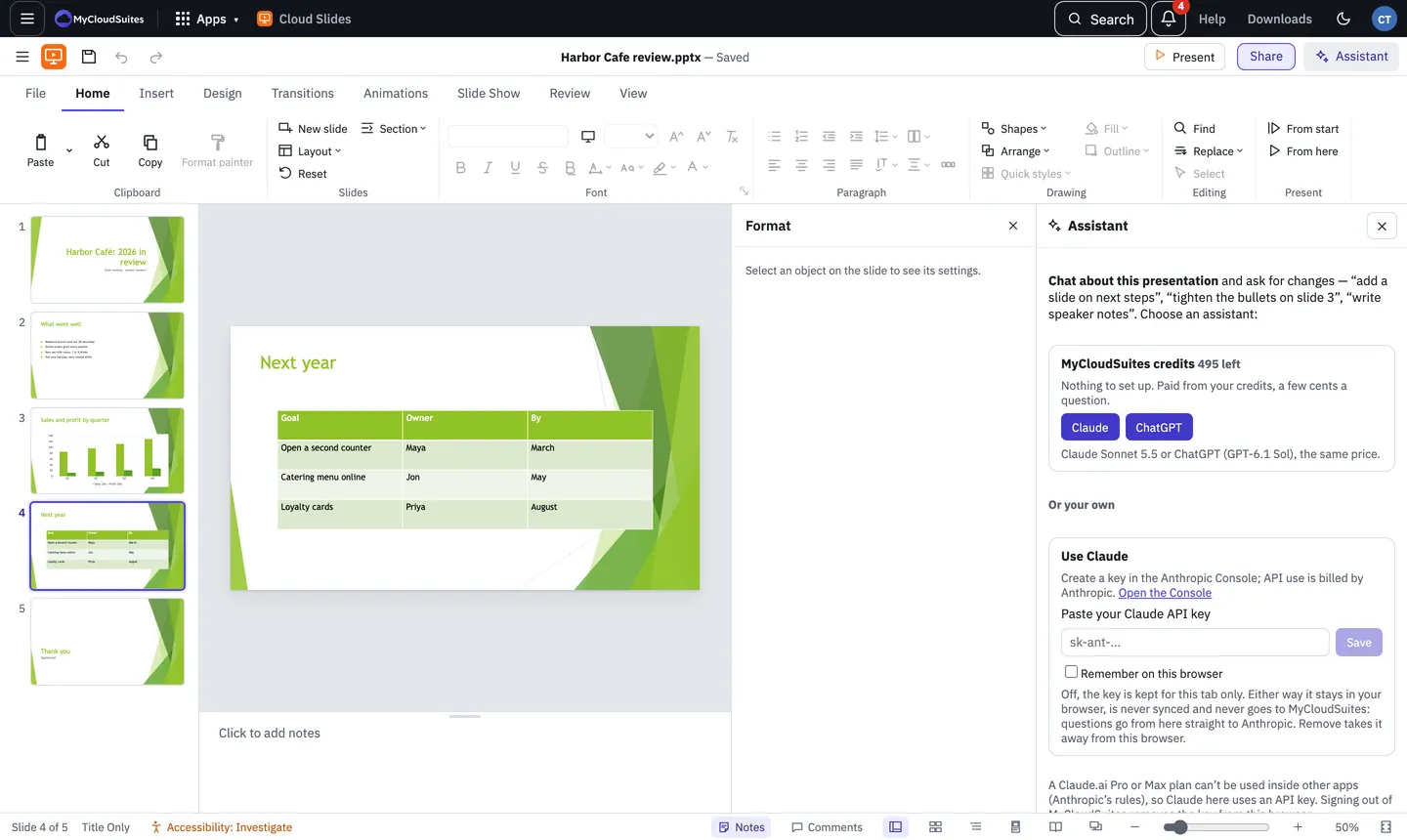
Set it up
- Choose Assistant at the top right, or press Ctrl+Shift+A (Cmd+Shift+A on a Mac).
- Pick how to pay for it:
- MyCloudSuites credits: choose Claude or ChatGPT. Nothing to set up. You need to be signed in with AI credits left.
- Use Claude with your own Claude API key: paste it under Paste your Claude API key and choose Save.
- Use your ChatGPT plan (desktop app only): sign in with your ChatGPT account.
In the desktop app, sign in to MyCloudSuites with File › Account to use credits.
Ask
Type a question or a request and press Enter, or start with a suggestion: Summarise deck, Improve this slide, Speaker notes, Add a slide… or Check the deck.
Approve changes
Each change shows as a card. Choose Approve to make it or Decline to skip it; Approve all in this message takes them all. Tick Let Claude make changes without asking (or ChatGPT) if you’d rather not be asked. Every change can be undone with Undo.
Where your key is kept
- Desktop: encrypted on your computer.
- Online: in this tab only, unless you tick Remember on this browser. Signing out of MyCloudSuites removes it.
A Claude.ai Pro or Max plan can’t be used inside other apps, so Claude here uses an API key or credits.
Need more? What the assistant costs, or contact us.