

Comments and @mentions
Updated November 13, 2026
Comments are notes for the people working on a presentation. They’re saved in the file, and other presentation apps show them too.
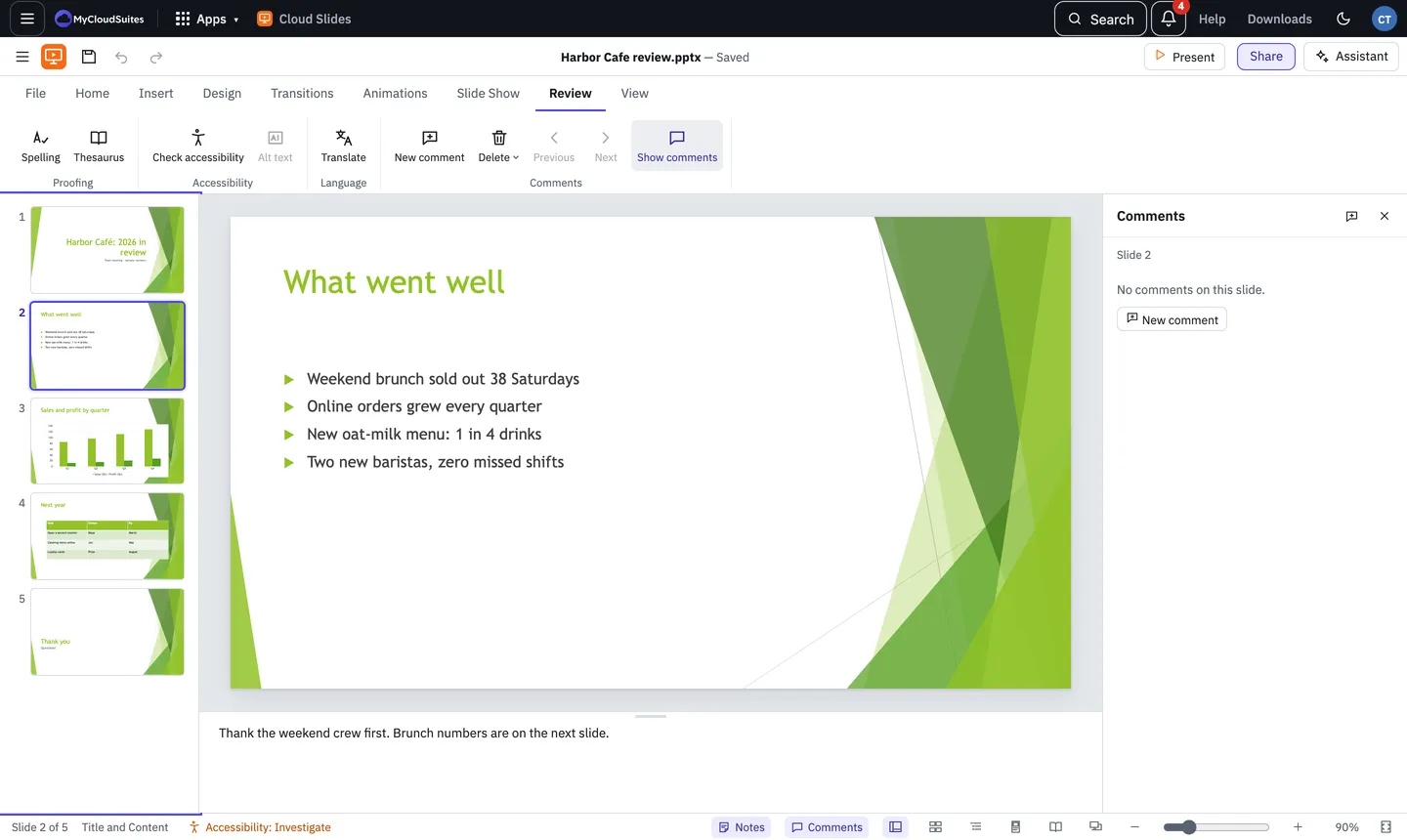
Add a comment
- Select an object to comment on it, or nothing to comment on the slide.
- Choose Review › New comment, or press Ctrl+Alt+M (Cmd+Option+M on a Mac).
- Type, then press Ctrl+Enter (Cmd+Enter on a Mac) to post it.
A marker shows where the comment is, on the slide and in the slide list.
Reply, resolve and delete
In the Comments pane, type in Reply under a comment. The ⋯ button on a comment has Edit, Delete thread, and Resolve thread once it’s done (or Reopen). Review › Delete has Delete, Delete All Comments on This Slide and Delete All Comments in This Presentation.
Previous and Next go from comment to comment. Show comments opens and closes the pane.
Mention someone
Type @ in a comment and pick a name from the list: people who have commented in this presentation, and you. The name stays in the comment, so they can find it.
People you mention aren’t sent an email.
Your name on comments
Cloud Slides signs comments with the name in File › Preferences › General. Set it there first.
Need more? Check spelling, or contact us.