Keyboard shortcuts in Cloud PDF
Updated November 13, 2026
Cloud PDF has the same shortcuts in the browser and in the desktop app. On Windows use Ctrl; on a Mac use ⌘ (Command). The menus show each item’s shortcut beside it.
In the browser, a few keys belong to the browser itself: New Document, Close Tab, Next Tab and Previous Tab have no shortcut there. Use the menu instead.
File
| Action | Windows | Mac |
|---|---|---|
| New Document | Ctrl+N | ⌘N |
| Open… | Ctrl+O | ⌘O |
| Save | Ctrl+S | ⌘S |
| Save As… | Ctrl+Shift+S | ⇧⌘S |
| Document Properties… | Ctrl+D | ⌘D |
| Print… | Ctrl+P | ⌘P |
| Close Tab | Ctrl+W | ⌘W |
| Close window (desktop app) | ⇧⌘W |
Edit
| Action | Windows | Mac |
|---|---|---|
| Undo | Ctrl+Z | ⌘Z |
| Redo | Ctrl+Y | ⇧⌘Z |
| Select All | Ctrl+A | ⌘A |
| Find… | Ctrl+F | ⌘F |
| Find & Replace… | Ctrl+Alt+F | ⌥⌘F |
| Advanced Search… | Ctrl+Shift+F | ⇧⌘F |
| Check Spelling in Comments… | F7 | F7 |
| Preferences… | Ctrl+, | ⌘, |
In Edit PDF, Find opens Find & Replace.
View
| Action | Windows | Mac |
|---|---|---|
| Zoom In | Ctrl+= | ⌘= |
| Zoom Out | Ctrl± | ⌘- |
| Fit Page | Ctrl+0 | ⌘0 |
| Actual Size | Ctrl+1 | ⌘1 |
| Fit Width | Ctrl+2 | ⌘2 |
| Fit Visible | Ctrl+3 | ⌘3 |
| Reflow | Ctrl+4 | ⌘4 |
| Rotate View Clockwise | Ctrl+Shift+Plus | ⇧⌘+ |
| Rotate View Counterclockwise | Ctrl+Shift± | ⇧⌘- |
| Previous View | Alt+Left Arrow | ⌥← |
| Next View | Alt+Right Arrow | ⌥→ |
| Automatically Scroll | Ctrl+Shift+H | ⇧⌘H |
| Show or hide the Ribbon | F8 | F8 |
| Rulers | Ctrl+R | ⌘R |
| Grid | Ctrl+U | ⌘U |
| Read Mode | Ctrl+H | ⌘H |
| Full Screen Mode | Ctrl+L | ⌘L |
| Page Thumbnails | F4 | F4 |
| Comments | Ctrl+Shift+C | ⇧⌘C |
| Assistant (Claude Chat) | Ctrl+Shift+A | ⇧⌘A |
| Read This Page | Ctrl+Shift+V | ⇧⌘V |
| Read to End of Document | Ctrl+Shift+B | ⇧⌘B |
| Pause or Resume reading | Ctrl+Shift+U | ⇧⌘U |
| Stop reading | Ctrl+Shift+K | ⇧⌘K |
| Next Tab | Ctrl+Tab | Ctrl+Tab |
| Previous Tab | Ctrl+Shift+Tab | Ctrl+Shift+Tab |
| Open Beside… | Ctrl+Alt+B | ⌥⌘B |
Pages and tools
| Action | Windows | Mac |
|---|---|---|
| Organize Pages | Ctrl+Shift+O | ⇧⌘O |
| Rotate pages clockwise | Ctrl+Shift+] | ⇧⌘] |
| Rotate pages counterclockwise | Ctrl+Shift+[ | ⇧⌘[ |
| Edit PDF | Ctrl+Shift+E | ⇧⌘E |
| Link | Ctrl+Shift+L | ⇧⌘L |
| Measure | Ctrl+Shift+M | ⇧⌘M |
| Add Sticky Note | Ctrl+6 | ⌘6 |
| Redact | Ctrl+Shift+X | ⇧⌘X |
| Find a Tool… | Ctrl+K | ⌘K |
Single-key shortcuts for tools
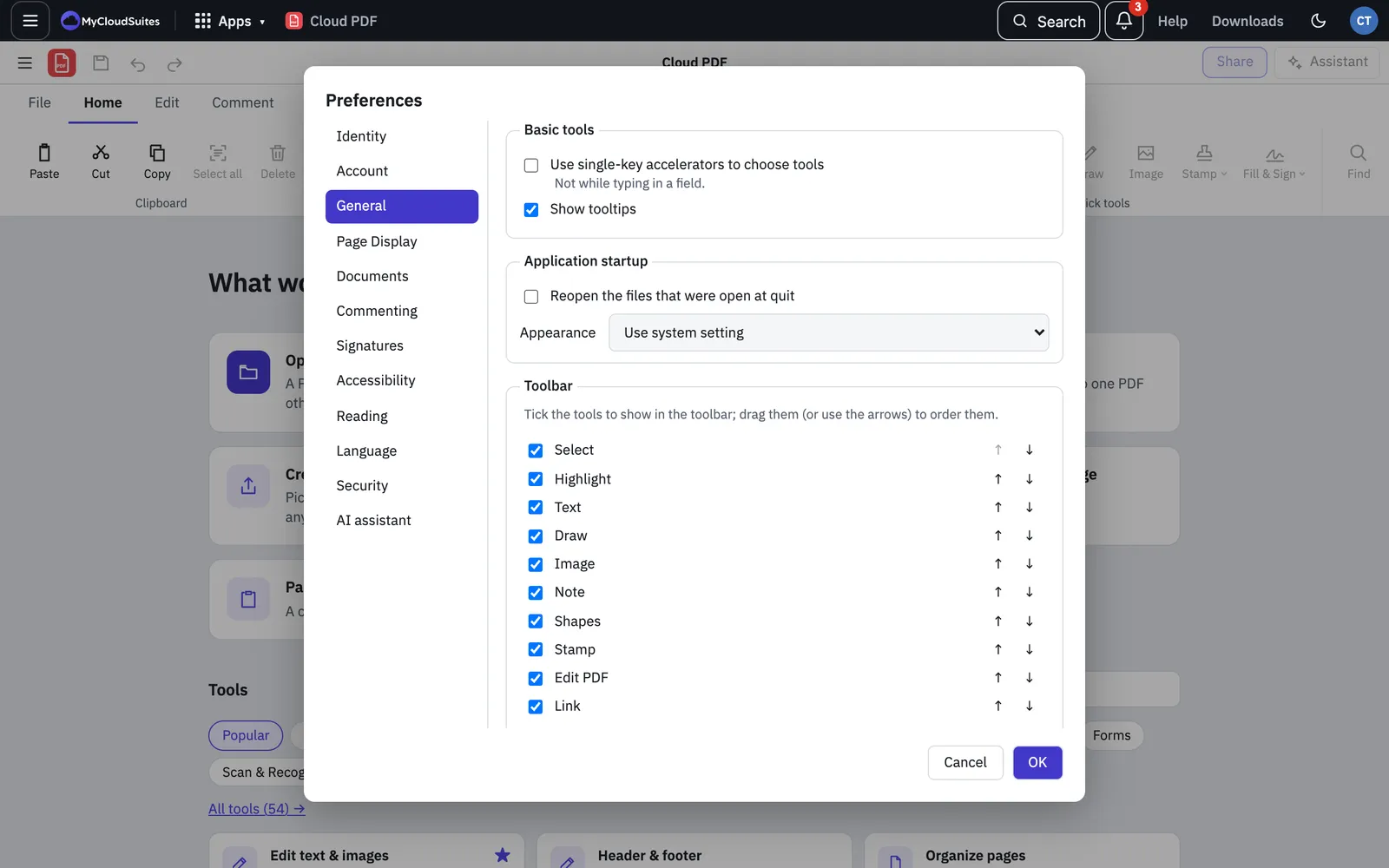
You can also pick a tool with one key, as in Adobe Acrobat. They’re off at first. Turn them on in Preferences › General › Use single-key accelerators to choose tools. They’re the same on Windows and Mac, and they don’t work while you’re typing in a field.
| Key | Tool |
|---|---|
| H | Hand tool |
| V | Select tool |
| Z | Marquee Zoom (Shift+Z: Dynamic Zoom, Loupe) |
| S | Sticky note |
| E | Insert text |
| K | Stamp |
| U | Highlight (Shift+U: Underline, Cross Out) |
| D | Drawing tools (Shift+D: Cloud, Arrow, Line, Rectangle, Oval, Polygon Line, Polygon, Pencil, Eraser) |
| X | Text box |
| J | Attach file (Shift+J: Record audio) |
| R | Select object |
| T | Edit PDF |
| A | Prepare Form |
| F | Text field (Shift+F: other field tools) |
| L | Link tool |
| C | Crop pages |
For letters with a family, such as U or D, Shift with the letter moves on to the next tool in the family. The letter alone picks the one you chose last.