

Comment on a PDF
Updated November 13, 2026
Comments let you mark up a PDF without changing its text. You can highlight, add notes and shapes, suggest text edits, record a voice note, and work through everyone’s comments in the Comments panel. Your comments are saved in the PDF, so other PDF apps can show them too.
Mark up text
- Open the PDF and choose the Comment tab on the ribbon.
- In the Text markup group, choose a tool, then select the text on the page:
- Highlight, Underline, Strikethrough or Squiggly mark the words you select.
- Insert text: click in the text where something is missing, then type what should go there.
- Replace text: select the words to change, then type the new words.
Insert text and Replace text are suggestions. The PDF’s own text doesn’t change. Whoever reads your comments can mark each one Accepted or Rejected (see the Comments panel below).
Highlight is also on the Home tab, in Quick tools.
Add notes, shapes and stamps
On the Comment tab:
- Sticky note (Ctrl+6, or ⌘6 on a Mac): click on the page, then type your note.
- Text box: type text straight onto the page.
- Callout: drag from what you’re pointing at to where the text goes.
- Attach file: click where it goes, then choose the file.
- Record audio: click where it goes and record a voice note. You may be asked to allow the microphone first. Choose Play on the comment to hear it.
- Draw for freehand lines, and Shapes for a rectangle, oval, line, arrow, polygon, cloud, polyline or dimension line. Eraser removes parts of a drawing.
- Stamp: choose a stamp from the menu, or make your own.
To move, resize or restyle a shape, choose Select shapes, then click it.
Use the Comments panel
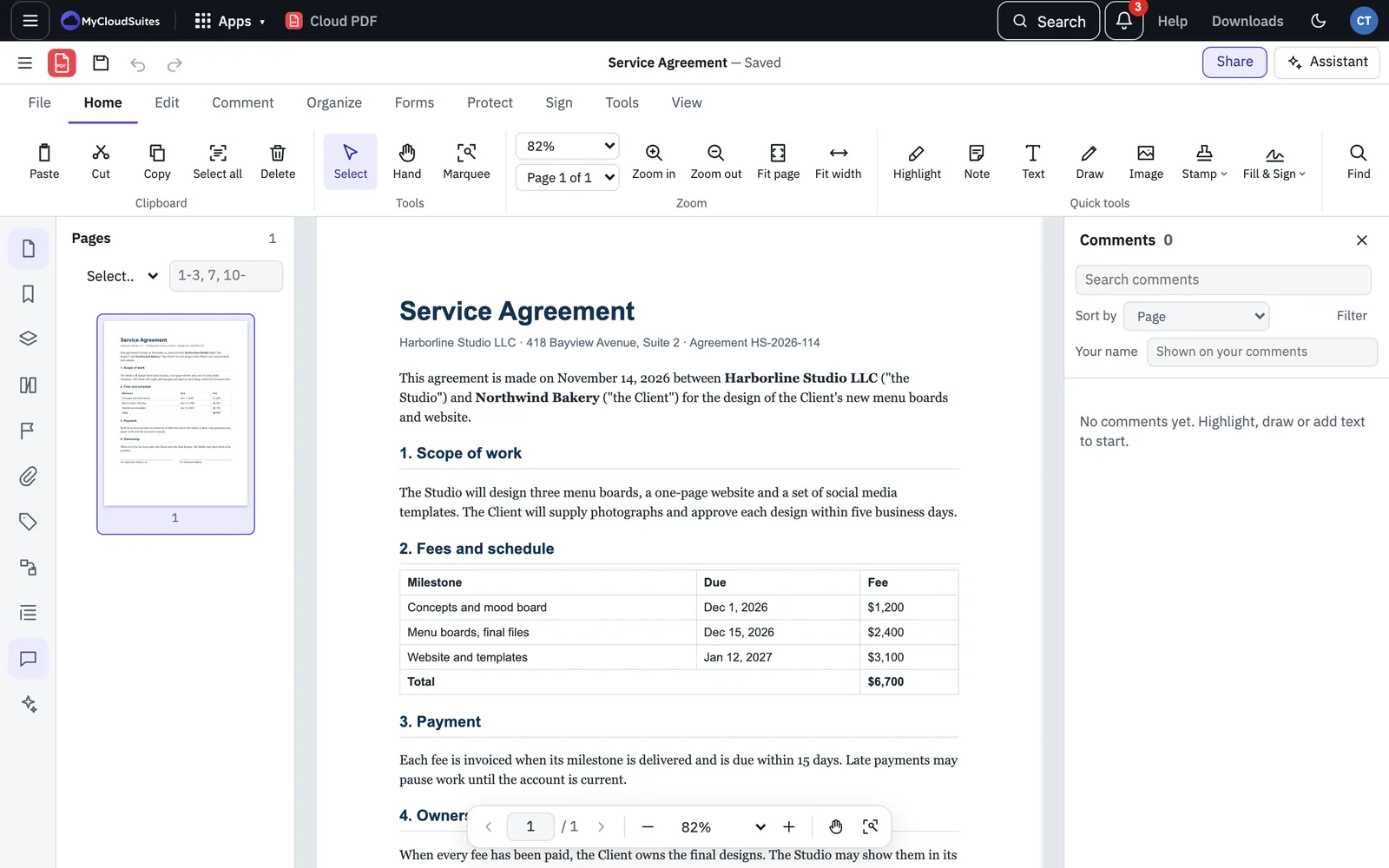
Open it with Comments in the Review group, or press Ctrl+Shift+C (⌘⇧C on a Mac). It lists every comment with its author, date and the text it marks. Click a comment to go to it on the page.
Under each comment you can:
- choose Reply to answer it. Replies show under the comment.
- choose Edit to change your note, or Add note if it has none.
- choose Delete to remove it.
- choose Properties… to change its author, subject, color and opacity.
- pick a status from Status…: Accepted, Rejected, Cancelled, Completed or None. The status shows on the comment with the name of the person who set it.
- tick its checkbox to check it off. The checkmark is for your own tracking.
Type your name in Your name at the top of the panel. It’s shown on every comment you add.
Find comments with sort and filters
- Type in Search comments to find words in comments.
- Use Sort by to order them by Page, Author, Date, Type, Color or Checkmark status.
- Choose Filter to show only one comment type, one reviewer, one status, or checked or unchecked comments. Choose Show all to clear the filters.
Hide comments
To see the page without comments, choose Hide all › Hide All Comments in the Review group. Choose Show All Comments to bring them back.
Share or export comments
- Summary in the Review group makes a printable list of all comments. You can show the pages with their comments beside them, the pages and comments on separate sheets, or only the comments, and sort by page, author, date or type.
- Export in the Exchange group saves only the comments, as an FDF or XFDF file. Someone with the same PDF can bring them in with Import.
- Spelling (F7) checks the spelling in your comments.