

Get started with Cloud Sheets
Updated November 13, 2026
Cloud Sheets is a free spreadsheet app. It opens and saves Excel workbooks (.xlsx, .xls, .xlsb), OpenDocument (.ods) and .csv files, with formulas, formatting, tables, charts and printing.
Open it
- In your browser: go to mycloudsuites.com/apps/sheets and sign in. It works in current Chrome, Edge, Firefox and Safari, on a computer or a phone.
- On your computer: download Cloud Sheets for Windows 10 and 11 or for Macs (macOS 13 or later) from Download. See Cloud Sheets for Mac and Windows.
Make your first workbook
- A blank workbook is ready when Cloud Sheets opens. To start from a template instead, choose File › New… and pick one.
- Click a cell and type. Press Enter to go down or Tab to go right.
- Type a formula that starts with =, such as
=SUM(B2:B10). As you type, Cloud Sheets suggests functions and shows their arguments. - Choose File › Save (Ctrl+S, or ⌘S on a Mac) and pick where to keep it.
Find your way around
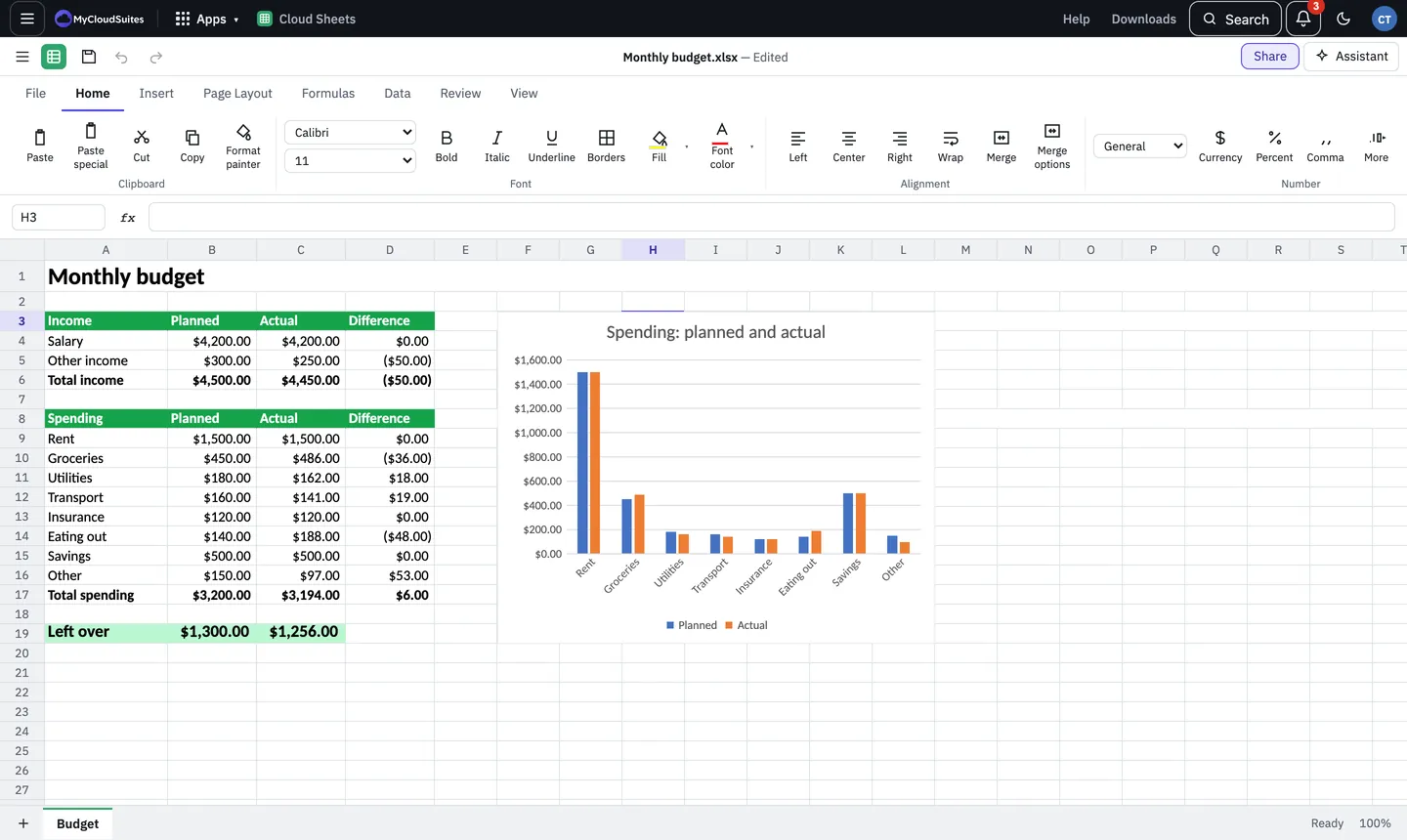
- The ribbon has the tabs File, Home, Insert, Page Layout, Formulas, Data, Review and View. Tabs such as Chart Design or Table Design appear when you select a chart or a table.
- The menu button at the top left has the same commands as a menu (File, Edit, View, Insert, Format, Formulas, Data, Help).
- The name box on the left of the formula bar shows the active cell. Type an address such as
D20there to go to it. - Sheet tabs are along the bottom. Choose + to add a sheet.
Need more? Open and save files, Templates, or contact us.