

Turn a photo of a table into cells
Updated November 17, 2026
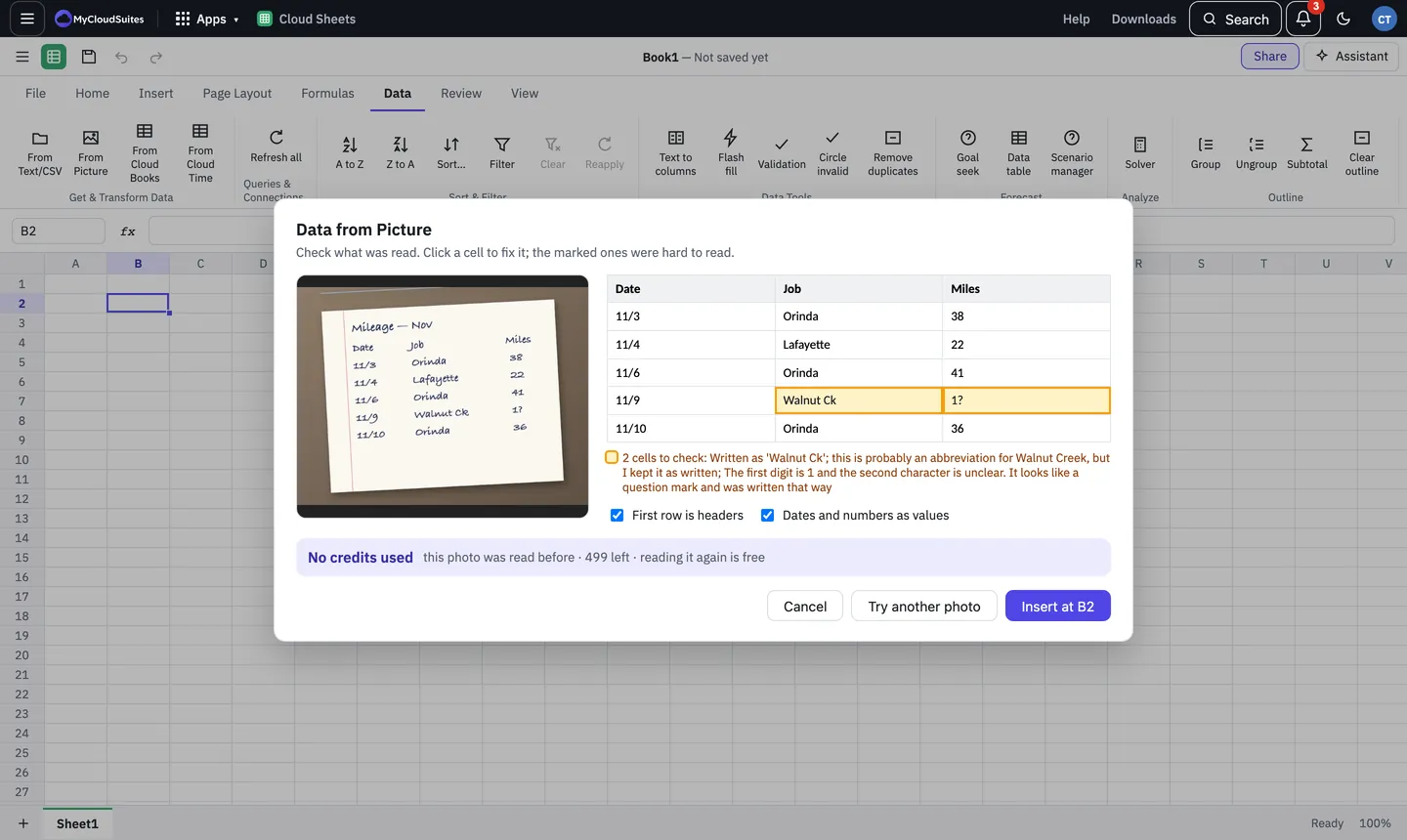
Data from Picture reads a table in a photo, such as a printed list or a handwritten log, and marks any cell it isn’t sure of so you can check it before anything goes in.
Do it
- Click the cell where the table should start.
- Choose Data › From Picture, or Insert › Data from Picture…. The window shows about how many credits a photo costs and your balance.
- Drop a picture in, paste one (Ctrl+V), or choose a file. On a phone, choose Take a photo or Choose a photo.
- Check what was read. Click any cell to fix it. The marked cells were hard to read, and the note below says why.
- Leave First row is headers and Dates and numbers as values on, or turn them off.
- Choose Insert at the cell you picked.
What it costs
- About 7 credits a photo. Up to 31 are set aside while it reads, and you’re charged only what it used.
- Reading the same photo again is free.
- If the AI service fails, you’re not charged.
On a company workbook
A workbook in your company’s drive is company work, so your company’s credits pay, never your own. See Company AI credits.
- The window says the photo is paid by your company’s company credits, with how many you have left this month when your company gives you an allowance.
- When the company can’t pay (it has no company credits yet, it’s run out, or your allowance for the month is used up), the window says why instead of the price, and nothing is read or charged. Choose Ask for more and your owners see it in Needs you.
- If you’re an owner, or an admin with billing, the message says to buy company credits. Choose Buy company credits on your company’s Plan and storage page.
If something goes wrong
- “Sign in to MyCloudSuites.” Data from Picture uses your AI credits, so it needs you signed in.
- “No table was found.” Try a sharper photo, straight on and well lit, with the table filling most of the picture.
- “You’re offline.” Reading a picture needs a connection; nothing was charged.