

Checkboxes and status chips in cells
Updated November 13, 2026
Checkboxes and chips make a list easy to tick off and scan. Both are saved the way Excel 365 keeps them.
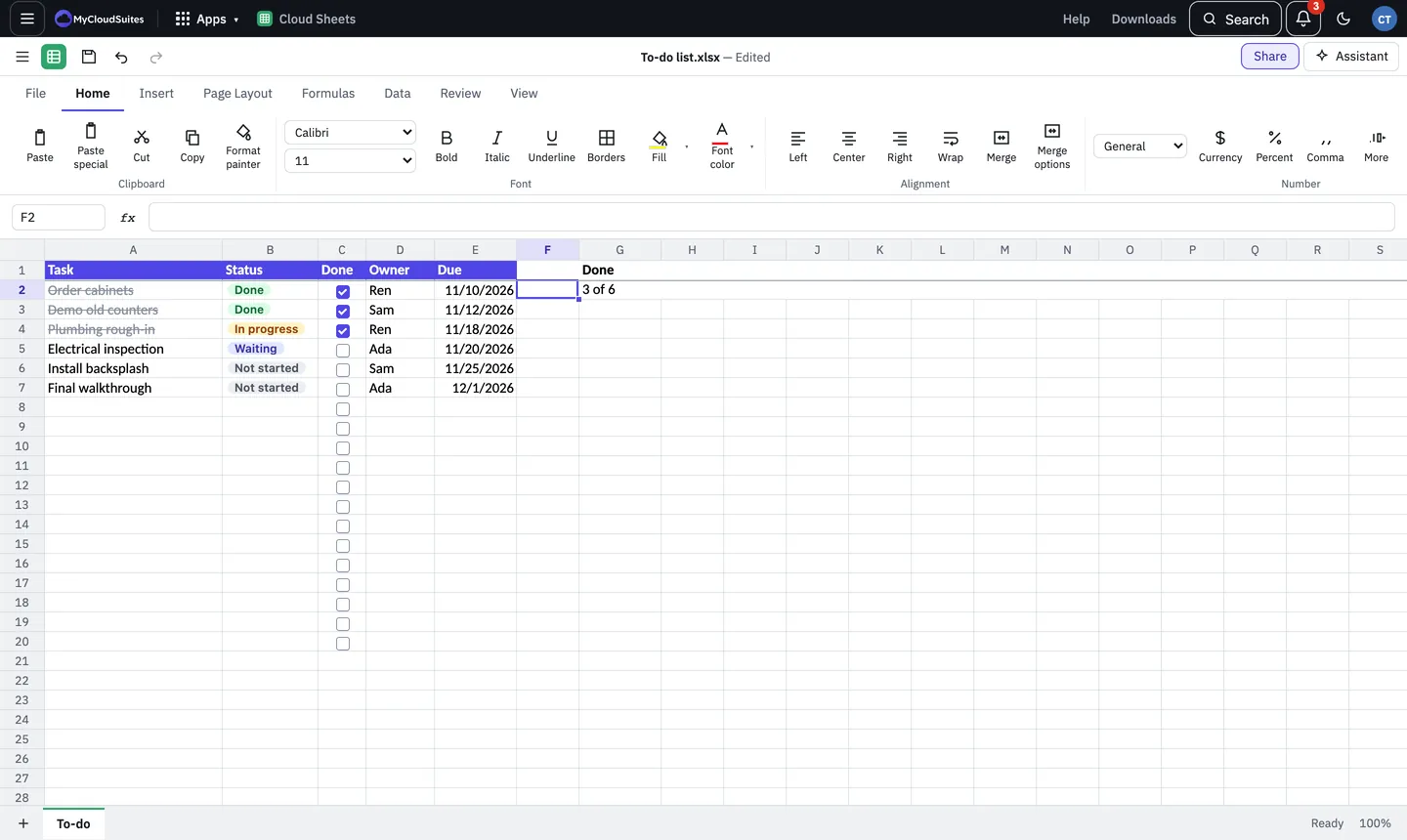
Add checkboxes
- Select the cells.
- Choose Insert › Checkbox.
- Click a box to tick it, or press Space on the cell. A ticked box is TRUE and an empty one FALSE, so formulas such as
=COUNTIF(C2:C20,TRUE)count them.
Show a list as chips
- Select the cells and choose Data › Validation.
- Under Allow, choose List and type the choices, separated by commas.
- Turn on Show as chips, then choose OK.
- Click a chip to pick another choice from its list. Each choice keeps its own colour.
Tips
- The To-do list template in File › New… already has both.
- Remove checkboxes: select the cells and press Delete. Ticked boxes are unticked first; press Delete again to take the boxes off.