

Select part of a photo
Updated November 13, 2026
A selection limits what you change: adjustments, painting, filters and fills apply only inside it.
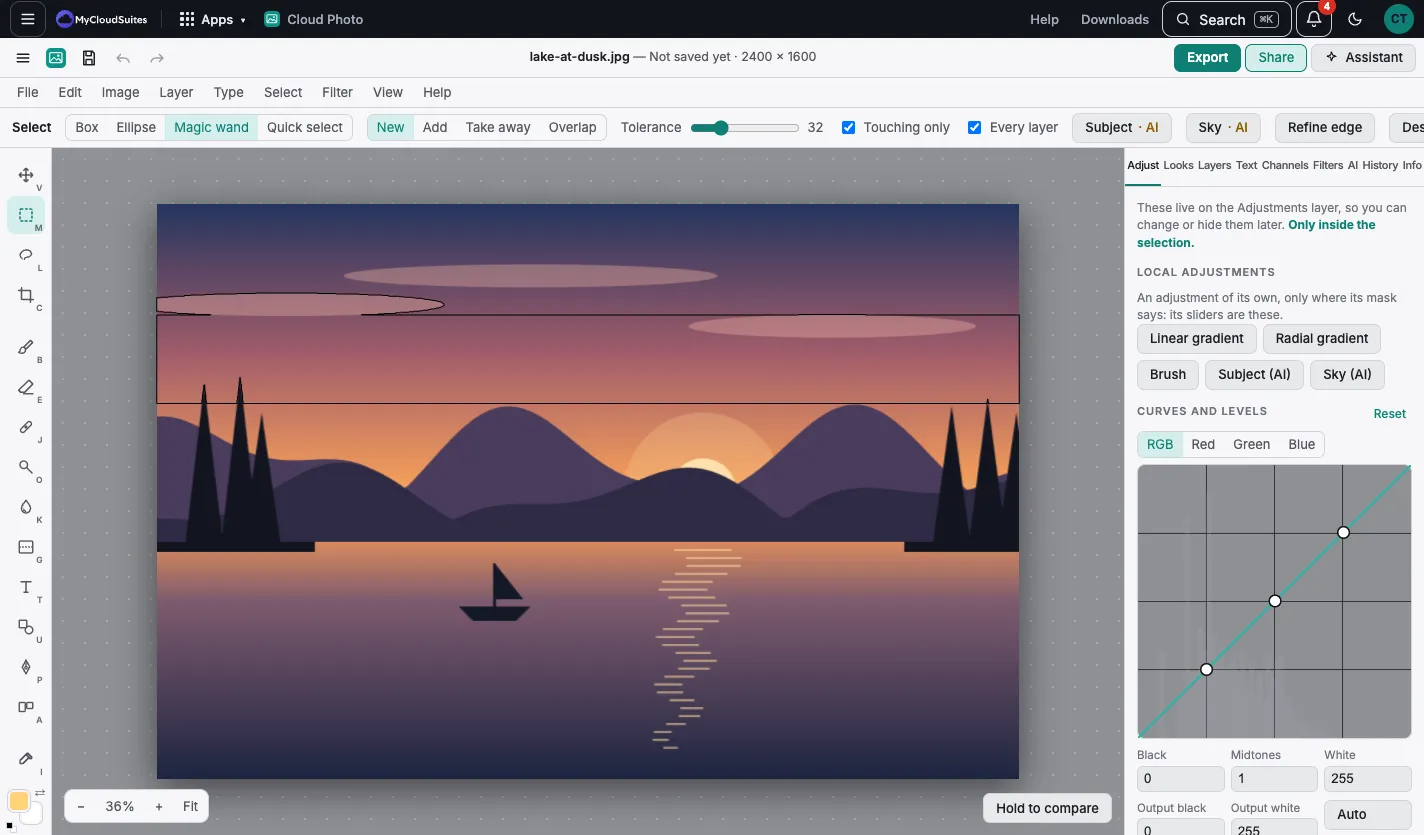
Make a selection
- Select tool (M): Box or Ellipse. Drag on the photo.
- Lasso (L): draw around it by hand, or click corners.
- Magic wand, quick select (W): click an area of similar color, or brush over it. Tolerance sets how alike the colors must be.
- Select › Color range…: every pixel near a color you pick, or the highlights, midtones or shadows.
- Select › Subject (AI) and Select › Sky (AI): found for you (AI credits).
Change it
- In the tool’s options: New, Add, Take away or Overlap with the selection you have.
- Select › Modify › Border…, Smooth…, Expand…, Contract… or Feather….
- Select › Invert (⇧⌘I), Grow, Similar and Transform selection.
- Select › Deselect (⌘D) ends it.
Keep it
Select › Save selection keeps it to load again later, in Saved selections and channels. Select › Crop to selection crops to it.