

Automations
Updated November 15, 2026
Plain-language rules that do the busywork: “When this happens, then do that.”
Add a rule
- Choose Settings on the left (in the tabs along the bottom on a phone), then Automations.
- In When, pick what happens:
- a deal moves to Won
- a deal moves into a stage (pick the stage)
- a new deal is added
- a deal sits in one stage for (some days)
- a deal’s close date passes
- In then, pick what Cloud CRM does:
- make a draft invoice in Cloud Books
- remind the deal’s owner
- add a follow-up task due in (some days)
- give it to the next person in turn (organizations only)
- post it in Cloud Chat (organizations only)
- Choose Add rule. It’s on straight away.
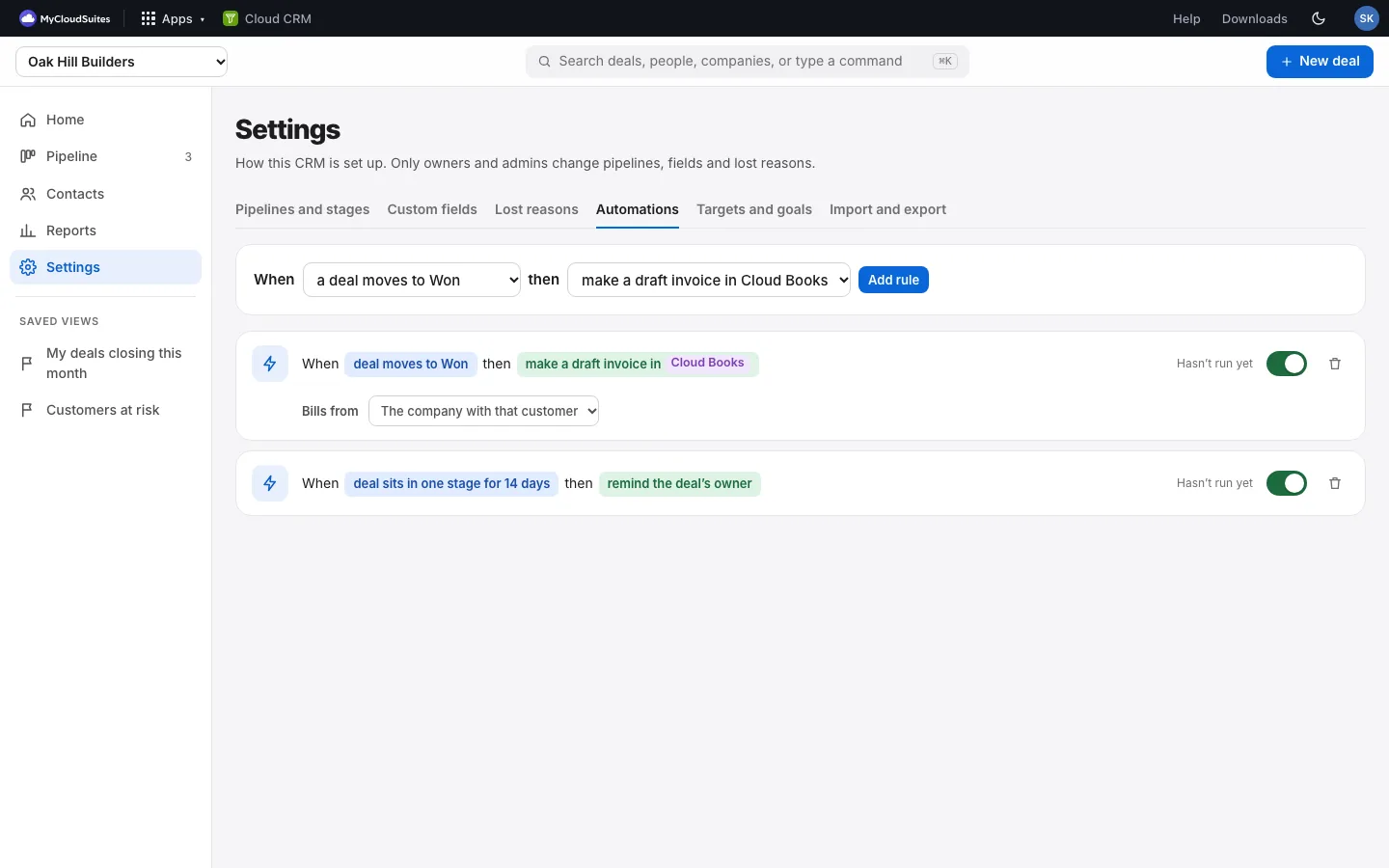
Manage rules
- Each rule shows how often it ran and when it last ran.
- Turn it off or on with its switch.
- Delete it with the trash icon.
How it works
- A new CRM starts with two rules on: when a deal moves to Won, make a draft invoice in Cloud Books, and when a deal sits in one stage for 14 days, remind the deal’s owner.
- A rule runs once for each deal and event. Moving a deal to Won twice doesn’t make two invoices.
- What a rule did shows on the deal’s timeline and its Tasks tab, and in the message after you move a deal.
- Imported deals don’t set off rules.
Read more
- Draft invoices in Cloud Books
- Reminders and follow-up tasks
- Team automations
- Run an automation again