

Turn your camera on in a huddle
Updated November 13, 2026
Any huddle can be a video call. Everyone joins with the camera off, so nobody is on camera by surprise.
Do it
- Start or join a huddle with Huddle at the top of a channel or direct message.
- The huddle opens above the conversation, with a tile for each person.
- Choose Camera off to turn your camera on. Allow the camera if the browser asks. Your tile shows your picture, and the others see you.
- Choose Camera on to turn it off again.
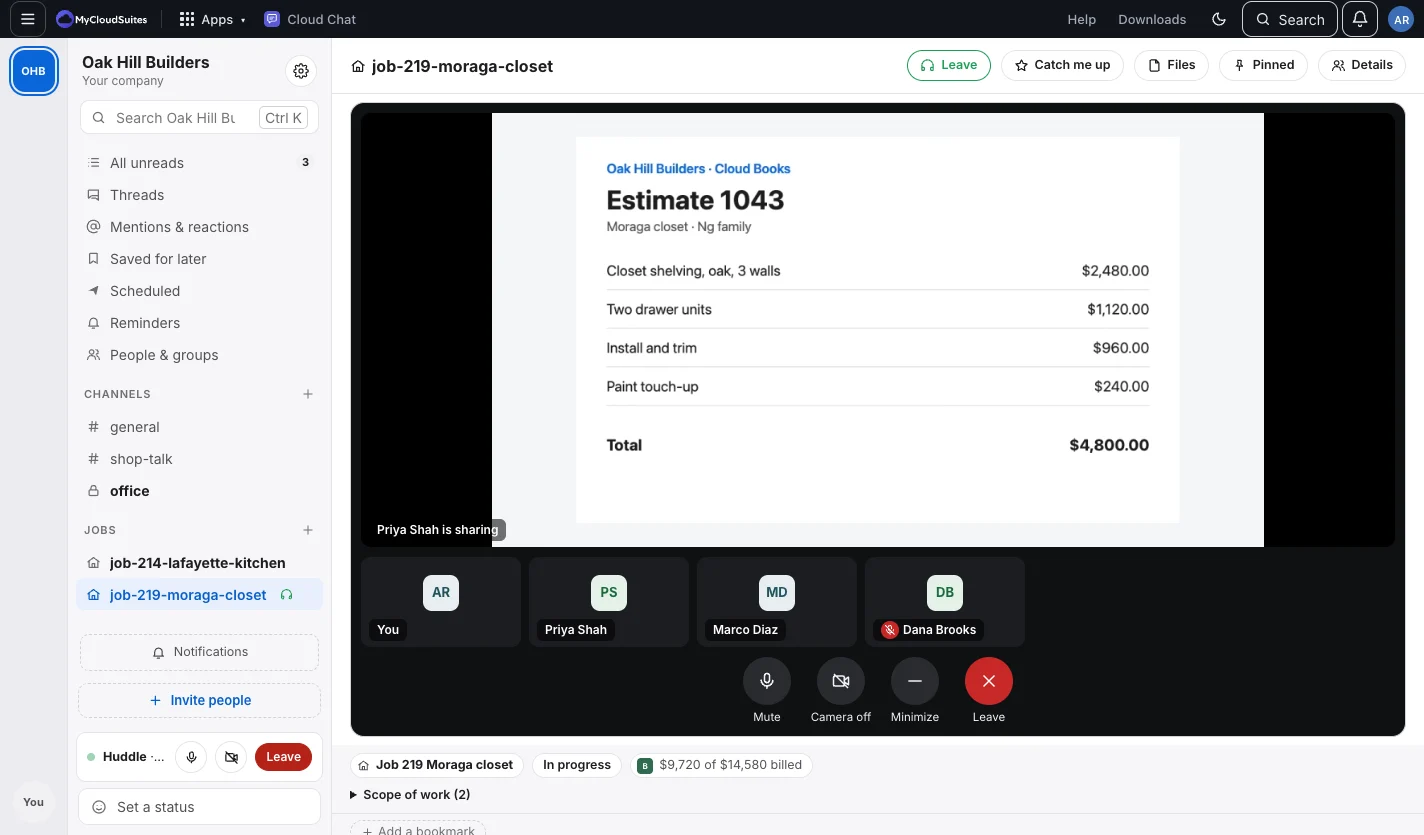
The huddle’s stage
- Tiles. One per person: their camera, or their initials when it’s off. A muted person has a red microphone mark.
- A shared screen takes the stage, with everyone’s tiles in a strip below it.
- Minimize tucks the stage away so you can read the channel; the call carries on. Show in the huddle bar brings it back.
- On a phone, four tiles show at a time. Tap + on the last one to see everyone.
Good to know
- Up to 8 people. With more than 4, each camera is sent smaller so it works on ordinary internet.
- Video goes straight between your browsers, never through our servers.
- The buttons under the stage are big: Mute, Camera, Share screen (on a computer), Minimize and Leave.
If something goes wrong
- “Cloud Chat needs your camera for that.” Allow the camera in the browser’s address bar, or in your computer’s privacy settings (on a Mac: System Settings › Privacy & Security › Camera).
- Another app is using the camera. Close the other video call, then turn the camera on again.
Need more? Start a huddle and share your screen, or contact us.