

Start a huddle and share your screen
Updated November 13, 2026
A huddle is a call right in a conversation. Everyone there sees it’s on and can join with one click. Everyone joins with the camera off; see Turn your camera on.
Start or join
- Open a channel or direct message and choose Huddle at the top.
- Allow the microphone if the browser asks.
- Others see Join with how many are in it. A headphones mark shows in the sidebar while a huddle is on.
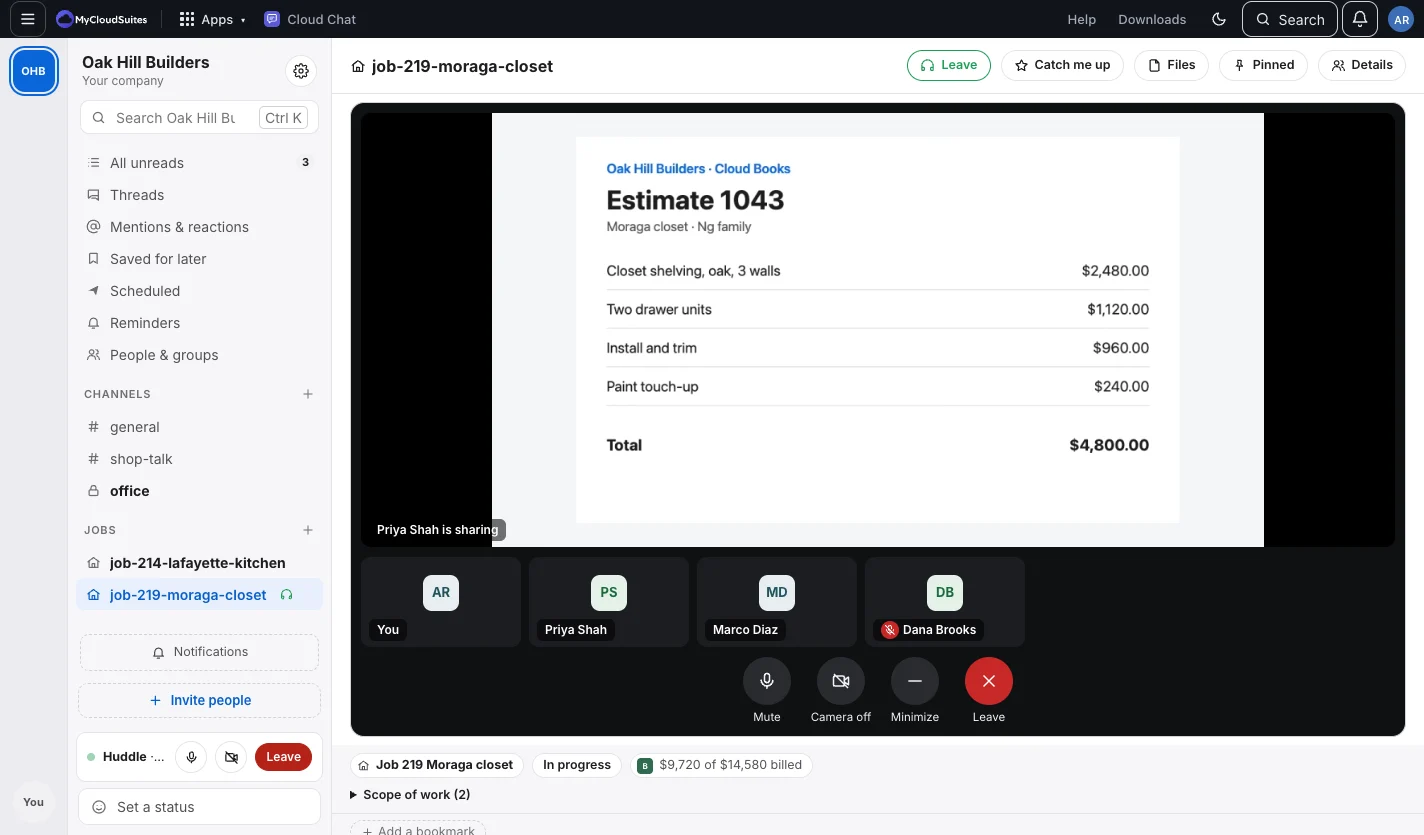
The huddle opens above the conversation, with a tile for each person and big buttons: Mute, Camera, Share screen, Minimize and Leave. The huddle bar at the bottom of the sidebar has them too, and Show brings the huddle back after Minimize. The huddle ends when the last person leaves.
Share your screen
- In the huddle bar, choose Share screen.
- Pick a screen, window or tab when the browser asks.
- It takes the huddle’s stage for everyone, with the people in a strip below. Choose Stop sharing when you’re done.
One person shares at a time. Share from a computer: Cloud Chat in Chrome, Edge, Safari or Firefox, or the desktop app. Phones can watch a shared screen.
Good to know
- Up to 8 people in a huddle.
- Sound, video and screens go straight between your browsers, never through our servers.
If something goes wrong
- “Cloud Chat needs your microphone for a huddle.” Allow the microphone in the browser’s address bar, then choose Huddle again.
- Someone can’t connect from their network. A few very strict networks (some offices and hotels) block calls between browsers. Try another network, like the phone’s hotspot.
- “Your huddle moved to another window.” You joined the same huddle from another window or device. You’re in it there.
Need more? Troubleshooting, or contact us.